Stura3D

Help Center

Anteprime e download

Q1. Posso scaricare dati per località in tutto il mondo?

Sì. Puoi selezionare e scaricare località in tutto il mondo tramite la ricerca dell'indirizzo o la mappa. I dettagli disponibili possono variare in base alla copertura e alla qualità dei dati di origine di ciascuna area.

Q2. Qual è la differenza tra anteprima e download?

L'anteprima permette di controllare posizione, area e forma del terreno. I file CAD, Rhino, SketchUp e GLB vengono generati al download dopo pagamento o uso dei crediti.

Q3. Quante anteprime gratuite posso creare al giorno?

Ogni account dispone di tre anteprime gratuite al giorno secondo l'ora standard coreana (KST), senza limiti legati all'età dell'account. La quota si azzera a mezzanotte KST; una volta esaurita, attendi il giorno successivo o acquista un pass.

Q4. Quanto tempo richiede la generazione dell'anteprima?

La generazione dell'anteprima richiede in media circa 3 minuti. A seconda dell'area selezionata e delle condizioni di elaborazione, può richiedere fino a circa 20 minuti.

Q5. Viene detratto un utilizzo se si verifica un errore nell'anteprima?

No. Se la generazione dell'anteprima non riesce, non vengono detratti né la quota gratuita né il pass per l'anteprima. Se un pass è stato detratto prima della conferma dell'errore, viene ripristinato automaticamente.

Q6. Dove posso riscaricare i file?

I file completati sono in I miei progetti dopo l'accesso. Le anteprime restano 10 giorni e i file scaricati possono essere riscaricati per 10 giorni dal primo download.

Q7. Quanti download di esempio posso usare?

Ogni account dispone di 2 download di esempio a settimana secondo l'ora standard coreana (KST). L'area è fissa e, nelle zone molto piatte, anche l'esempio a gradoni può apparire piatto.
Pagamenti, pass e rimborsi

Q1. Come scelgo tra pagamento singolo e crediti?

Il pagamento singolo va bene per un solo lavoro. Per aree estese, contatta support@stura3d.com.

Q2. Come acquisto e uso i pass per l'anteprima?

Dopo aver usato le tre anteprime gratuite del giorno KST, puoi acquistare un pass per l'anteprima con tre utilizzi totali. Ogni pass è valido per 100 giorni dal pagamento. Il pass da tre utilizzi costa ₩1,900 o $1.50.

Q3. Come funziona il pass terreno da 5 utilizzi?

Include 5 download di terreno per 100 giorni dall’acquisto, senza rinnovo automatico. Viene usato prima il pass più vecchio. Scaricare di nuovo lo stesso file non consuma un altro utilizzo; gli utilizzi residui scadono alla scadenza.

Q4. Posso ottenere un rimborso per un pass anteprima?

Puoi ottenere un rimborso se il pass non è mai stato usato. Un pass non è rimborsabile dopo anche un solo utilizzo.

Q5. Come ottengo un rimborso?

Se il file scaricato presenta un problema di qualità nonostante un'attenta verifica dell'anteprima, valuteremo la richiesta di rimborso secondo i Termini d'uso.

Dati e file supportati

Q1. Che differenza c'è tra terreno liscio e a gradoni?

Il terreno liscio è una superficie 3D continua per analisi del sito, architettura e paesaggio. Quello a gradoni segue le curve di livello ed è utile per modelli o rappresentazioni a contorni.

Q2. Cosa include il download a gradoni?

Include terreno completo e per aree in base all'intervallo delle curve, oltre alle curve di livello. I formati supportati includono anche layer per area di strade e fiumi; scegli il terreno liscio solo quando serve una superficie continua.

Q3. Come scelgo l'intervallo delle curve?

Per terreno liscio, a gradoni e 2D puoi scegliere da 0,5m a 5m in passi di 0,1m.

Q4. Cosa include il DXF (CAD)?

Include curve di livello, sagome degli edifici, strade, indirizzi e dati catastali per layer.

Q5. Cosa include il 3DM (Rhino)?

Include terreno 3D, edifici, strade e fiumi come layer pronti per Rhino. Il tipo a gradoni aggiunge terreno a gradoni e layer di contorno.

Q6. Cosa include lo SKP (SketchUp)?

Include terreno 3D, edifici, strade e fiumi pronti per SketchUp. Il file è in millimetri e non richiede conversione.

Q7. A cosa servono OBJ/STL?

OBJ e STL servono per render, stampa 3D o scambio con strumenti esterni quando conta la forma. Materiali e layer possono essere limitati.

Q8. Qual e la scala dei file?

Tutti i file sono generati in scala reale 1:1. SKP usa millimetri; DXF, 3DM e GLB usano metri. OBJ non memorizza l'unità, ma le coordinate sono in metri; importalo in metri. Anche STL non memorizza l'unità e mantiene invariati i valori numerici in metri. Se un programma di stampa 3D interpreta questi valori come millimetri, la dimensione al 100% corrisponde alla scala 1:1000; non serve ridurla ulteriormente.

Q9. Come importo un 3D DXF in Archicad?

Non aprire direttamente il DXF. In un progetto Archicad, scegli File > Interoperability > Merge..., seleziona il 3D DXF e abilita Import Model Space content as GDL object. Imposta Scale X/Y su 1.00, unisci il file e usa 3D > Generic Perspective e View > Zoom > Fit in Window. Il terreno è in metri e il file ZIP include una breve guida all'uso.

Q10. Come uso il download GLB?

Scegli terreno liscio o a gradini, controlla l’anteprima e completa il pagamento. Scarica GLB da I miei progetti e importalo con glTF 2.0 in Blender. Non serve un plugin Stura3D.

Q11. Posso usare i dati per rilievi topografici?

No. I dati Stura3D servono per il design e la verifica del progetto, non per rilievi topografici. Le strade sopraelevate sono incluse quando i dati di origine lo consentono, ma la precisione topografica non è garantita e alcuni ponti, tunnel o grotte possono differire dalla realtà.

Q12. Le strade non coincidono con il terreno o l'immagine satellitare.

Strade e strade sopraelevate riflettono altezza e forma quando i dati di origine lo consentono. L'immagine satellitare proietta sul terreno una vista 2D ripresa dall'alto, quindi la strada sopraelevata può apparire anche sul suolo sottostante. Date diverse di ripresa e aggiornamento possono inoltre causare disallineamenti.

Gestione dell’account

Q1. Come elimino il mio account?

Accedi a I miei progetti > Account > Elimina account e inserisci nuovamente l’e-mail registrata. Gli account con password devono confermare anche quella attuale. Scarica prima i file necessari: l’eliminazione limita l’accesso ai progetti. I dati relativi a pagamenti e controversie possono essere conservati come previsto dalla legge.

Q2. Come cambio la password?

Apri I miei progetti > Account > Cambia password e inserisci quella attuale e una nuova di almeno otto caratteri. Se l’hai dimenticata, richiedi un link di reimpostazione via e-mail dalla pagina di accesso.

Q3. Come richiedo una partnership universitaria?

Invia una richiesta di partnership per la tua associazione studentesca o università tramite l’assistenza clienti. Deve presentarla un rappresentante dell’organizzazione o una persona autorizzata. Il nostro team la esaminerà e comunicherà l’esito.

Q4. Dove trovo la chiave di partnership?

Dopo l’approvazione, Stura3D invia la chiave via e-mail al rappresentante che ha presentato la domanda. I membri devono richiederla a questa persona, ad esempio al presidente dell’associazione studentesca, e registrarla in Account.

Student and university partnership application

Stura3D provides a partnership program to support students and universities in architecture.

Partnership benefits

  • Discount benefits are applied within five business days after the agreement is completed.
  • Student councils and verified universities: 50% off and 2 free terrain exports per month
  • Terrain includes 2D terrain maps, 3D smooth terrain, and 3D stepped terrain. The allowance resets on the first day of each month at 00:00 KST. It is separate from free samples, and unused exports do not roll over.

Stura3D partnership conditions and period

  • Eligibility: The agreement and inquiry must generally be submitted directly by the student council president of the relevant department or faculty.
  • Period: Student council and verified university benefits reset every March 1 at 00:00 KST. A new verification key is required to continue.
  • How to apply: Select the application checklist button below, then complete and submit the online form.

2D terrain

Follow the steps from setup to reviewing the result.

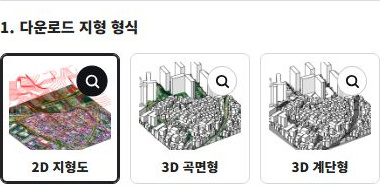
  1. Select 2D terrain.

    1. Select 2D terrain.

    Choose the terrain type for your project.

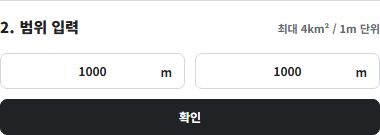
  2. Set the area you need.

    2. Set the area you need.

    Set each side from 100 to 2,000 m in 1 m increments (up to 4 km²). The example shows 1,000 × 1,000 m.

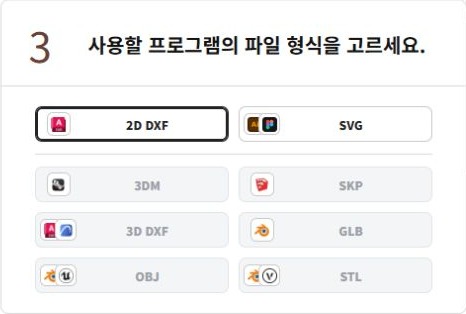
  3. Choose a file format.

    3. Choose a file format.

    Select 2D DXF for your software.

    Includes contours, building outlines, roads, addresses, and cadastral data in separate layers. Available source attributes and supported imagery are included.

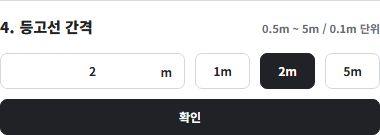
  4. Set the contour interval.

    4. Set the contour interval.

    Set the contour interval from 0.5 to 5 m in 0.1 m increments. The example shows 2 m.

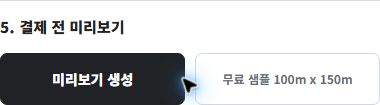
  5. Check the preview.

    5. Check the preview.

    Create a preview to check the selected area and data before downloading.

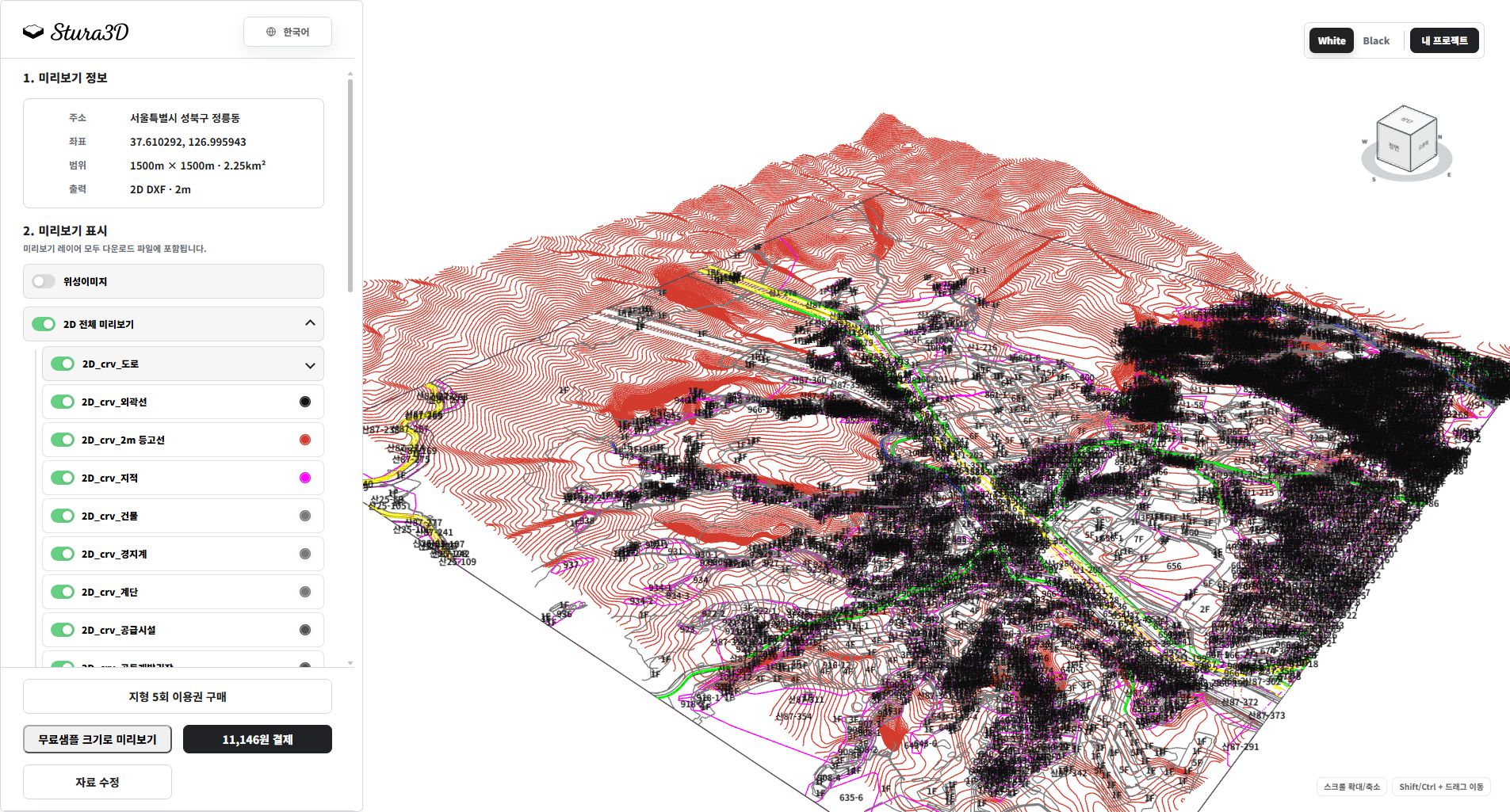
  1. Inspect the drawing and layers.

    6. Inspect the drawing and layers.

    Hide imagery to read contours, roads and building lines clearly. Toggle layers and zoom in to check boundaries. DXF and SVG differ in text and elevation data.

  2. Compare contour intervals.

    7. Compare contour intervals.

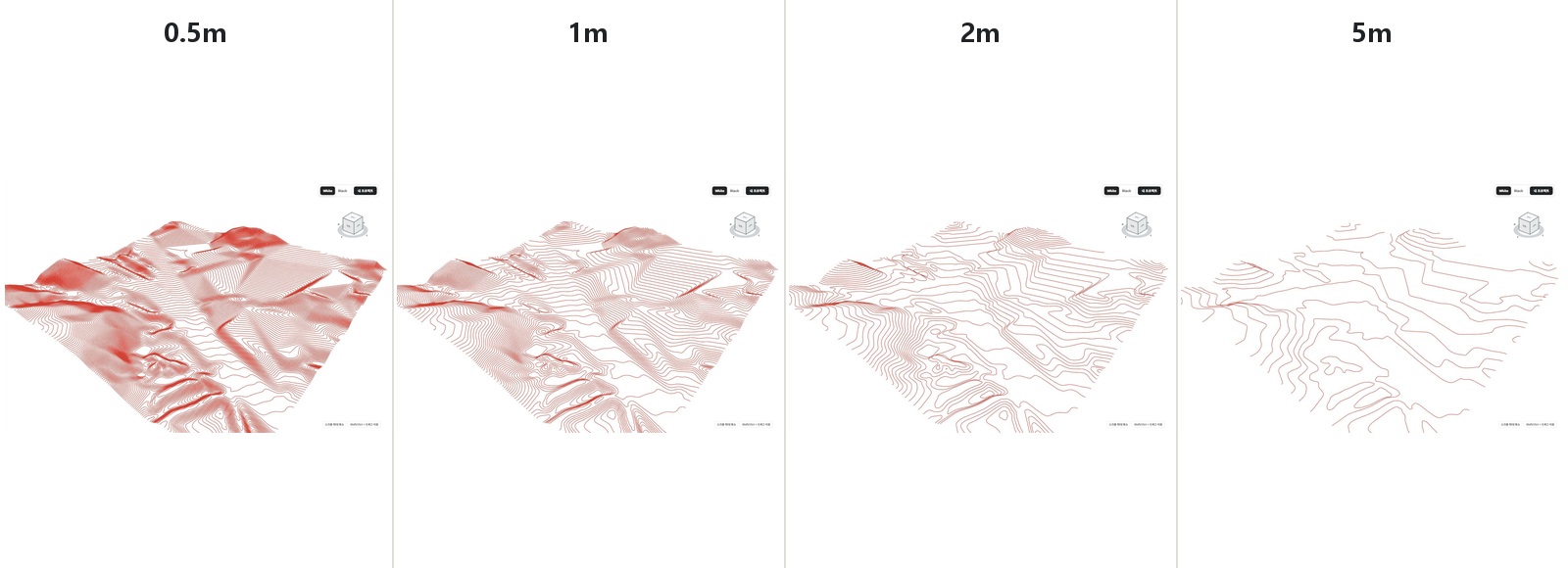
    Compare 0.5, 1, 2 and 5 m intervals. Smaller intervals produce denser lines; they do not increase the survey accuracy of the source data.

3D smooth terrain

Follow the steps from setup to reviewing the result.

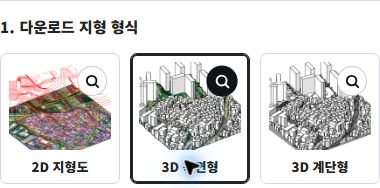
  1. Select 3D smooth terrain.

    1. Select 3D smooth terrain.

    Choose the terrain type for your project.

  2. Set the area you need.

    2. Set the area you need.

    Set each side from 100 to 2,000 m in 1 m increments (up to 4 km²). The example shows 1,000 × 1,000 m.

  3. Choose a file format.

    3. Choose a file format.

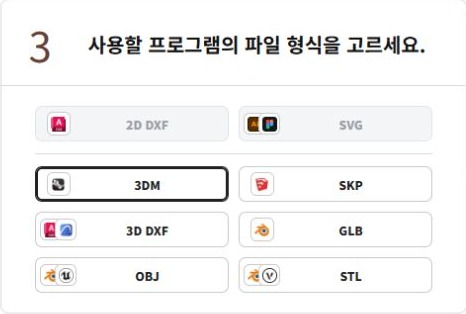
    Select 3DM for your software.

    3DM includes complete terrain together with terrain layers by area, buildings, and available context objects; available layers depend on local source data.

  4. Set the contour interval.

    4. Set the contour interval.

    Set the contour interval from 0.5 to 5 m in 0.1 m increments. The example shows 2 m.

  5. Check the preview.

    5. Check the preview.

    Create a preview to check the selected area and data before downloading.

  1. Inspect the complete terrain model.

    6. Inspect the complete terrain model.

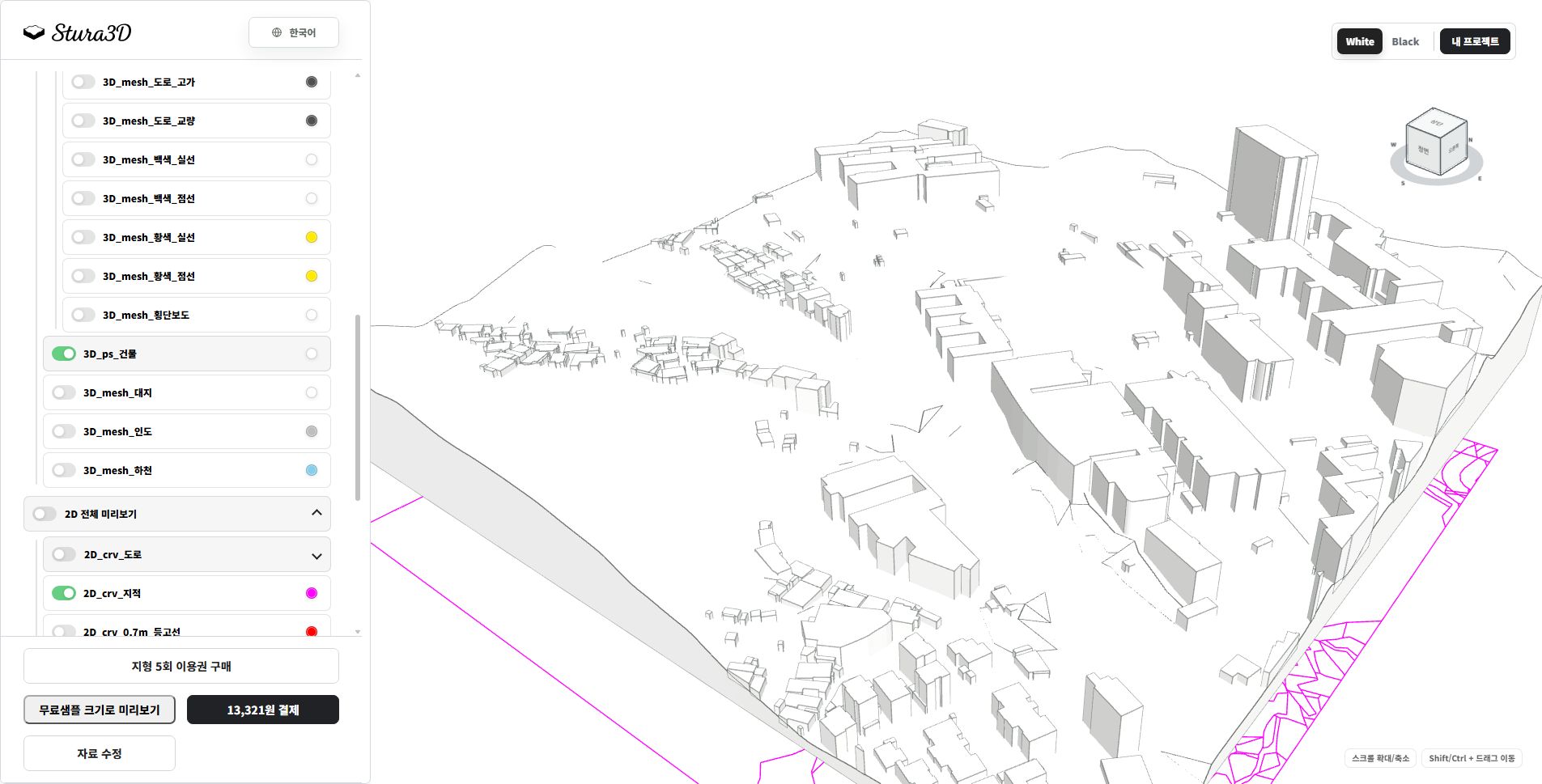
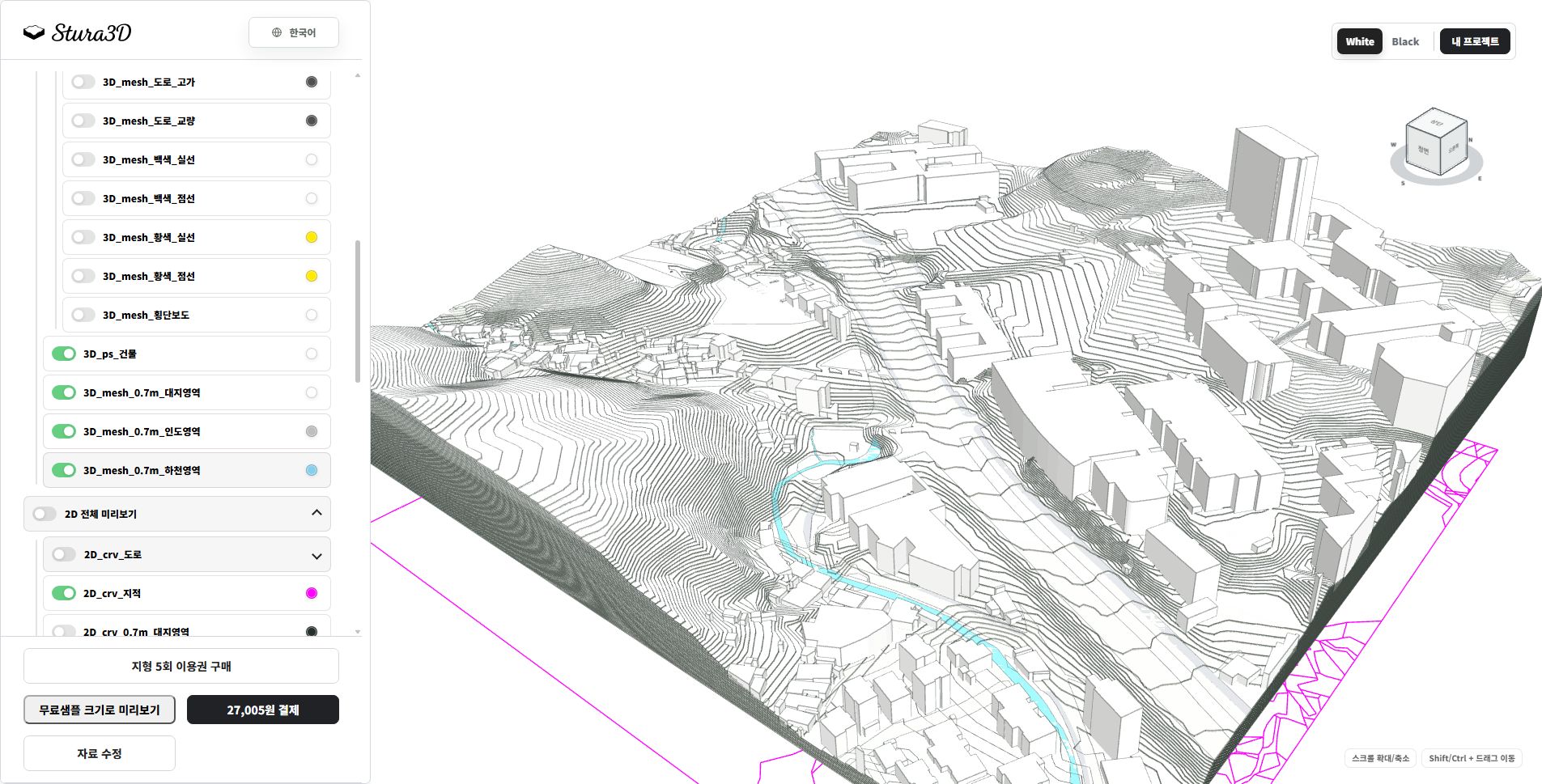
    Rotate and zoom to inspect terrain, buildings and roads. Hide shadows to read the surfaces. Available layers depend on the format and source region.

  2. Inspect terrain and context by layer.

    7. Inspect terrain and context by layer.

    Toggle buildings, site and road layers to inspect each element separately and distinguish terrain from its surroundings.

3D stepped terrain

Follow the steps from setup to reviewing the result.

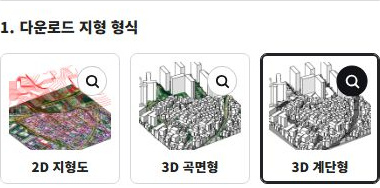
  1. Select 3D stepped terrain.

    1. Select 3D stepped terrain.

    Choose the terrain type for your project.

  2. Set the area you need.

    2. Set the area you need.

    Set each side from 100 to 2,000 m in 1 m increments (up to 4 km²). The example shows 1,000 × 1,000 m.

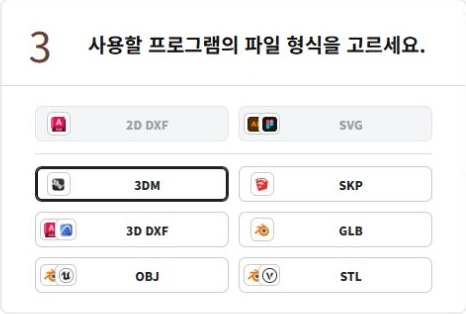
  3. Choose a file format.

    3. Choose a file format.

    Select 3DM for your software.

    3DM includes complete terrain together with terrain layers by area, buildings, and available context objects; available layers depend on local source data.

  4. Set the contour interval.

    4. Set the contour interval.

    Set the contour interval from 0.5 to 5 m in 0.1 m increments. The example shows 2 m.

  5. Check the preview.

    5. Check the preview.

    Create a preview to check the selected area and data before downloading.

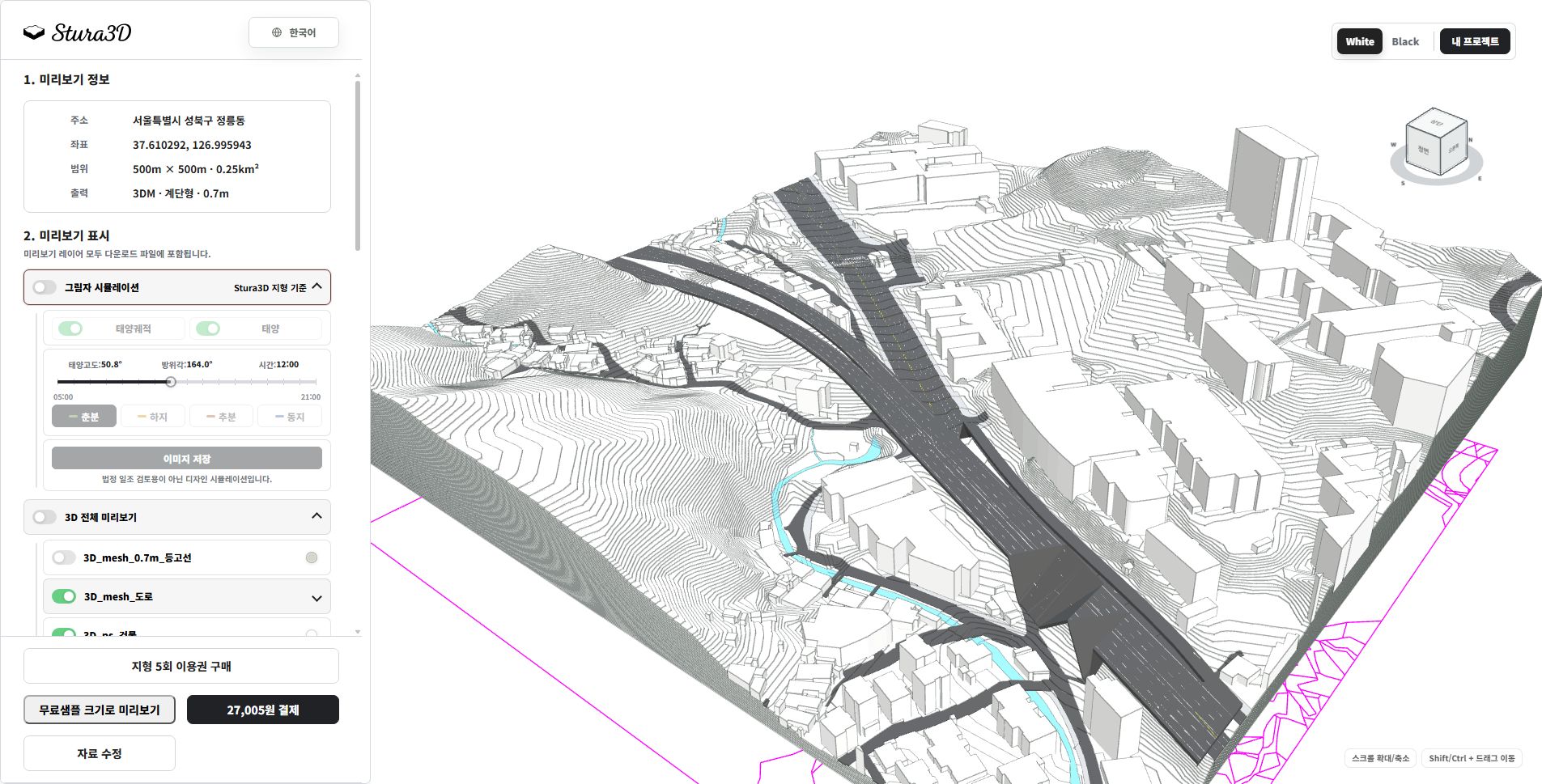
  1. Inspect the complete terrain model.

    6. Inspect the complete terrain model.

    Rotate and zoom to inspect terrain, buildings and roads. Hide shadows to read the surfaces. Available layers depend on the format and source region.

  2. Inspect terrain and context by layer.

    7. Inspect terrain and context by layer.

    Toggle buildings, site and road layers to inspect each element separately and distinguish terrain from its surroundings.

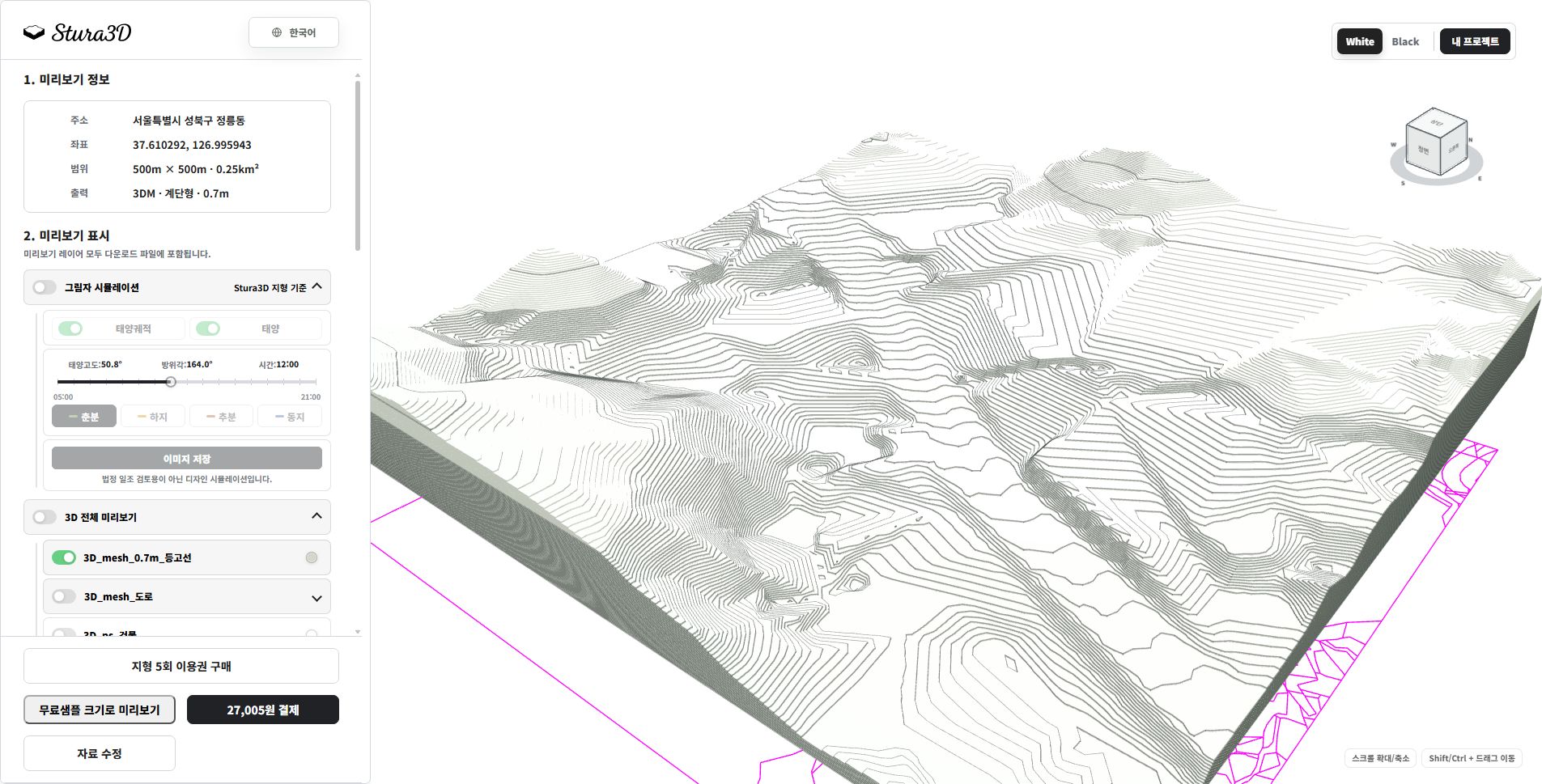
  3. Inspect the terrain steps.

    8. Inspect the terrain steps.

    This example shows 0.7 m terrain steps without buildings or context. Check the steps and slope; change the generation settings and create a new preview for another interval.

Site diagram

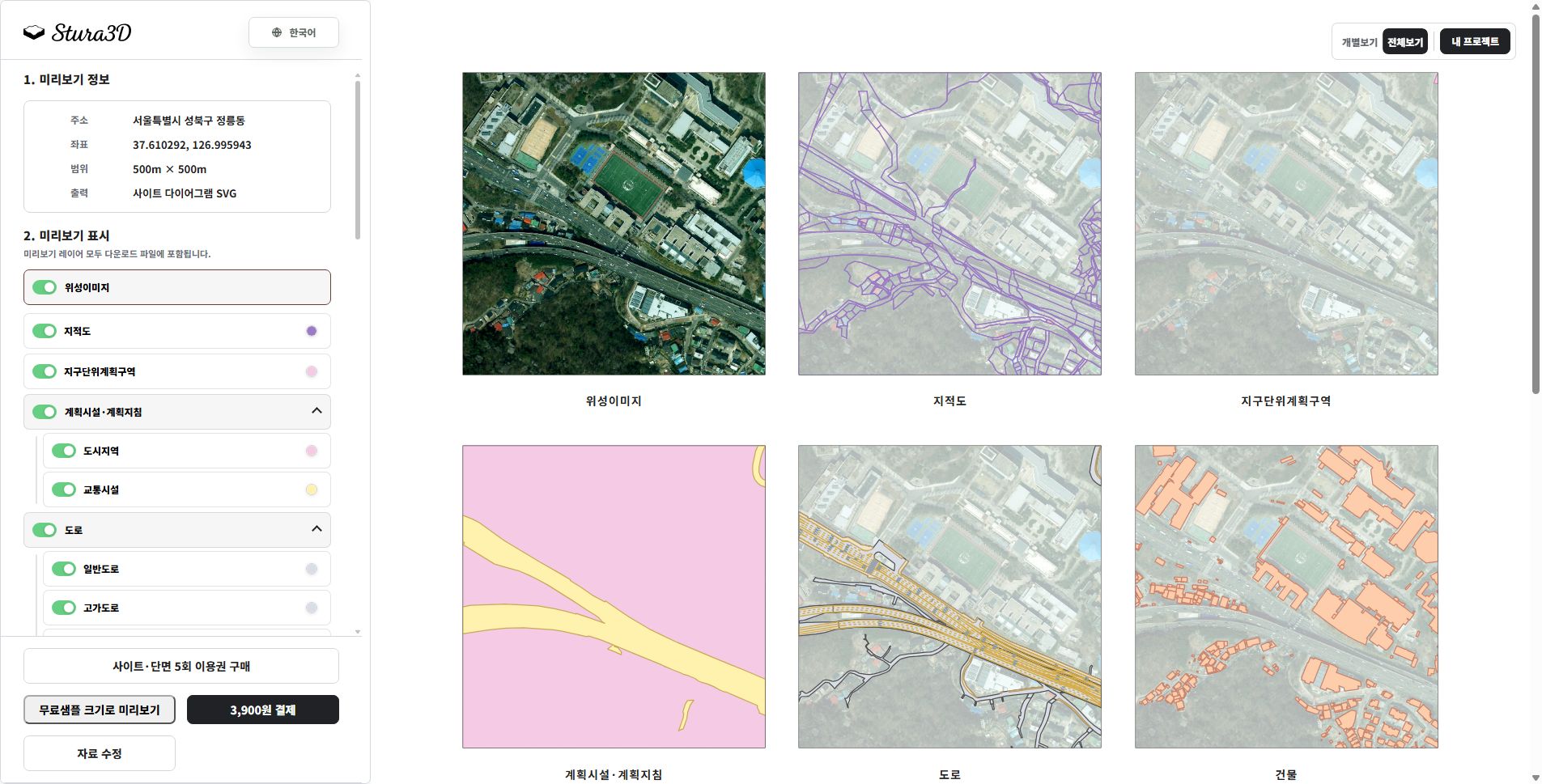
A top-view SVG diagram of the selected location and radius, with editable vector layers for buildings, terrain, roads, water, green areas, contours, and supported cadastral boundaries.

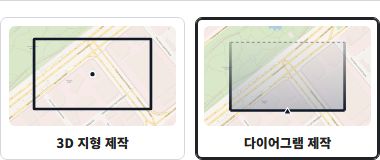
  1. Select diagram creation.

    1. Select diagram creation.

    Choose the diagram creation mode.

  2. Select Site diagram.

    2. Select Site diagram.

    Choose the diagram type you need.

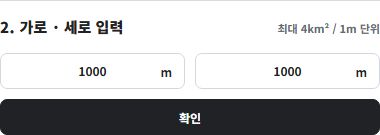
  3. Set the diagram area.

    3. Set the diagram area.

    Set each side from 100 to 2,000 m in 1 m increments (up to 4 km²). The example shows 1,000 × 1,000 m.

  4. Preview and download.

    4. Preview and download.

    Check the layers in the site preview, then download the SVG data.

  1. Review topics in the overview.

    5. Review topics in the overview.

    The overview shows imagery, cadastral boundaries, roads and buildings side by side. Switch to an individual view to focus on one topic.

  2. Inspect the layers you need.

    6. Inspect the layers you need.

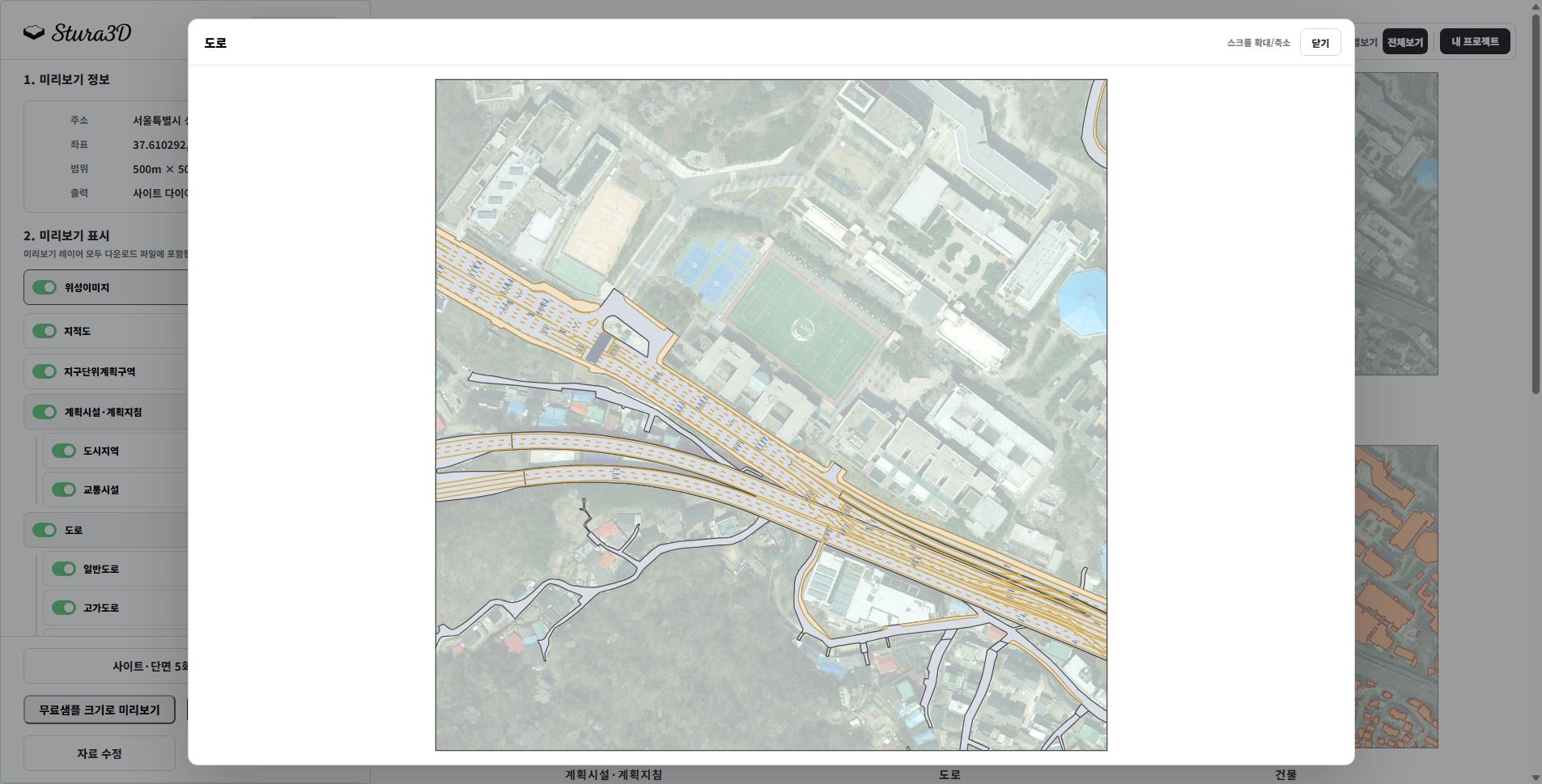
    Expand the road group to inspect ordinary and elevated roads. Adjust visibility and colors to understand connections across the site.

Section diagram

Follow the steps from setup to reviewing the result.

  1. Select diagram creation.

    1. Select diagram creation.

    Choose the diagram creation mode.

  2. Select Section diagram.

    2. Select Section diagram.

    Choose the diagram type you need.

  3. Set the diagram area.

    3. Set the diagram area.

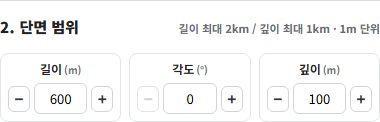
    Set length from 200 to 2,000 m and depth from 0 to 1,000 m in 1 m increments. Set the angle from 0 to 359° in 1° increments.

  4. Preview and download.

    4. Preview and download.

    Check the section preview, then download both SVG and DXF files.

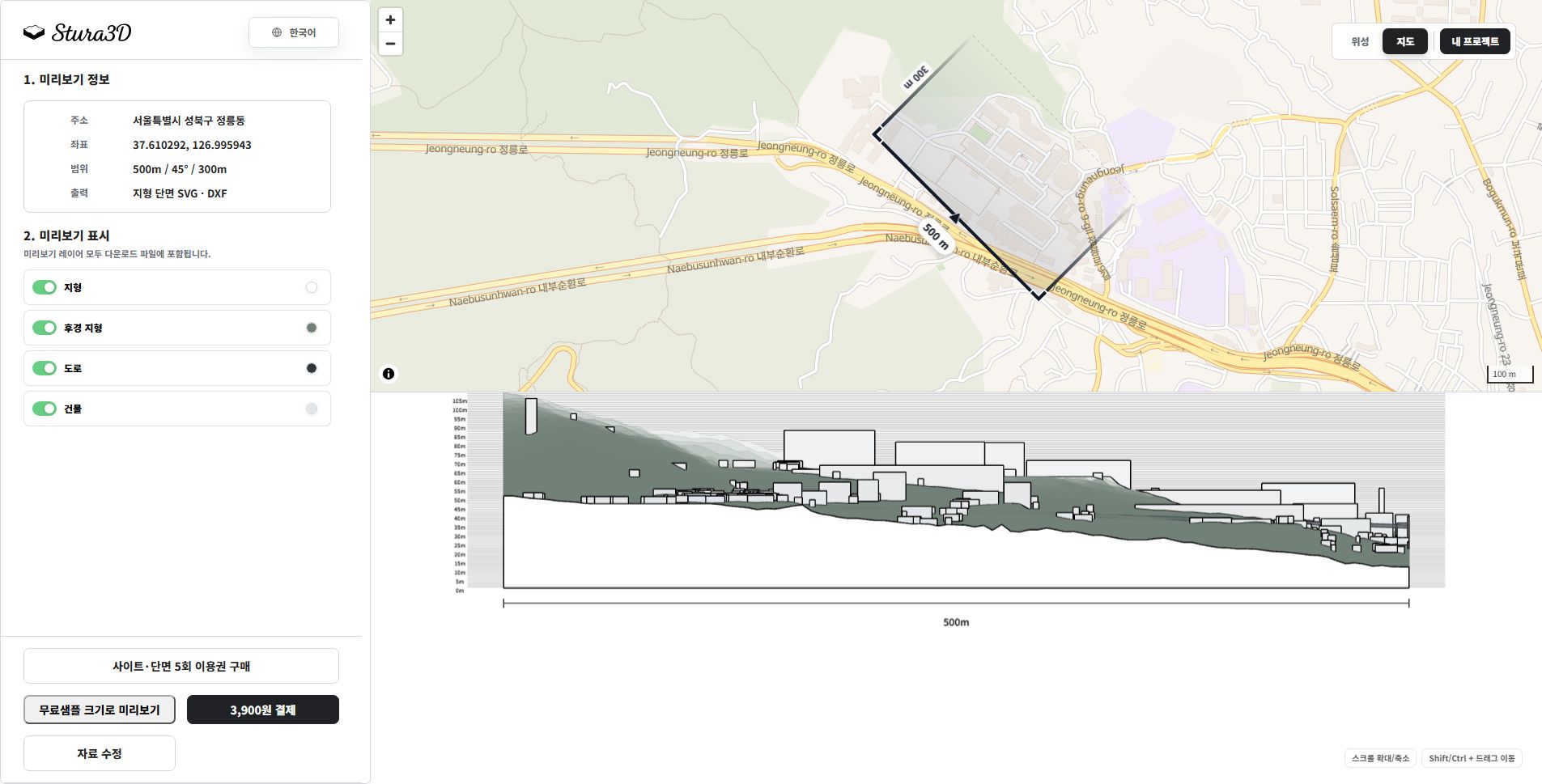
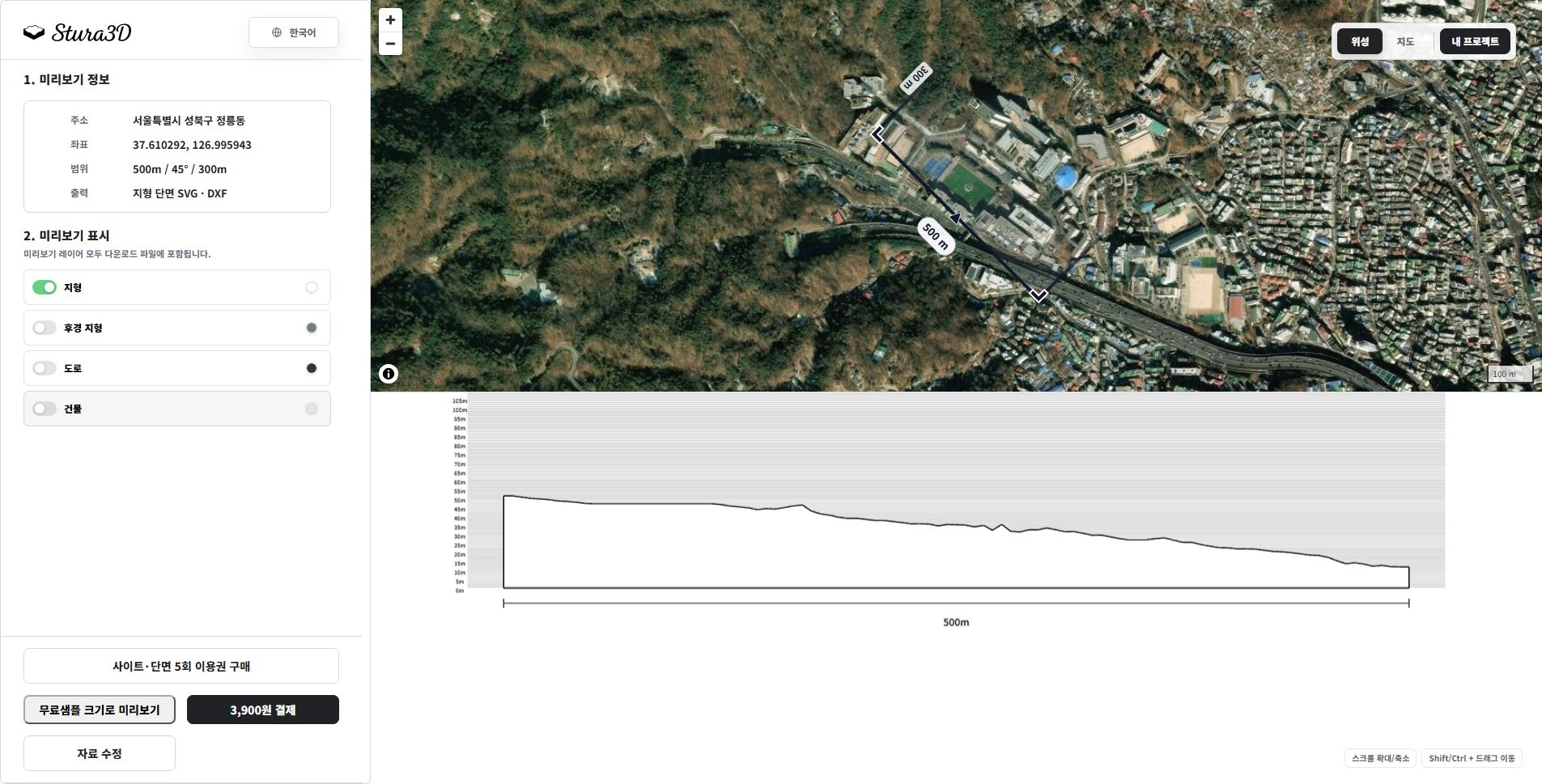
    A section SVG based on the selected length, angle, and depth, with editable layers for terrain, background terrain, buildings, water, bridges, elevated roads, and dimensions.

  1. Read the map and section together.

    5. Read the map and section together.

    Check the cut location and direction on the map, then read terrain and buildings below. This example uses a 500 m length, 45° angle and 300 m depth.

  2. Separate terrain and background.

    6. Separate terrain and background.

    Hide buildings and roads to focus on terrain. Toggle the background terrain and zoom or pan to inspect the section.

Shadow simulation

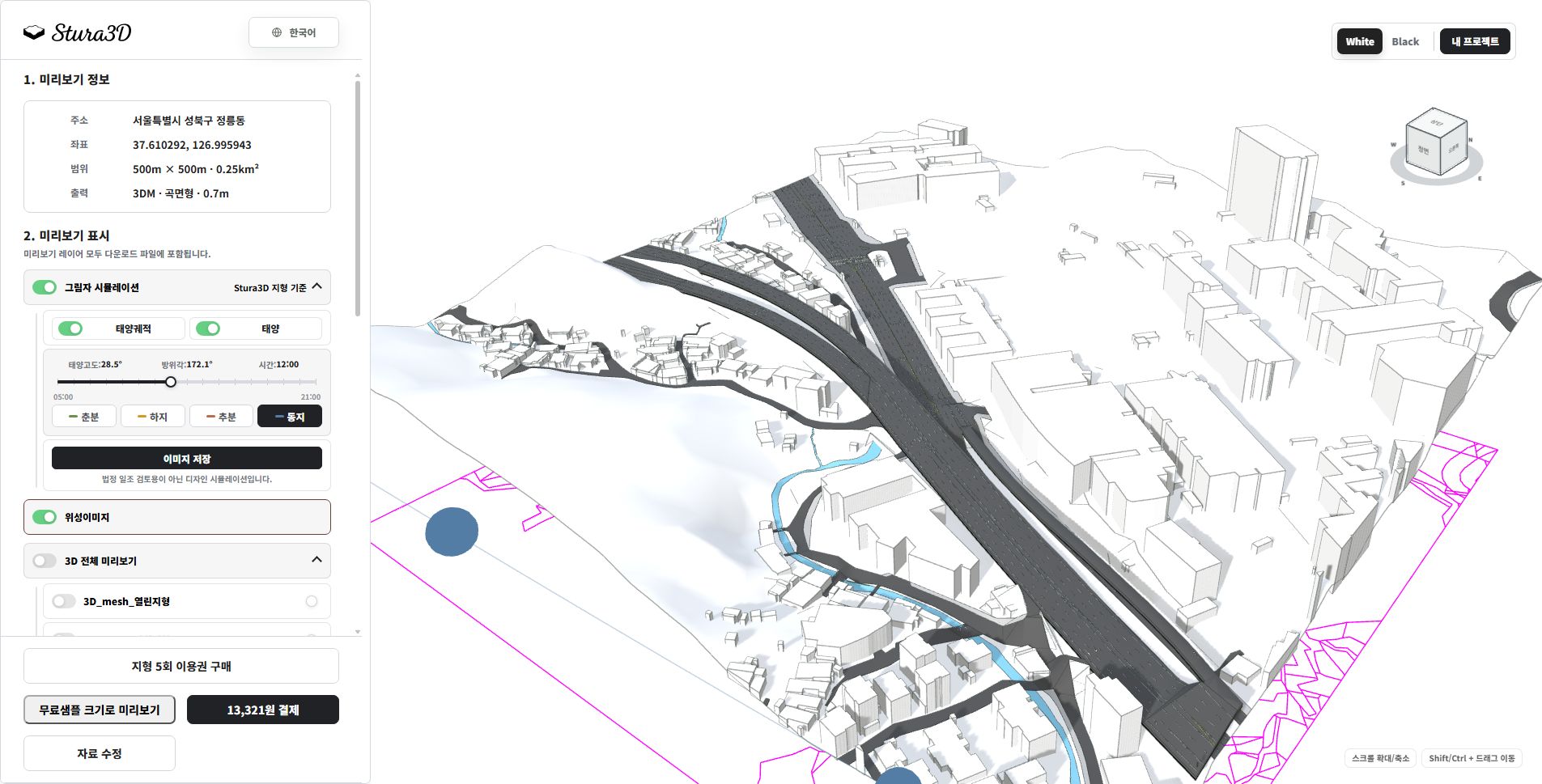
Explore seasonal and hourly shadows in the 3D terrain preview and save an image.

  1. Select 3D terrain.

    1. Select 3D terrain.

    Set the area and file format for smooth or stepped 3D terrain.

  2. Create a terrain preview.

    2. Create a terrain preview.

    Create a preview and open the completed 3D terrain.

  3. Explore and save the shadows.

    3. Explore and save the shadows.

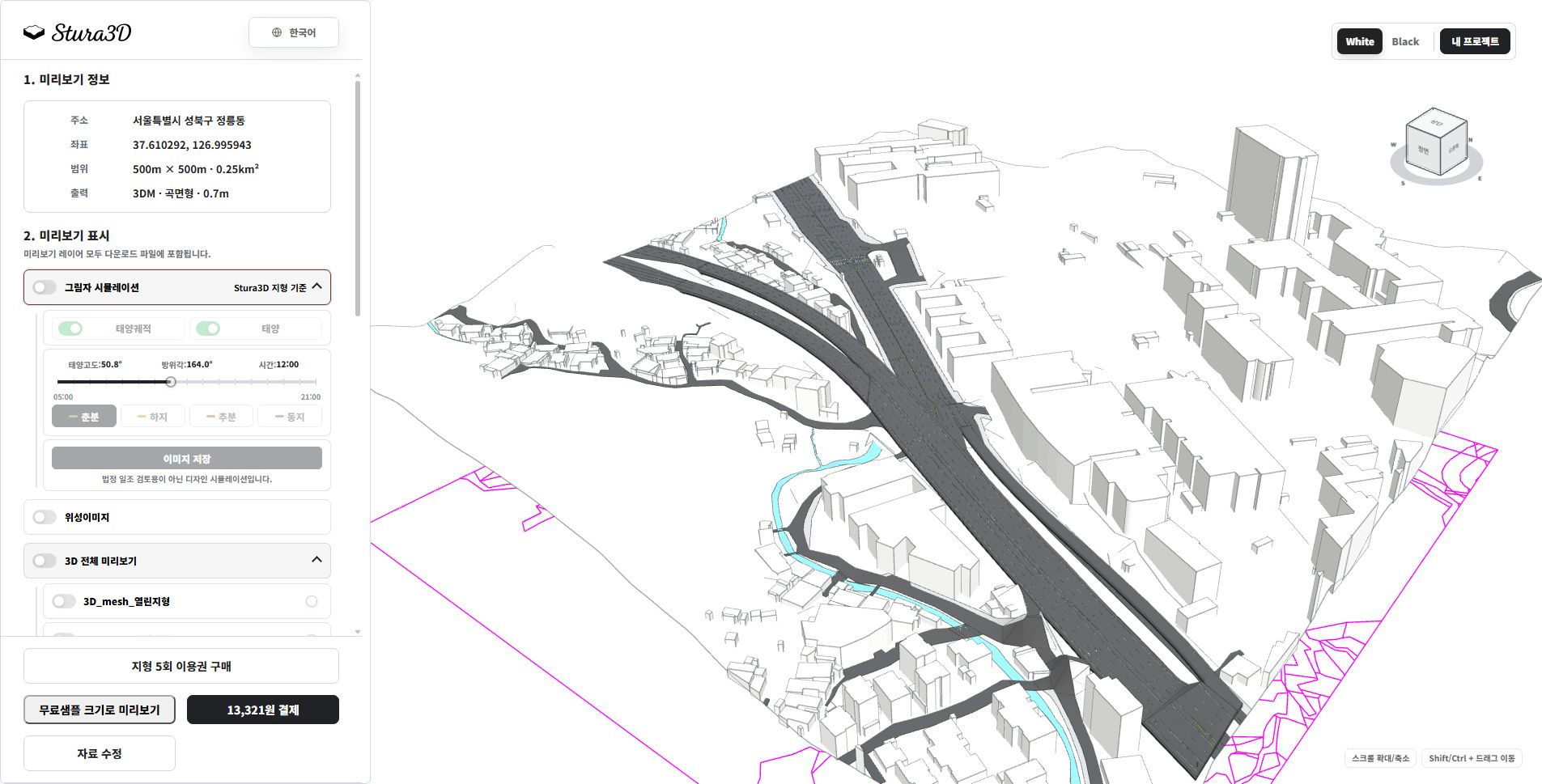
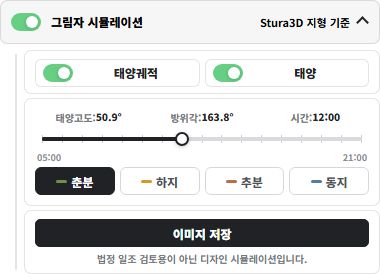
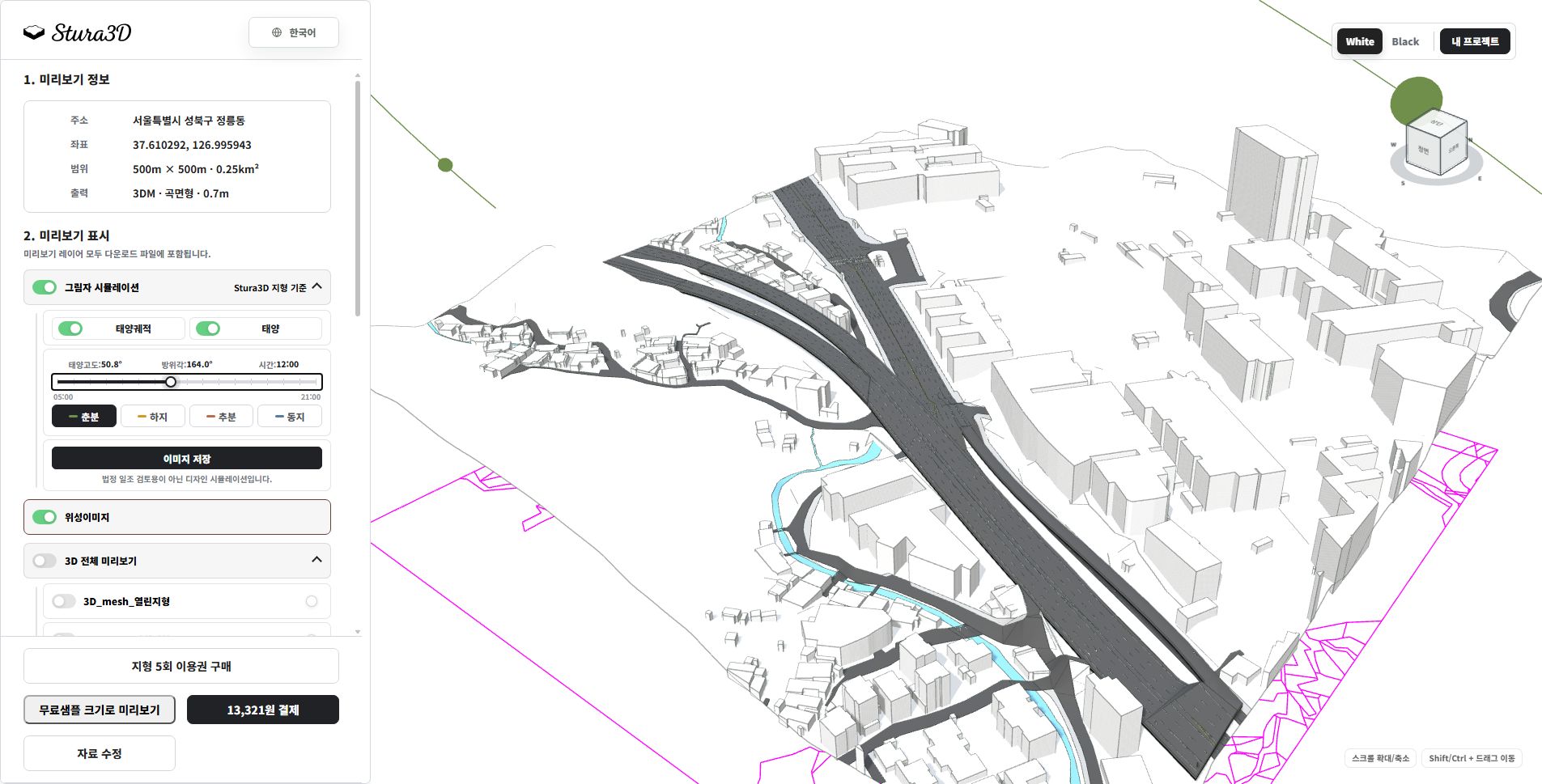
    Enable shadow simulation and choose a season and time. Toggle the sun path and sun, then save a PNG image. This is a design simulation, not a statutory sunlight assessment.

  1. Adjust season and time.

    4. Adjust season and time.

    Use the season buttons and time slider to change the sun position and shadows. Show the sun path and sun to understand their direction.

  2. Compare times within the same season.

    5. Compare times within the same season.

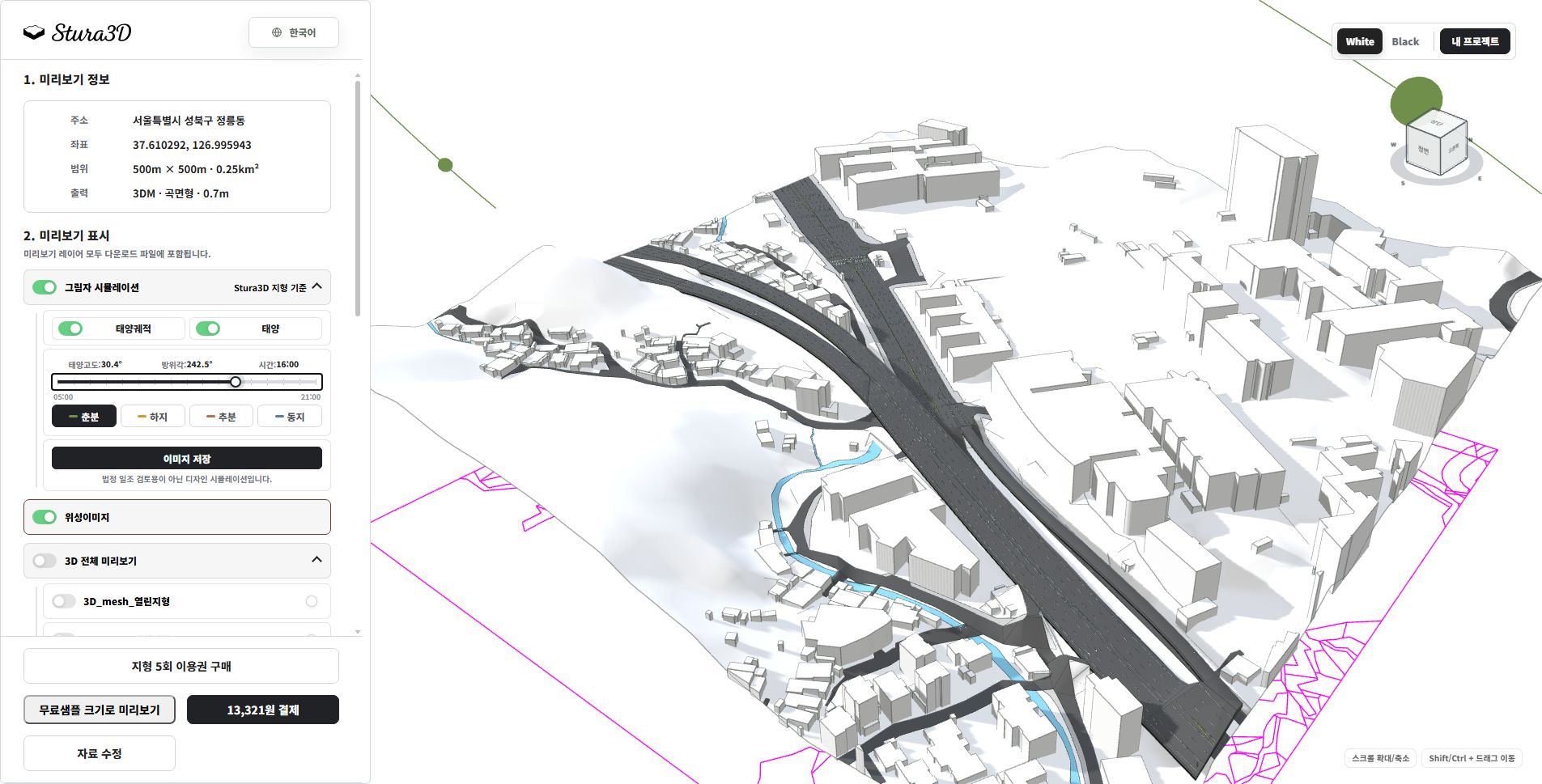
    Compare spring at noon above with 16:00 here to see changes in shadow direction and length. Choose a time and save a PNG.

  3. Compare seasons at the same time.

    6. Compare seasons at the same time.

    This is winter at noon. Compare it with spring at noon to inspect seasonal differences in shadow length and direction.

Fonti

Globale comune

Fonte dati

  • Mapzen/AWS Terrain Tiles
  • Satlas
  • Copernicus DEM
  • NASADEM
  • OpenStreetMap
  • Overture Maps

Licenza

  • Si applicano termini e licenze dei fornitori originali

Fonte originale

https://registry.opendata.aws/terrain-tiles/

https://satlas.allen.ai/

https://registry.opendata.aws/copernicus-dem/

https://lpdaac.usgs.gov/products/nasadem_hgtv001/

https://www.openstreetmap.org/copyright

https://overturemaps.org/download/

Corea del Sud

Fonte dati

  • 국토지리정보원
  • VWorld

Licenza

  • Si applicano termini e licenze dei fornitori originali

Fonte originale

https://www.ngii.go.kr/

https://www.vworld.kr/

Dati dei fusi orari

Fonte dati

  • timezone-boundary-builder / geo-tz
  • © OpenStreetMap contributors

Licenza

  • Open Database License (ODbL) 1.0

Fonte originale

https://github.com/evansiroky/timezone-boundary-builder

https://www.openstreetmap.org/copyright

https://opendatacommons.org/licenses/odbl/1-0/

https://www.stura3d.com/legal/shadow-third-party-notices.txt

Help Center | Stura3D