Stura3D provides a partnership program to support students and universities in architecture.
Partnership benefits
- Discount benefits are applied within five business days after the agreement is completed.
- Student councils and verified universities: 50% off and 2 free terrain exports per month
- Terrain includes 2D terrain maps, 3D smooth terrain, and 3D stepped terrain. The allowance resets on the first day of each month at 00:00 KST. It is separate from free samples, and unused exports do not roll over.
Stura3D partnership conditions and period
- Eligibility: The agreement and inquiry must generally be submitted directly by the student council president of the relevant department or faculty.
- Period: Student council and verified university benefits reset every March 1 at 00:00 KST. A new verification key is required to continue.
- How to apply: Select the application checklist button below, then complete and submit the online form.
Follow the steps from setup to reviewing the result.
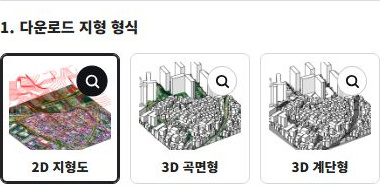
1. Select 2D terrain.
Choose the terrain type for your project.
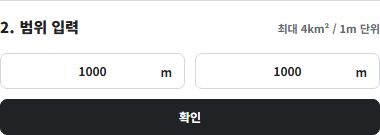
2. Set the area you need.
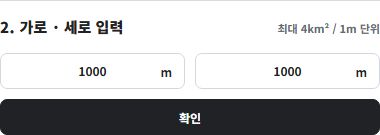
Set each side from 100 to 2,000 m in 1 m increments (up to 4 km²). The example shows 1,000 × 1,000 m.
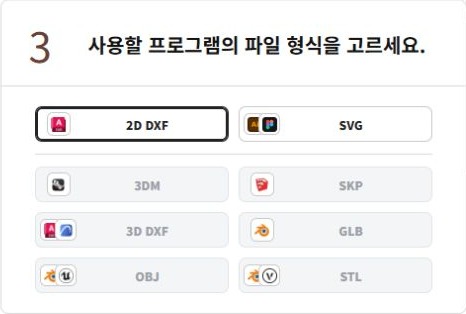
3. Choose a file format.
Select 2D DXF for your software.
Includes contours, building outlines, roads, addresses, and cadastral data in separate layers. Available source attributes and supported imagery are included.
4. Set the contour interval.
Set the contour interval from 0.5 to 5 m in 0.1 m increments. The example shows 2 m.
5. Check the preview.
Create a preview to check the selected area and data before downloading.
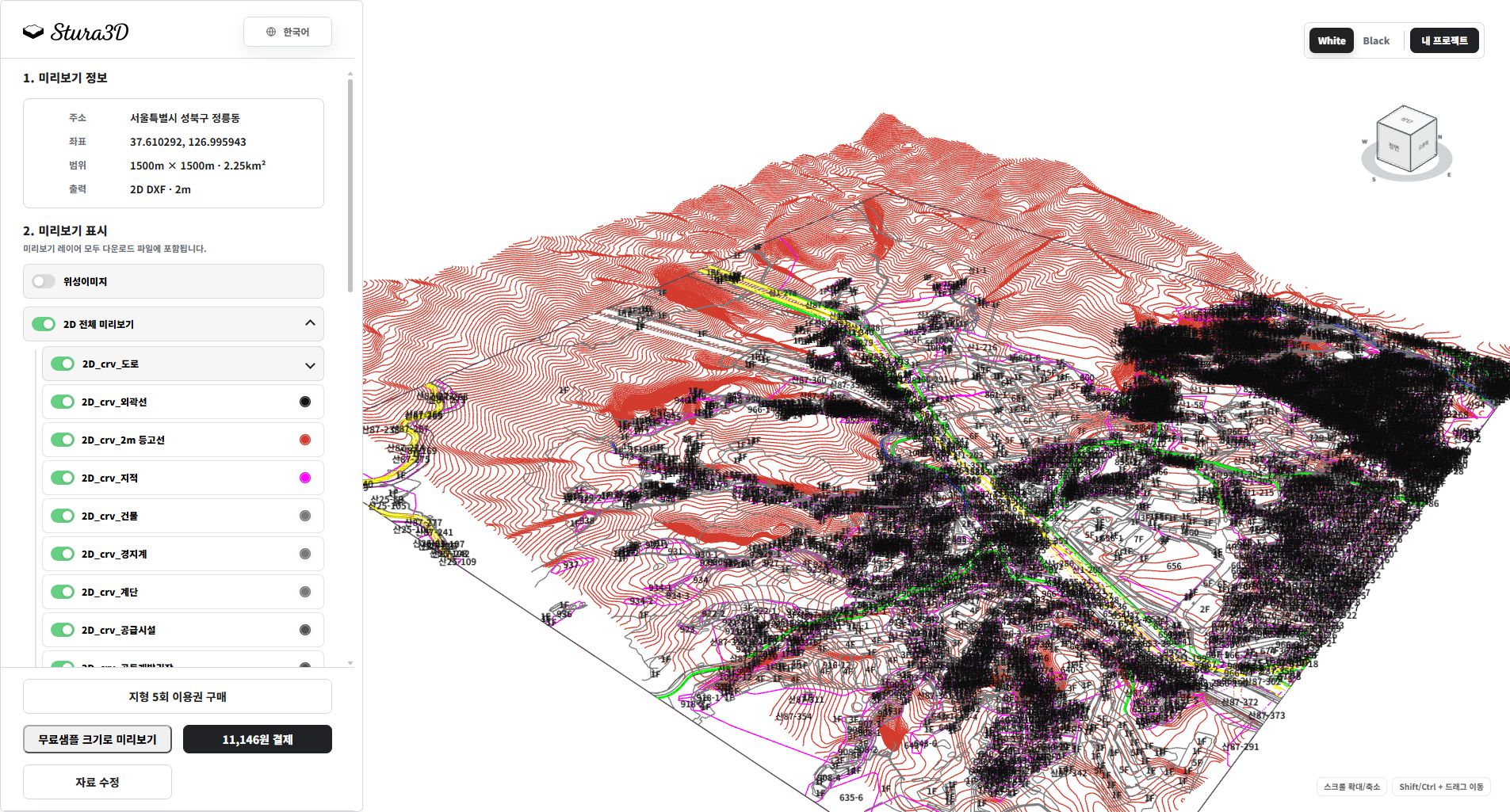
6. Inspect the drawing and layers.
Hide imagery to read contours, roads and building lines clearly. Toggle layers and zoom in to check boundaries. DXF and SVG differ in text and elevation data.
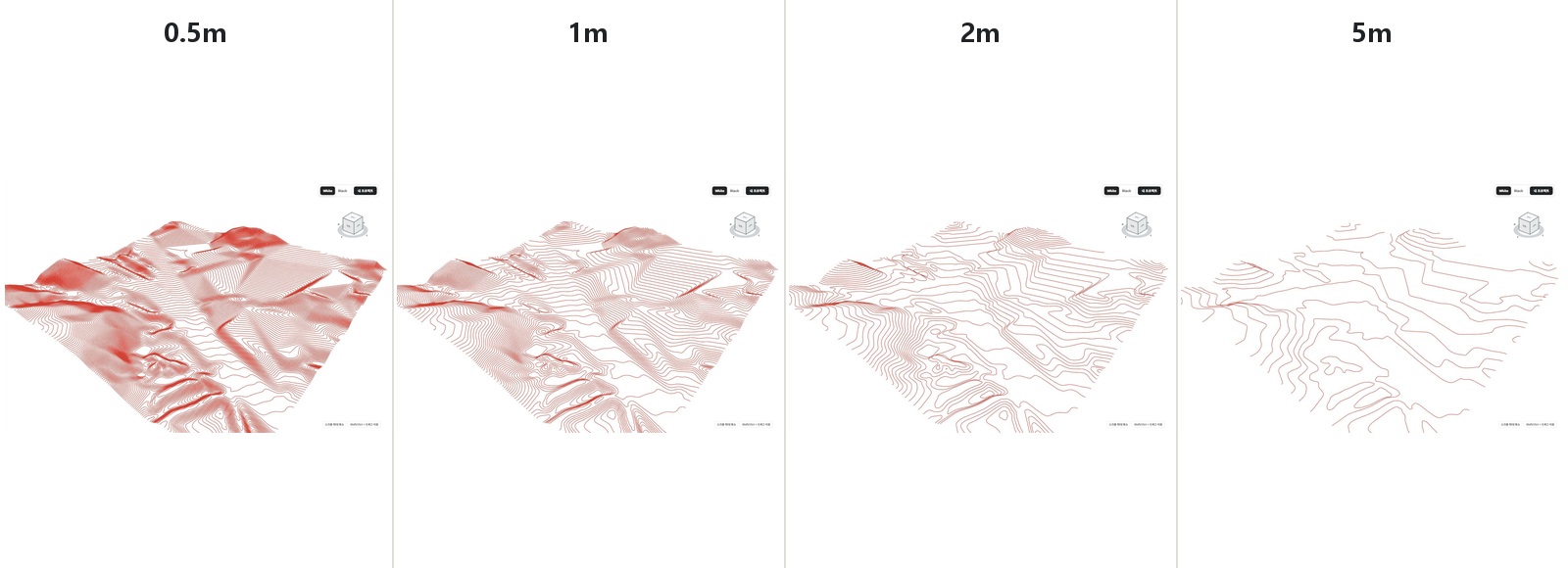
7. Compare contour intervals.
Compare 0.5, 1, 2 and 5 m intervals. Smaller intervals produce denser lines; they do not increase the survey accuracy of the source data.
Follow the steps from setup to reviewing the result.
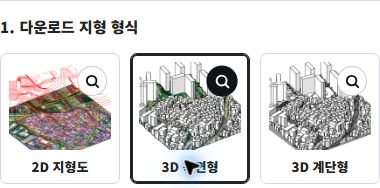
1. Select 3D smooth terrain.
Choose the terrain type for your project.
2. Set the area you need.
Set each side from 100 to 2,000 m in 1 m increments (up to 4 km²). The example shows 1,000 × 1,000 m.
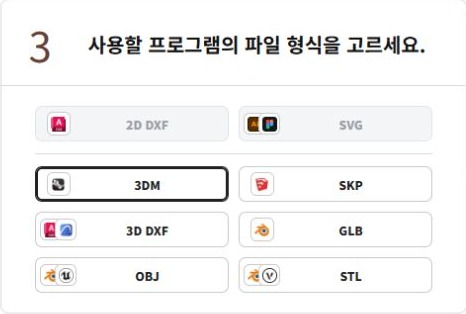
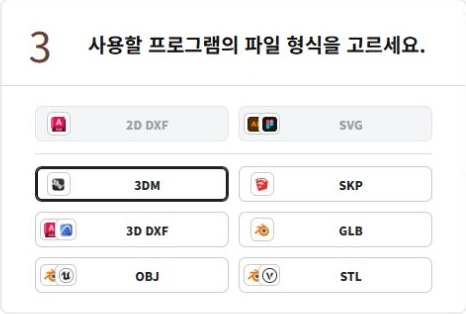
3. Choose a file format.
Select 3DM for your software.
3DM includes complete terrain together with terrain layers by area, buildings, and available context objects; available layers depend on local source data.
4. Set the contour interval.
Set the contour interval from 0.5 to 5 m in 0.1 m increments. The example shows 2 m.
5. Check the preview.
Create a preview to check the selected area and data before downloading.
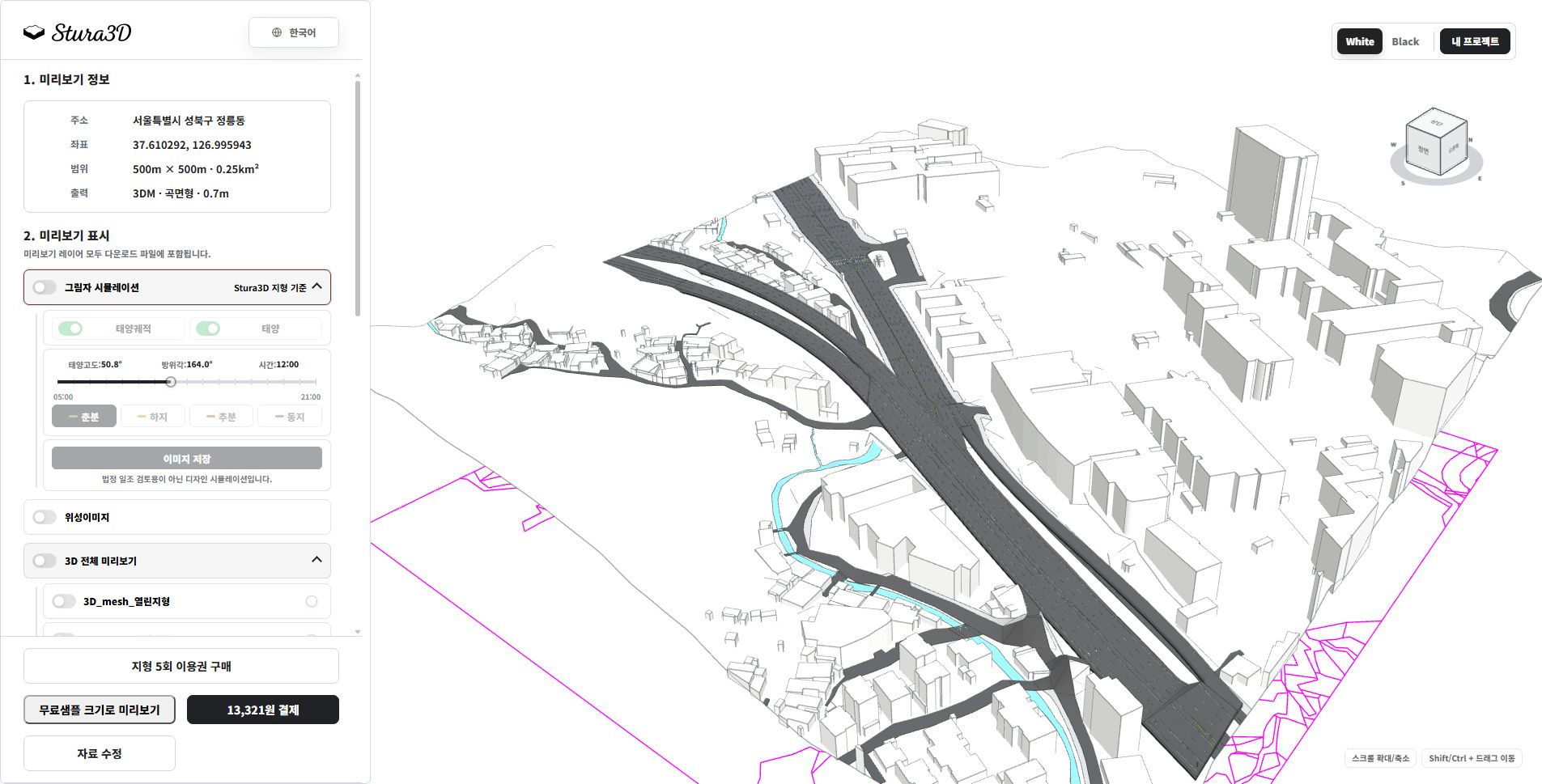
6. Inspect the complete terrain model.
Rotate and zoom to inspect terrain, buildings and roads. Hide shadows to read the surfaces. Available layers depend on the format and source region.
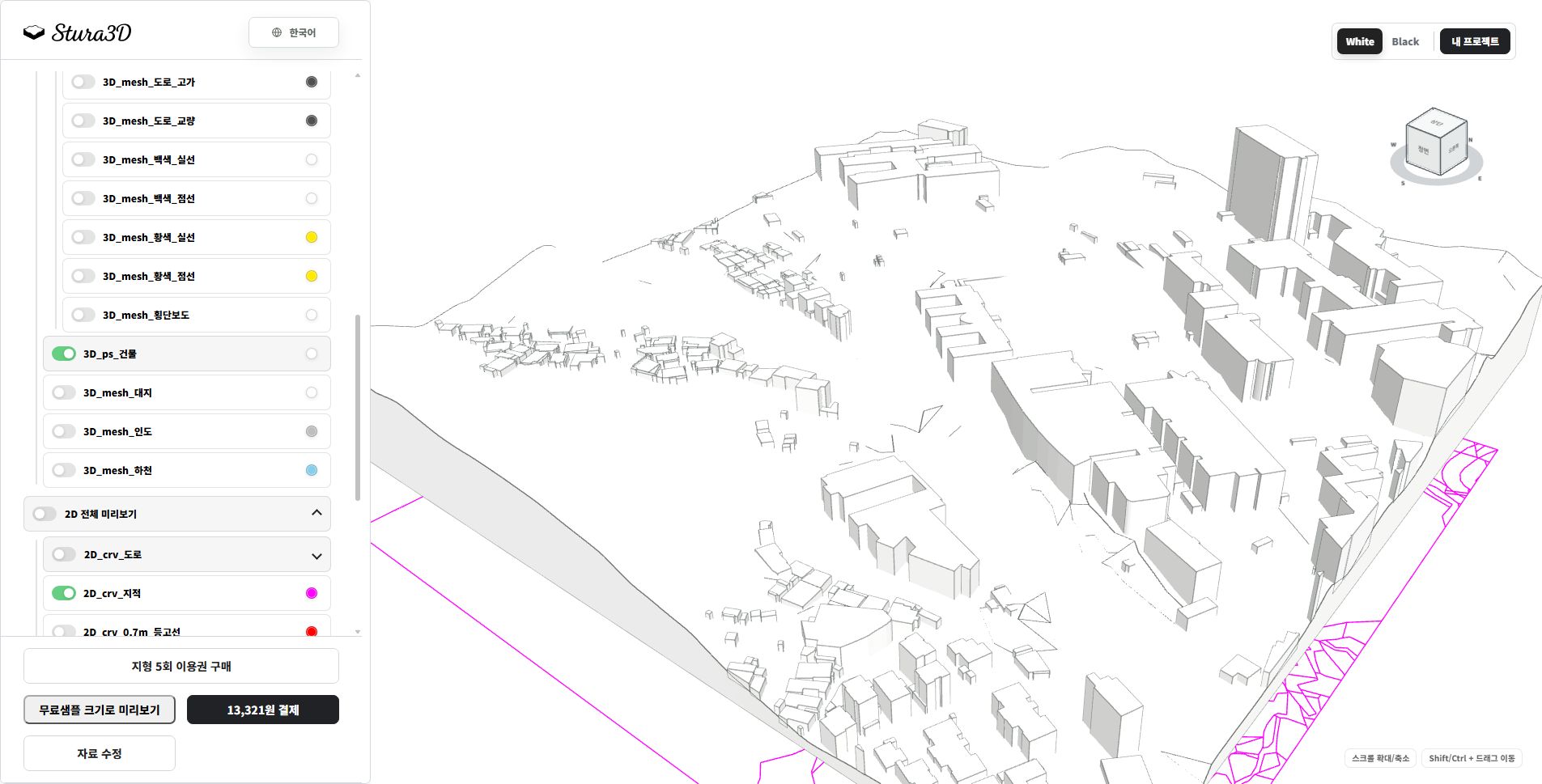
7. Inspect terrain and context by layer.
Toggle buildings, site and road layers to inspect each element separately and distinguish terrain from its surroundings.
Follow the steps from setup to reviewing the result.
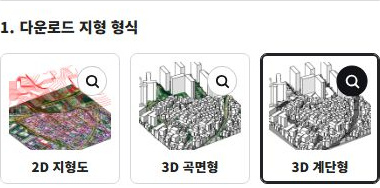
1. Select 3D stepped terrain.
Choose the terrain type for your project.
2. Set the area you need.
Set each side from 100 to 2,000 m in 1 m increments (up to 4 km²). The example shows 1,000 × 1,000 m.
3. Choose a file format.
Select 3DM for your software.
3DM includes complete terrain together with terrain layers by area, buildings, and available context objects; available layers depend on local source data.
4. Set the contour interval.
Set the contour interval from 0.5 to 5 m in 0.1 m increments. The example shows 2 m.
5. Check the preview.
Create a preview to check the selected area and data before downloading.
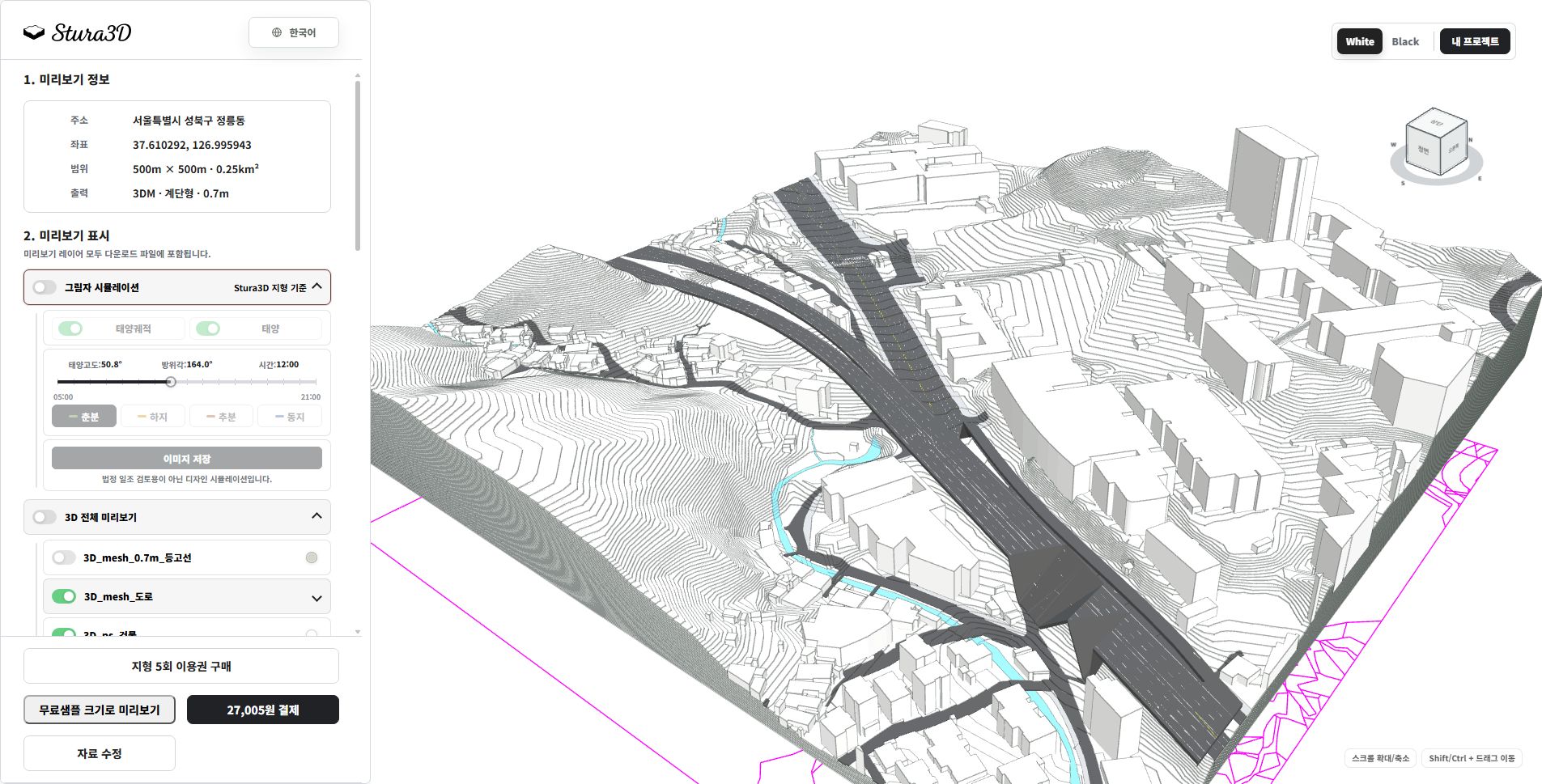
6. Inspect the complete terrain model.
Rotate and zoom to inspect terrain, buildings and roads. Hide shadows to read the surfaces. Available layers depend on the format and source region.
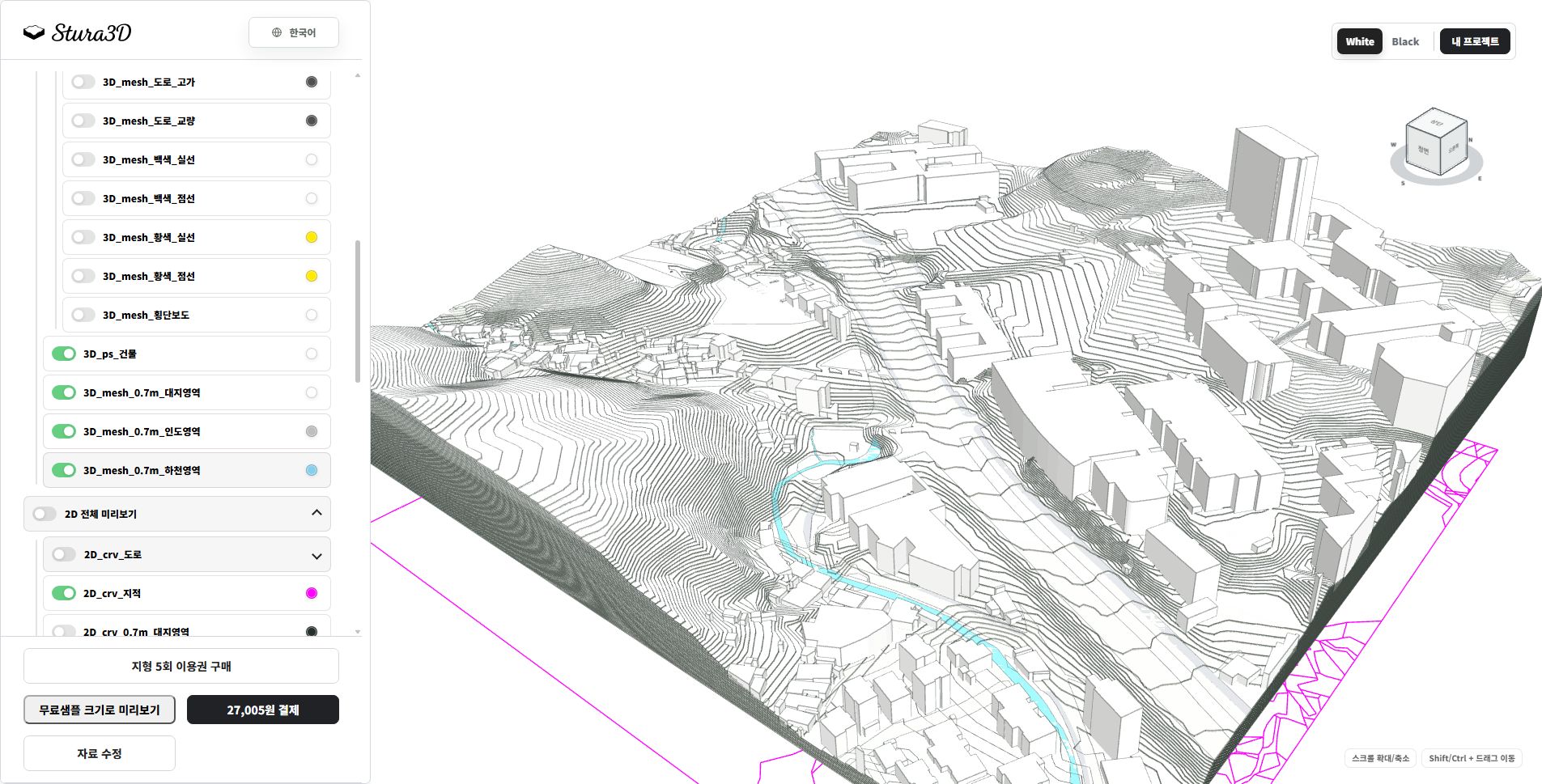
7. Inspect terrain and context by layer.
Toggle buildings, site and road layers to inspect each element separately and distinguish terrain from its surroundings.
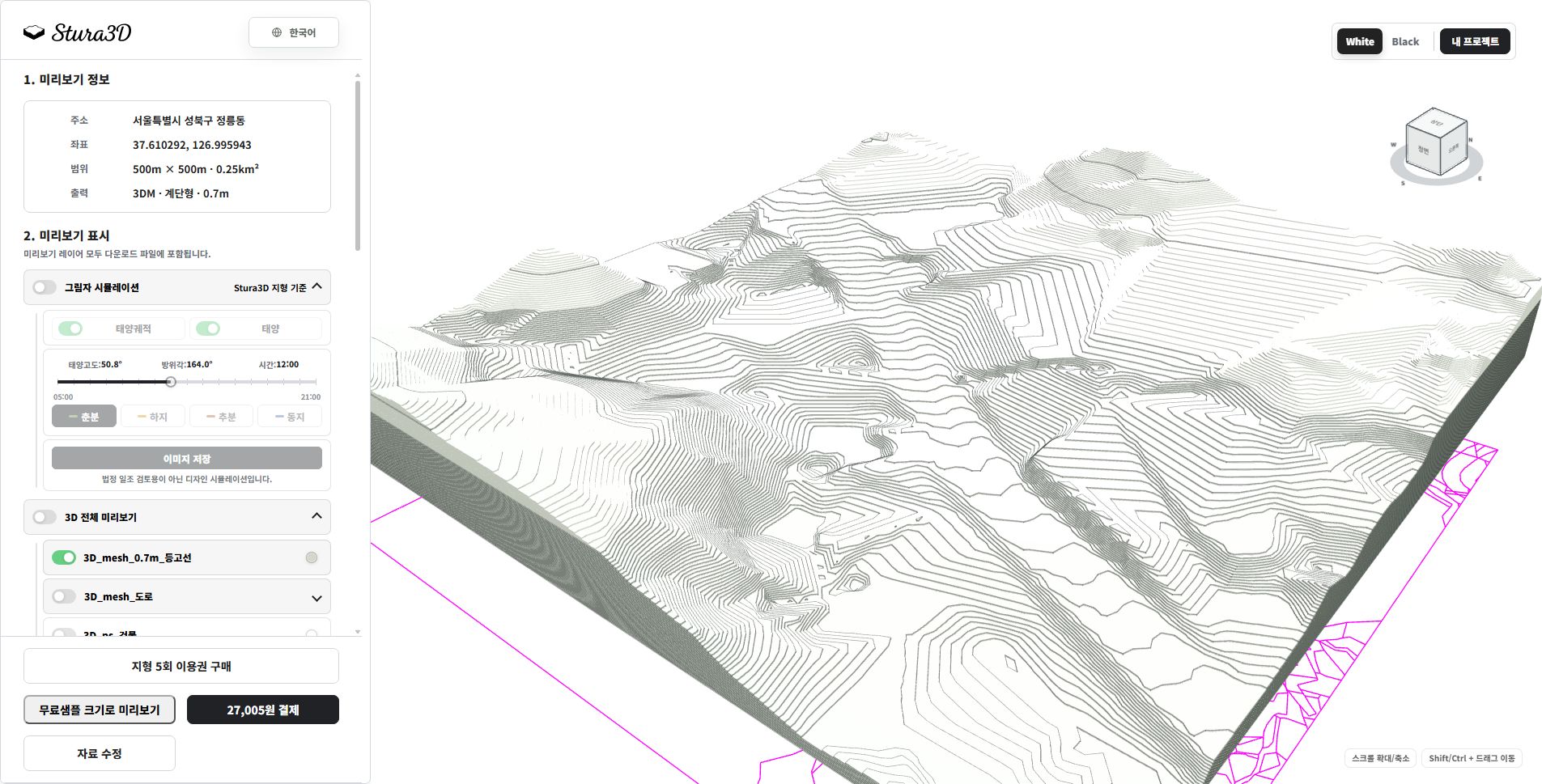
8. Inspect the terrain steps.
This example shows 0.7 m terrain steps without buildings or context. Check the steps and slope; change the generation settings and create a new preview for another interval.
A top-view SVG diagram of the selected location and radius, with editable vector layers for buildings, terrain, roads, water, green areas, contours, and supported cadastral boundaries.
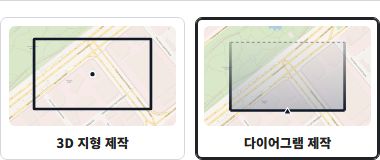
1. Select diagram creation.
Choose the diagram creation mode.
2. Select Site diagram.
Choose the diagram type you need.
3. Set the diagram area.
Set each side from 100 to 2,000 m in 1 m increments (up to 4 km²). The example shows 1,000 × 1,000 m.
4. Preview and download.
Check the layers in the site preview, then download the SVG data.
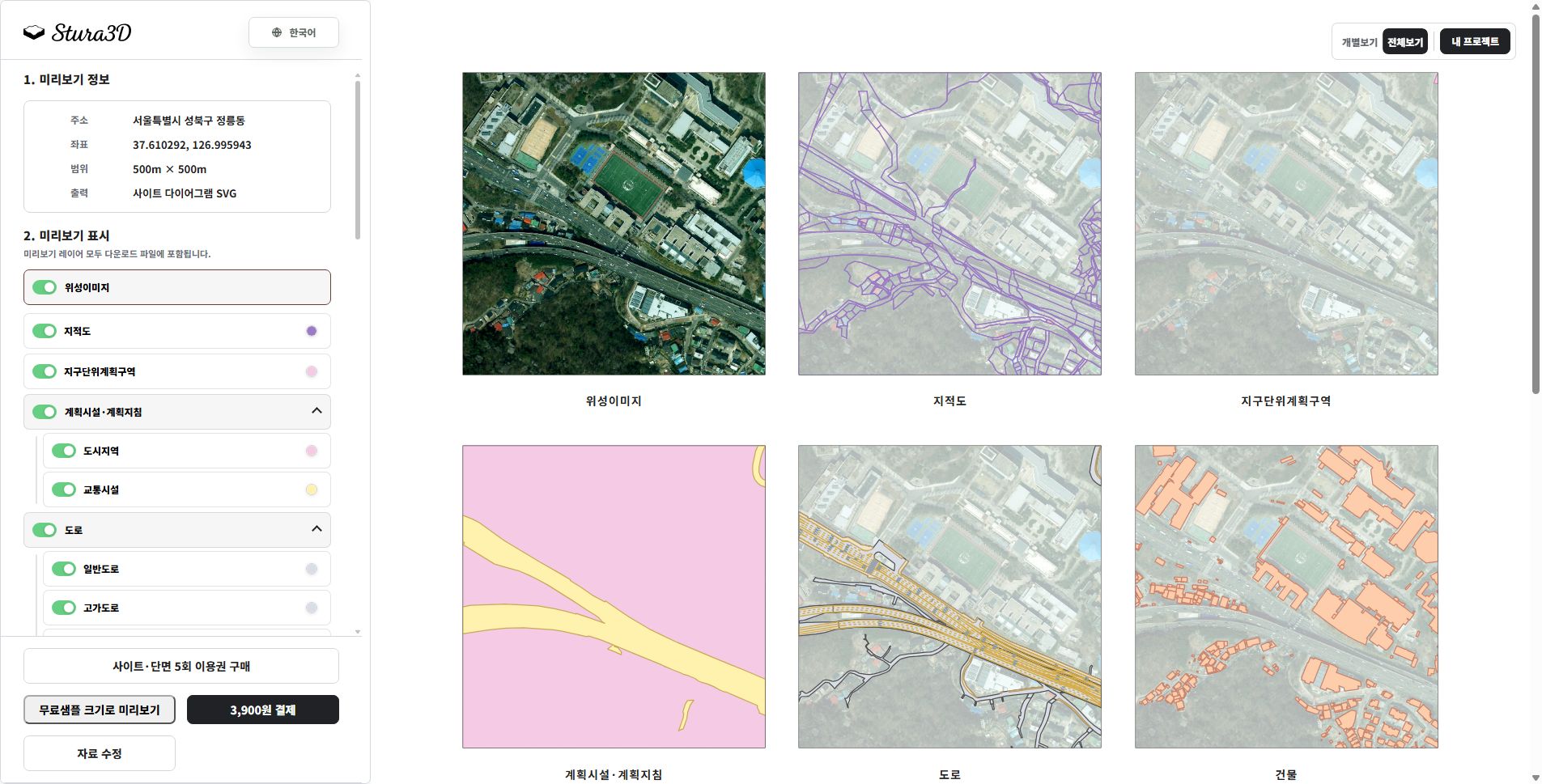
5. Review topics in the overview.
The overview shows imagery, cadastral boundaries, roads and buildings side by side. Switch to an individual view to focus on one topic.
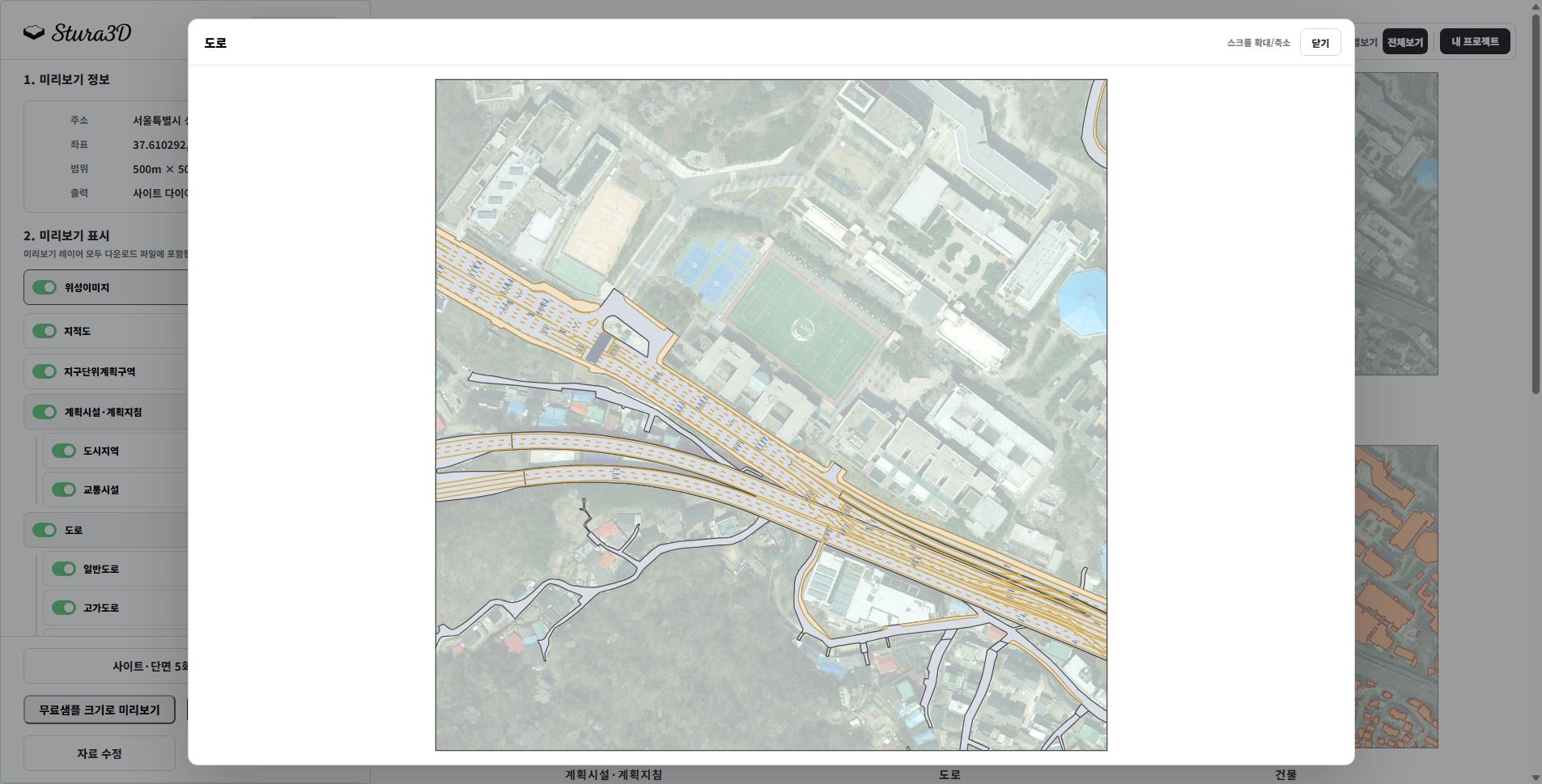
6. Inspect the layers you need.
Expand the road group to inspect ordinary and elevated roads. Adjust visibility and colors to understand connections across the site.
Follow the steps from setup to reviewing the result.
1. Select diagram creation.
Choose the diagram creation mode.
2. Select Section diagram.
Choose the diagram type you need.
3. Set the diagram area.
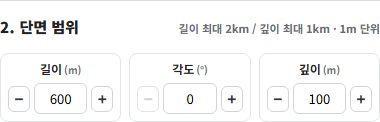
Set length from 200 to 2,000 m and depth from 0 to 1,000 m in 1 m increments. Set the angle from 0 to 359° in 1° increments.
4. Preview and download.
Check the section preview, then download both SVG and DXF files.
A section SVG based on the selected length, angle, and depth, with editable layers for terrain, background terrain, buildings, water, bridges, elevated roads, and dimensions.
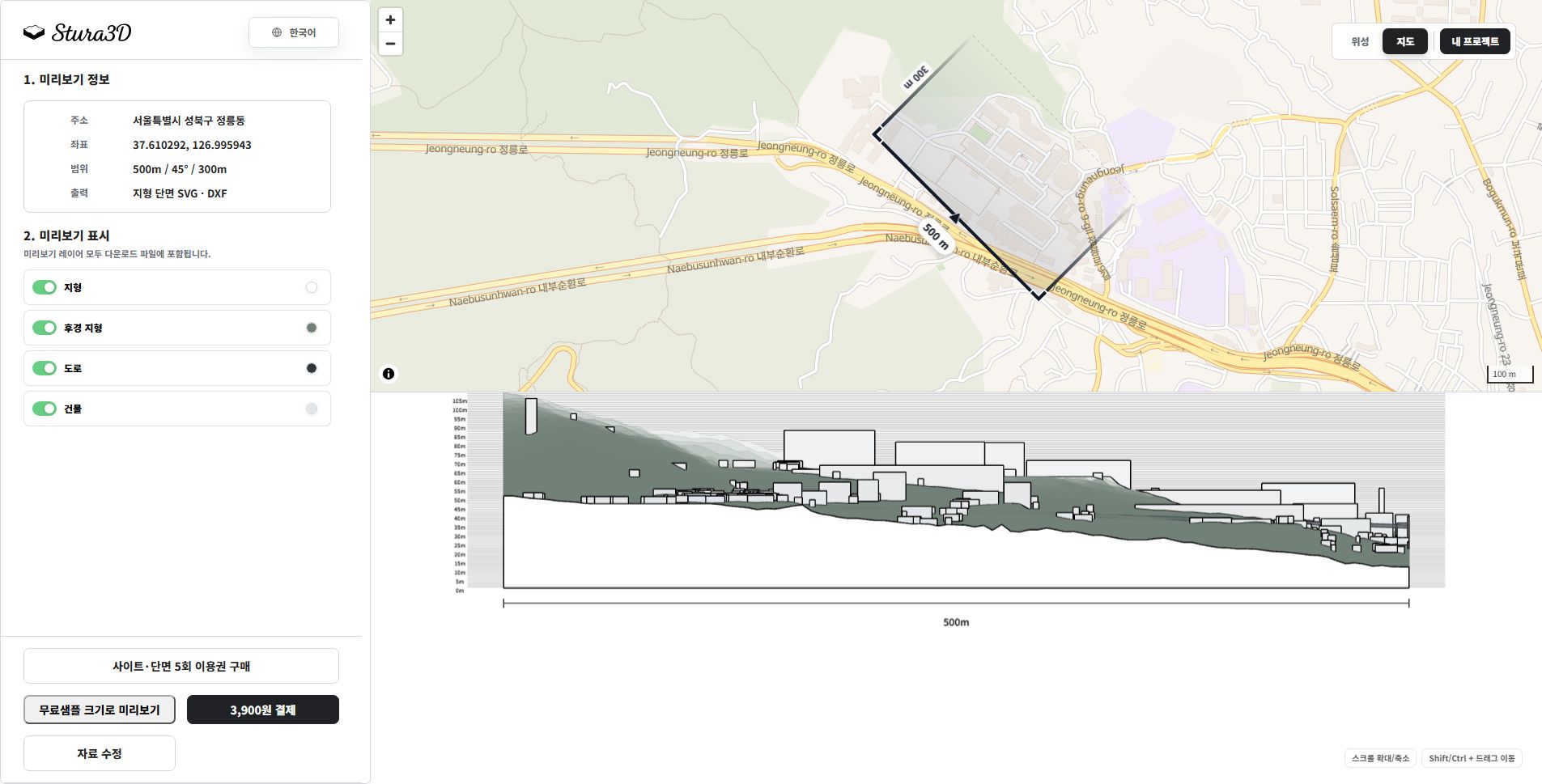
5. Read the map and section together.
Check the cut location and direction on the map, then read terrain and buildings below. This example uses a 500 m length, 45° angle and 300 m depth.
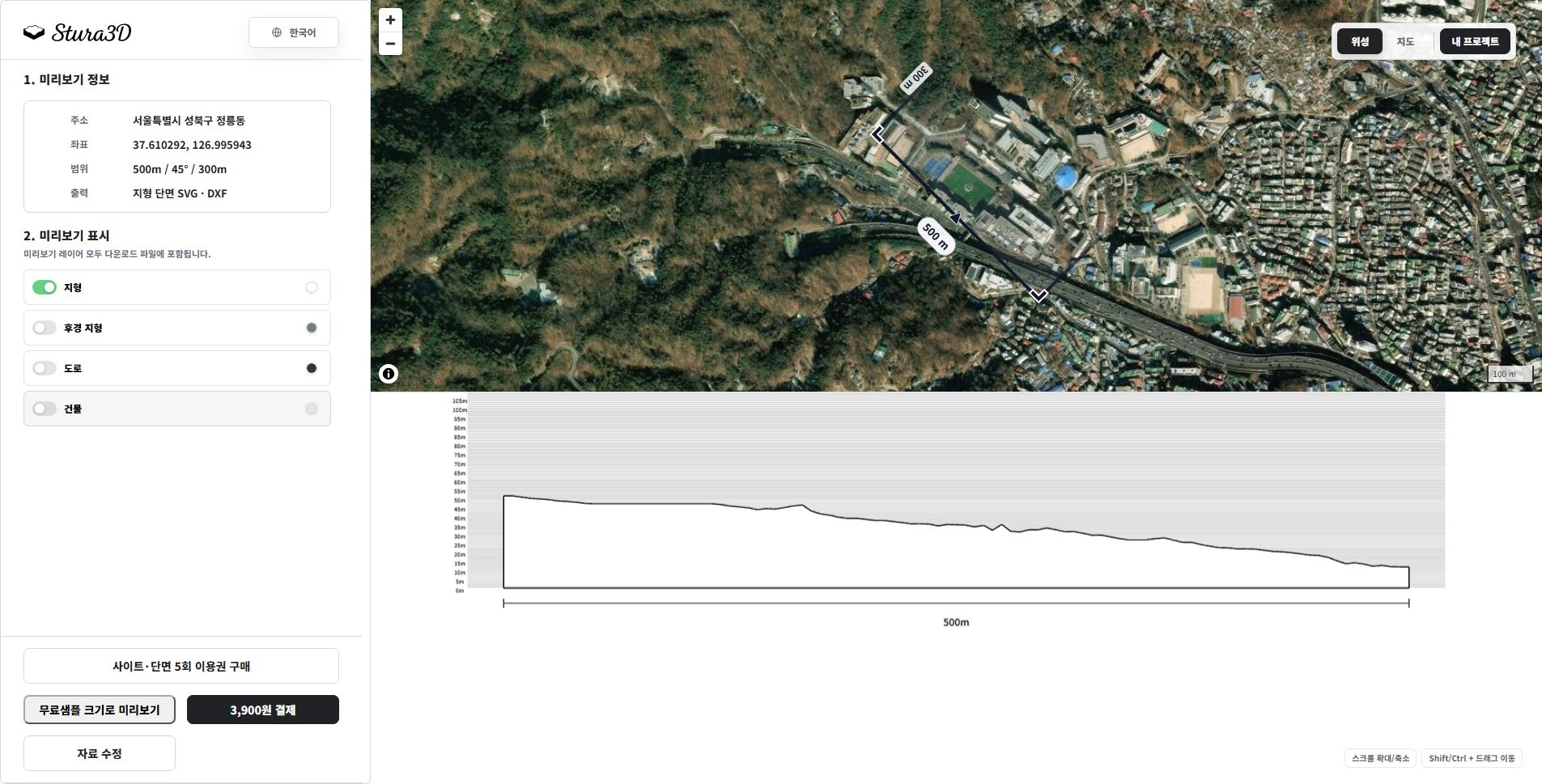
6. Separate terrain and background.
Hide buildings and roads to focus on terrain. Toggle the background terrain and zoom or pan to inspect the section.
Explore seasonal and hourly shadows in the 3D terrain preview and save an image.
1. Select 3D terrain.
Set the area and file format for smooth or stepped 3D terrain.
2. Create a terrain preview.
Create a preview and open the completed 3D terrain.
3. Explore and save the shadows.
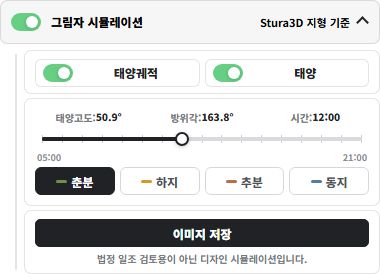
Enable shadow simulation and choose a season and time. Toggle the sun path and sun, then save a PNG image. This is a design simulation, not a statutory sunlight assessment.
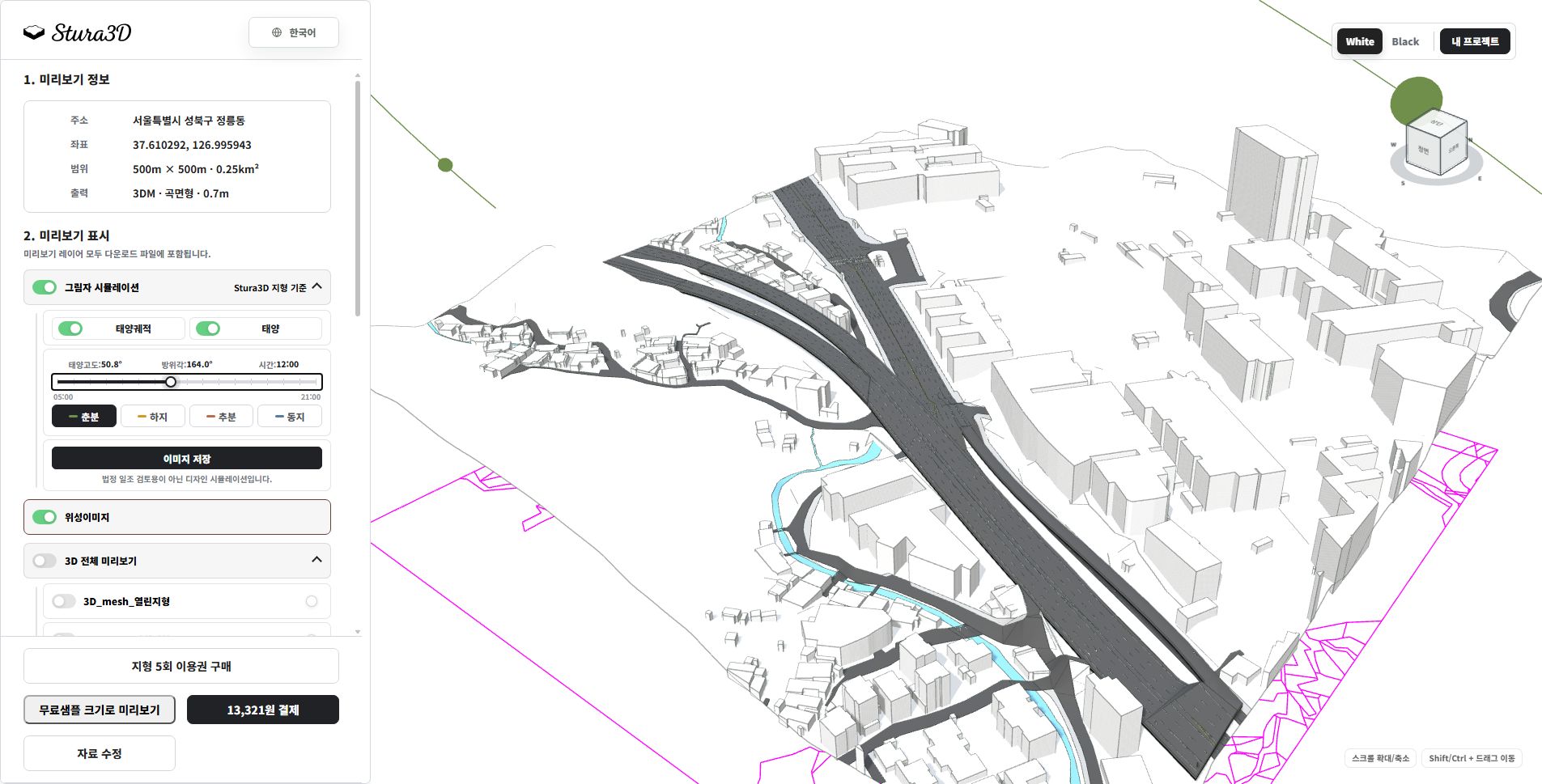
4. Adjust season and time.
Use the season buttons and time slider to change the sun position and shadows. Show the sun path and sun to understand their direction.
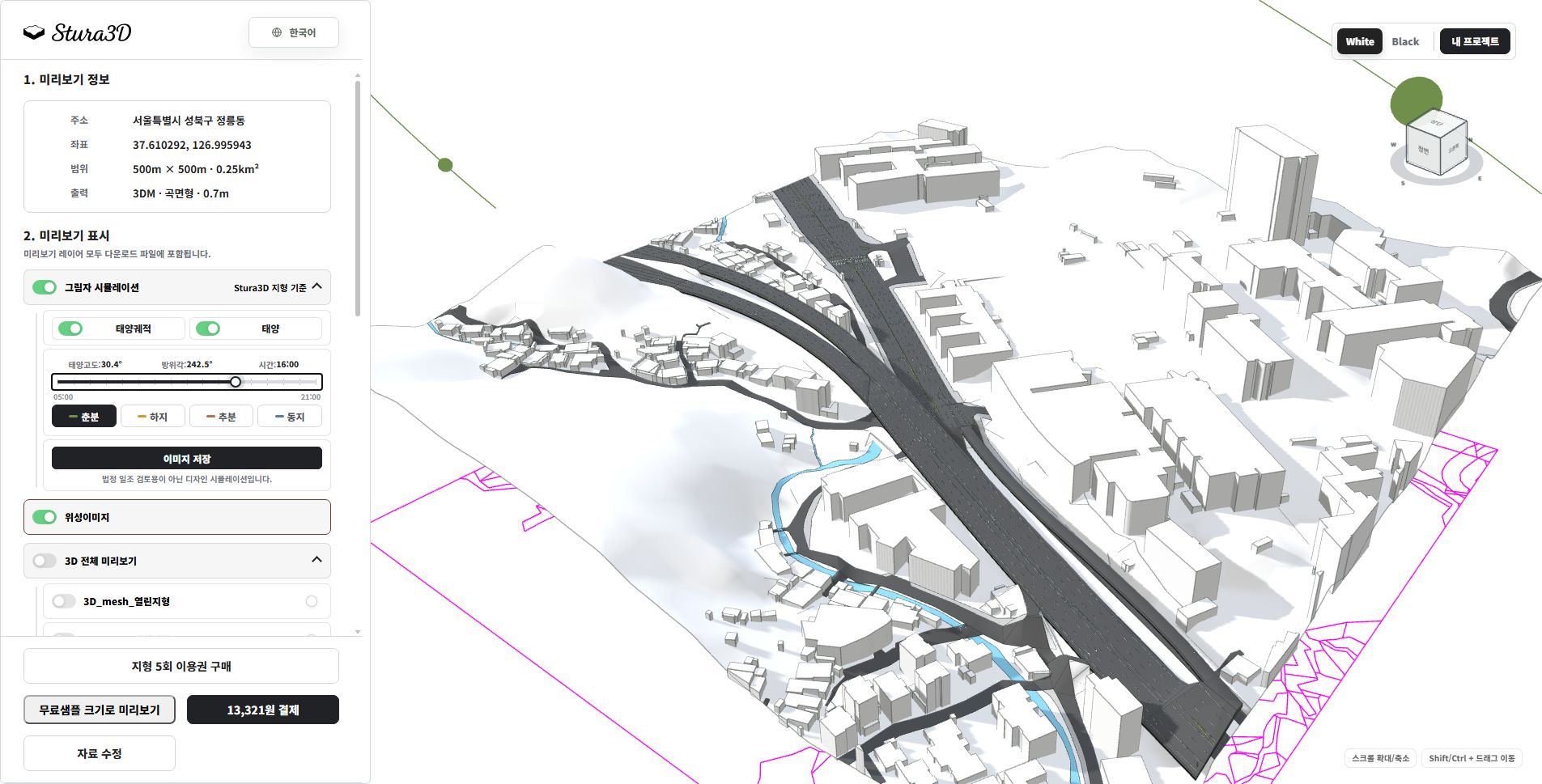
5. Compare times within the same season.
Compare spring at noon above with 16:00 here to see changes in shadow direction and length. Choose a time and save a PNG.
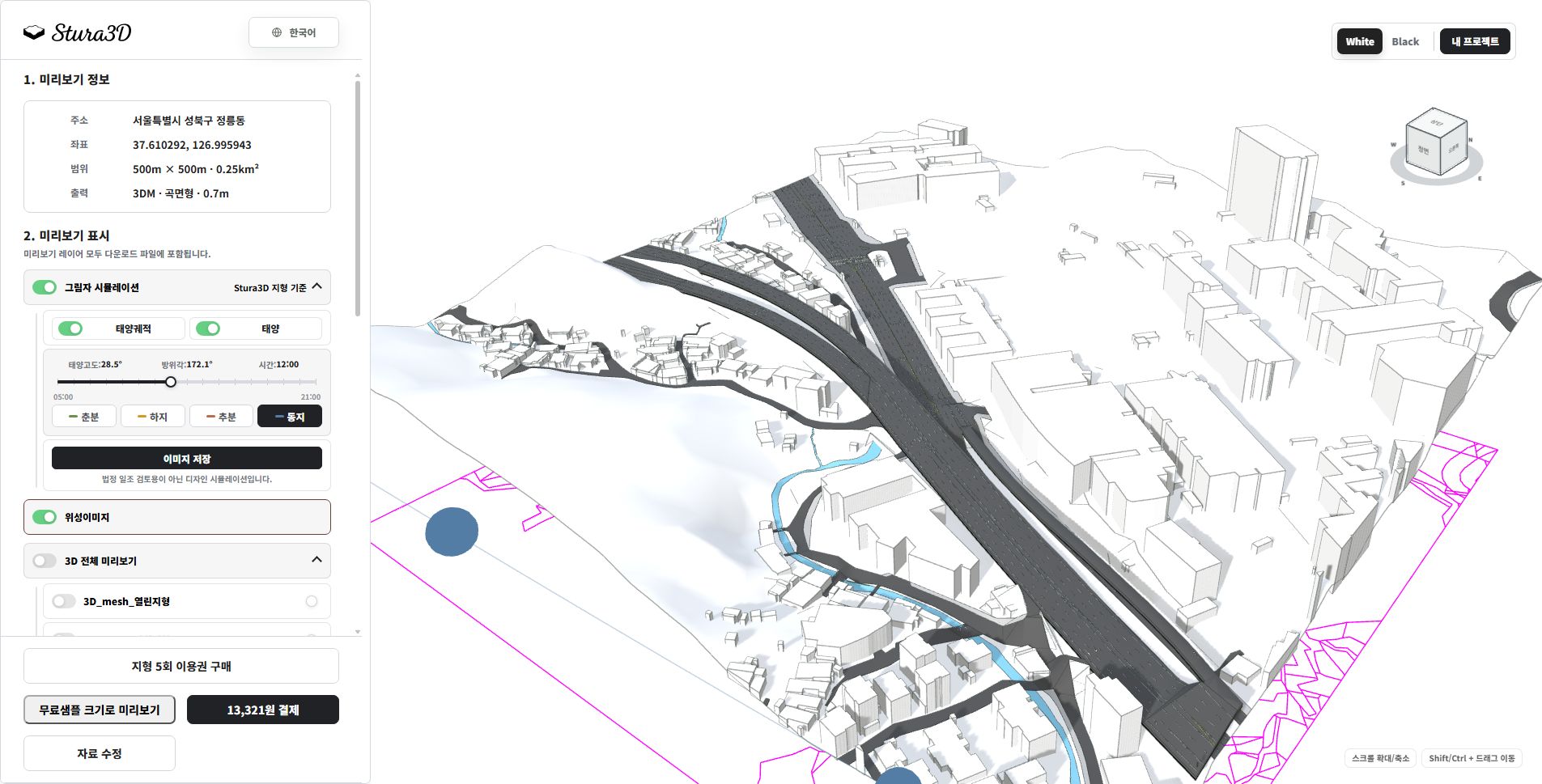
6. Compare seasons at the same time.
This is winter at noon. Compare it with spring at noon to inspect seasonal differences in shadow length and direction.