Stura3D

Help Center

Previews & downloads

Q1. Can I download data for locations worldwide?

Yes. You can select and download locations worldwide using address search or the map. Available detail may vary by the coverage and quality of source data in each region.

Q2. What is the difference between preview and download?

Preview lets you check the location, area, and terrain shape first. CAD, Rhino, SketchUp, and GLB work files are generated through download after payment or credit use.

Q3. How many free previews can I create per day?

Each account gets three free previews per day based on Korea Standard Time (KST), regardless of account age. The allowance resets at midnight KST; after using it, wait until the next day or purchase a preview pass.

Q4. How long does preview generation take?

Preview generation takes about three minutes on average. Depending on the selected area and processing conditions, it can take up to about 20 minutes.

Q5. Is a preview use deducted if an error occurs?

No. If preview generation fails, neither the free preview allowance nor a preview pass is deducted. If a pass was deducted before the error is confirmed, it is restored automatically.

Q6. Where can I redownload generated files?

Completed files are available in My projects after login. Previews can be checked for 10 days from creation, and downloaded files can be redownloaded for 10 days from the first download.

Q7. How many sample downloads are available?

Sample downloads are available twice per week per account based on Korea Standard Time. Sample areas are fixed, and stepped samples may also appear flat in very flat regions.
Payments, passes & refunds

Q1. How do I pay for downloads?

Choose the file you need and pay for it as a single download. For larger areas, contact support@stura3d.com.

Q2. How do I purchase and use preview passes?

After using the three free previews available each KST day, you can purchase a preview pass with three total uses. Each pass is valid for 100 days from payment. The three-use pass costs ₩1,900 or $1.50.

Q3. How does the 5-use pass work?

You can buy a 5-use pass at any time. Each pass provides five downloads across 2D, smooth, and stepped terrain for 100 days from purchase. If you own several passes, the oldest purchase is used first. Issuing a completed-file download entitlement deducts one use; downloading the same file again does not. Passes do not renew automatically, and unused uses do not roll over after expiry.

Q4. Can I get a refund for a preview pass?

An unused preview pass can be refunded. A pass cannot be refunded after even one use.

Q5. How do I get a refund?

If the downloaded file has a quality issue despite a thorough review of the preview, we will assess the refund request according to the Terms of Use.

Supported data & files

Q1. What is the difference between smooth and stepped terrain?

Smooth terrain is a continuous 3D surface for site review, architecture, and landscape planning. Stepped terrain is stacked along contour lines and is useful for models or contour-style representation.

Q2. What source terrain is included with stepped downloads?

Stepped downloads include complete and area-based terrain by contour interval, plus contours. Supported formats also include area layers such as roads and rivers; choose smooth terrain only when you need a continuous surface.

Q3. How do I choose contour interval?

For smooth, stepped and 2D terrain, you can choose 0.5m to 5m in 0.1m increments.

Q4. What is included in DXF (CAD) files?

DXF files include contours, building outlines, roads, addresses, and cadastral information by layer.

Q5. What is included in 3DM (Rhino) files?

3DM files include 3D terrain, buildings, roads, and rivers as layers that open directly in Rhino. Stepped downloads include stepped terrain and contour work layers.

Q6. What is included in SKP (SketchUp) files?

SKP files include 3D terrain, buildings, roads, and rivers that open directly in SketchUp. Files are saved in millimeters and are prepared to open without conversion.

Q7. What are OBJ/STL files for?

OBJ and STL are useful when shape review matters most, such as rendering, 3D printing, or sharing with external tools. Material or layer data can be limited depending on the program.

Q8. What scale are downloaded files?

All files are generated at real-world 1:1 scale. SketchUp SKP uses millimeters, while DXF, 3DM, and GLB files use meters. OBJ has no unit metadata, but its coordinates use meters, so import it as meters. STL also stores no unit metadata and keeps the numeric meter coordinates unchanged. When a 3D-printing program reads those values as millimeters, 100% size equals 1:1000 scale; no additional reduction is needed.

Q9. How do I import 3D DXF into Archicad?

Do not open the DXF directly. In an Archicad project, choose File > Interoperability > Merge..., select the 3D DXF, and enable Import Model Space content as GDL object. Set Scale X/Y to 1.00, merge the file, then use 3D > Generic Perspective and View > Zoom > Fit in Window. The terrain uses meters, and the ZIP includes a short usage guide.

Q10. How do I use GLB downloads?

Choose smooth or stepped terrain, preview and complete checkout, then download GLB from My Projects. Import it with Blender glTF 2.0; no Stura3D plugin is required.

Q11. Can I use the data for surveying?

No. Stura3D data is provided for design and planning review, not surveying. Elevated roads are included where supported by source data, but survey-grade accuracy is not guaranteed, and some bridges, tunnels, and caves may differ from reality.

Q12. Roads do not align with the terrain or satellite imagery.

Roads and elevated roads reflect their height and shape where supported by source data. Satellite imagery maps a top-down 2D image onto the terrain surface, so an elevated road may also appear on the ground below it. Different capture and update dates can also cause roads and buildings to appear misaligned.

Account management

Q1. How do I delete my account?

Sign in and open My Projects > Account > Delete account, then re-enter your account email. Email-password accounts must also confirm their current password. Download the files you need first: deletion restricts sign-in and project access. Payment and dispute records may be retained as required by law.

Q2. How do I change my password?

Open My Projects > Account > Change password. Enter your current password and a new password of at least eight characters. If you forgot your password, request an email reset link on the sign-in page.

Q3. How do I apply for an academic partnership?

Submit a student council or university partnership application through Customer Support. Applications must come from the organization’s representative or an authorized contact. Our team will review it and notify you of the result.

Q4. Where can I get a partnership verification key?

After approval, Stura3D emails the key to the applicant representing the organization. Members should obtain it from that representative, such as their student council president, and enter it in Account management.

Student and university partnership application

Stura3D provides a partnership program to support students and universities in architecture.

Partnership benefits

  • Discount benefits are applied within five business days after the agreement is completed.
  • Student councils and verified universities: 50% off and 2 free terrain exports per month
  • Terrain includes 2D terrain maps, 3D smooth terrain, and 3D stepped terrain. The allowance resets on the first day of each month at 00:00 KST. It is separate from free samples, and unused exports do not roll over.

Stura3D partnership conditions and period

  • Eligibility: The agreement and inquiry must generally be submitted directly by the student council president of the relevant department or faculty.
  • Period: Student council and verified university benefits reset every March 1 at 00:00 KST. A new verification key is required to continue.
  • How to apply: Select the application checklist button below, then complete and submit the online form.

2D terrain

Follow the steps from setup to reviewing the result.

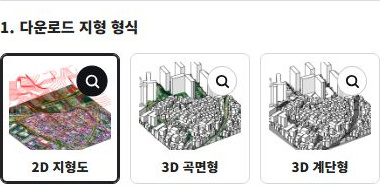
  1. Select 2D terrain.

    1. Select 2D terrain.

    Choose the terrain type for your project.

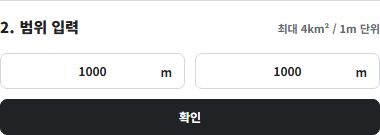
  2. Set the area you need.

    2. Set the area you need.

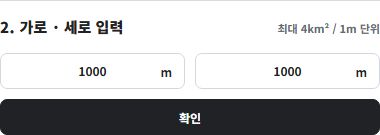
    Set each side from 100 to 2,000 m in 1 m increments (up to 4 km²). The example shows 1,000 × 1,000 m.

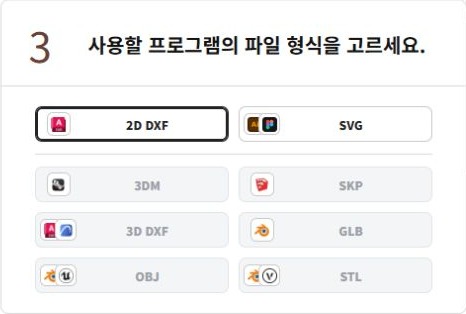
  3. Choose a file format.

    3. Choose a file format.

    Select 2D DXF for your software.

    Includes contours, building outlines, roads, addresses, and cadastral data in separate layers. Available source attributes and supported imagery are included.

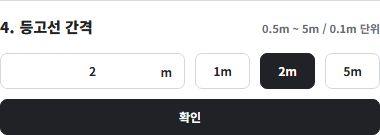
  4. Set the contour interval.

    4. Set the contour interval.

    Set the contour interval from 0.5 to 5 m in 0.1 m increments. The example shows 2 m.

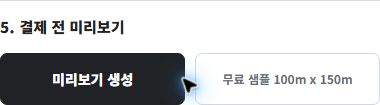
  5. Check the preview.

    5. Check the preview.

    Create a preview to check the selected area and data before downloading.

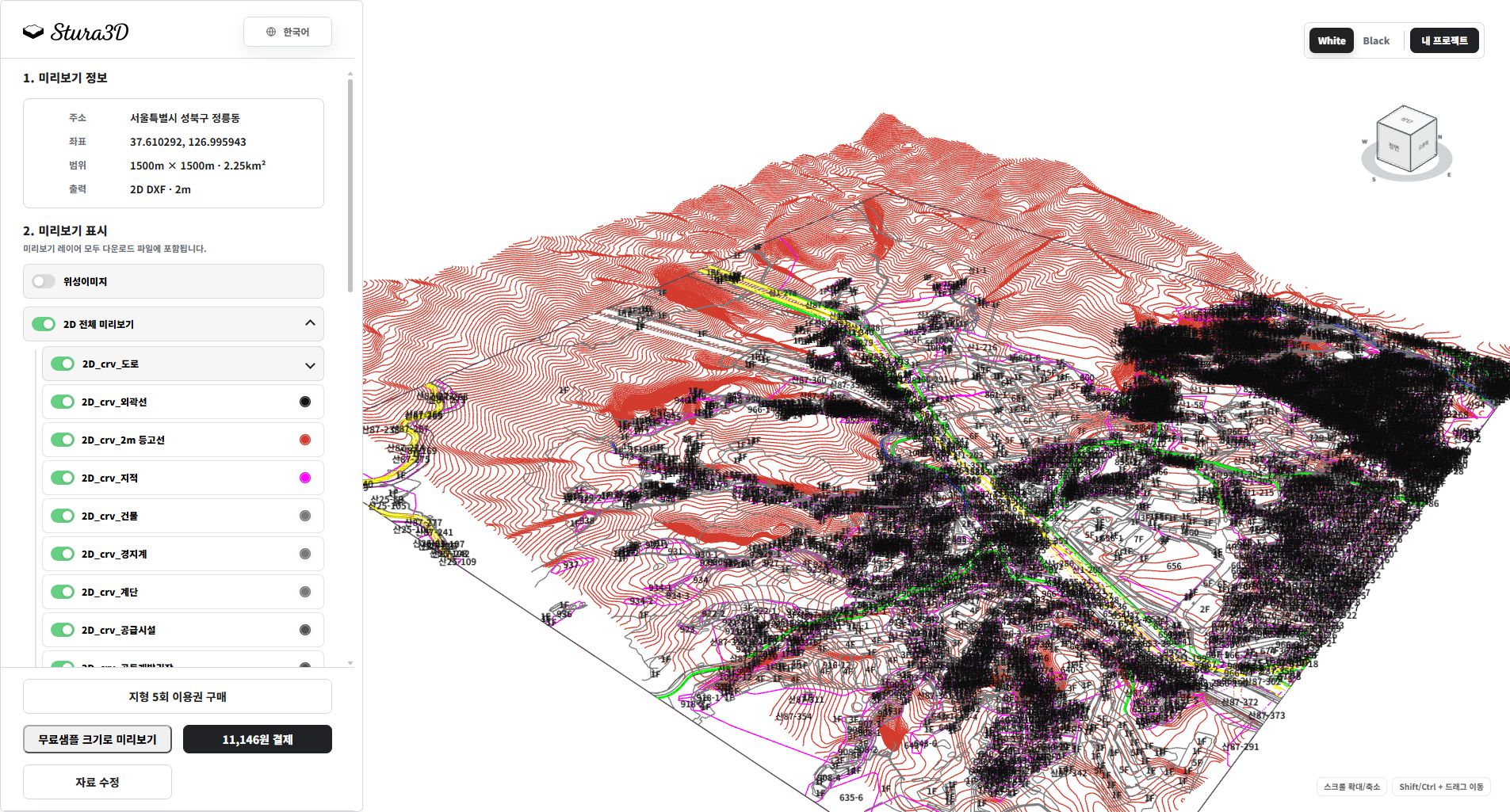
  1. Inspect the drawing and layers.

    6. Inspect the drawing and layers.

    Hide imagery to read contours, roads and building lines clearly. Toggle layers and zoom in to check boundaries. DXF and SVG differ in text and elevation data.

  2. Compare contour intervals.

    7. Compare contour intervals.

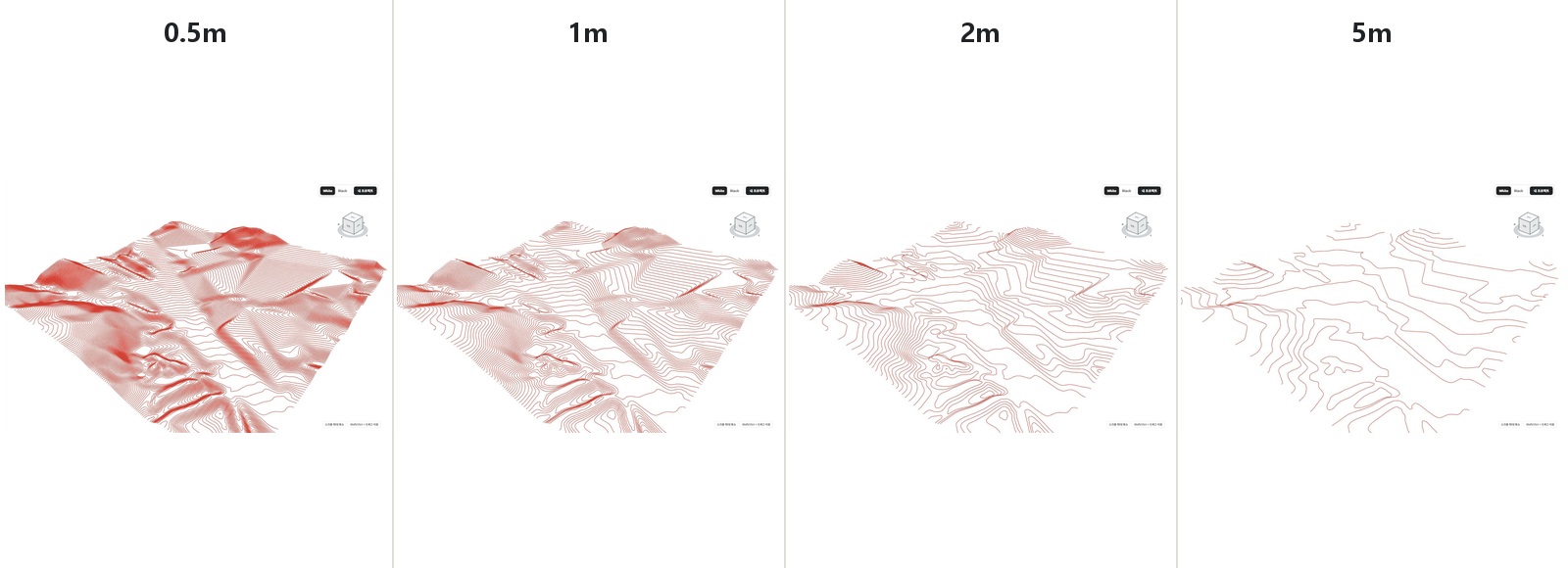
    Compare 0.5, 1, 2 and 5 m intervals. Smaller intervals produce denser lines; they do not increase the survey accuracy of the source data.

3D smooth terrain

Follow the steps from setup to reviewing the result.

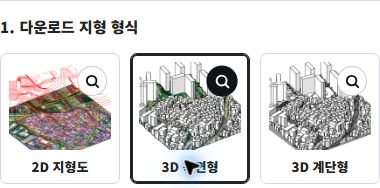
  1. Select 3D smooth terrain.

    1. Select 3D smooth terrain.

    Choose the terrain type for your project.

  2. Set the area you need.

    2. Set the area you need.

    Set each side from 100 to 2,000 m in 1 m increments (up to 4 km²). The example shows 1,000 × 1,000 m.

  3. Choose a file format.

    3. Choose a file format.

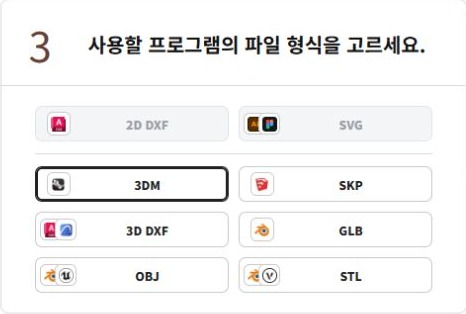
    Select 3DM for your software.

    3DM includes complete terrain together with terrain layers by area, buildings, and available context objects; available layers depend on local source data.

  4. Set the contour interval.

    4. Set the contour interval.

    Set the contour interval from 0.5 to 5 m in 0.1 m increments. The example shows 2 m.

  5. Check the preview.

    5. Check the preview.

    Create a preview to check the selected area and data before downloading.

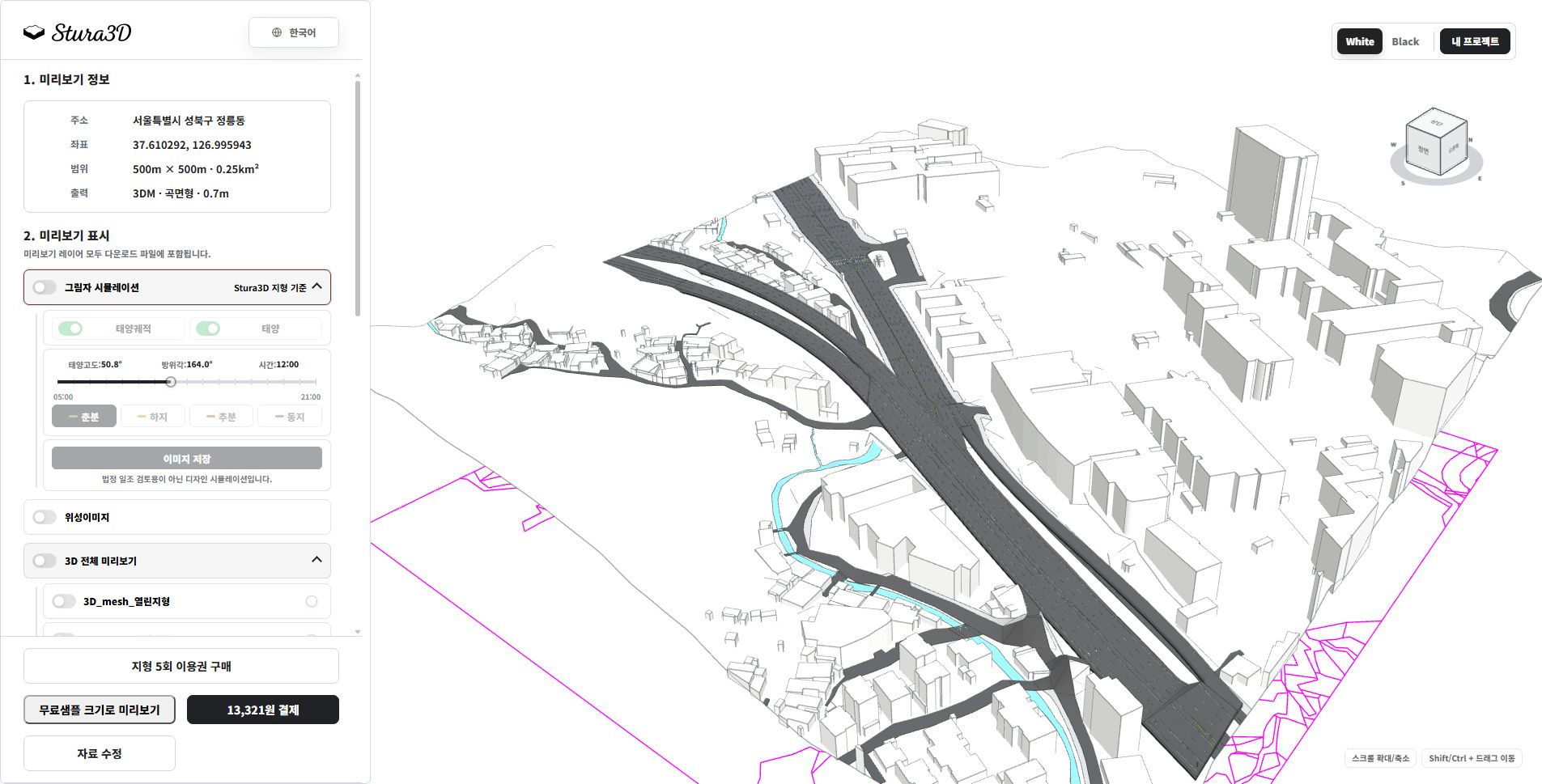
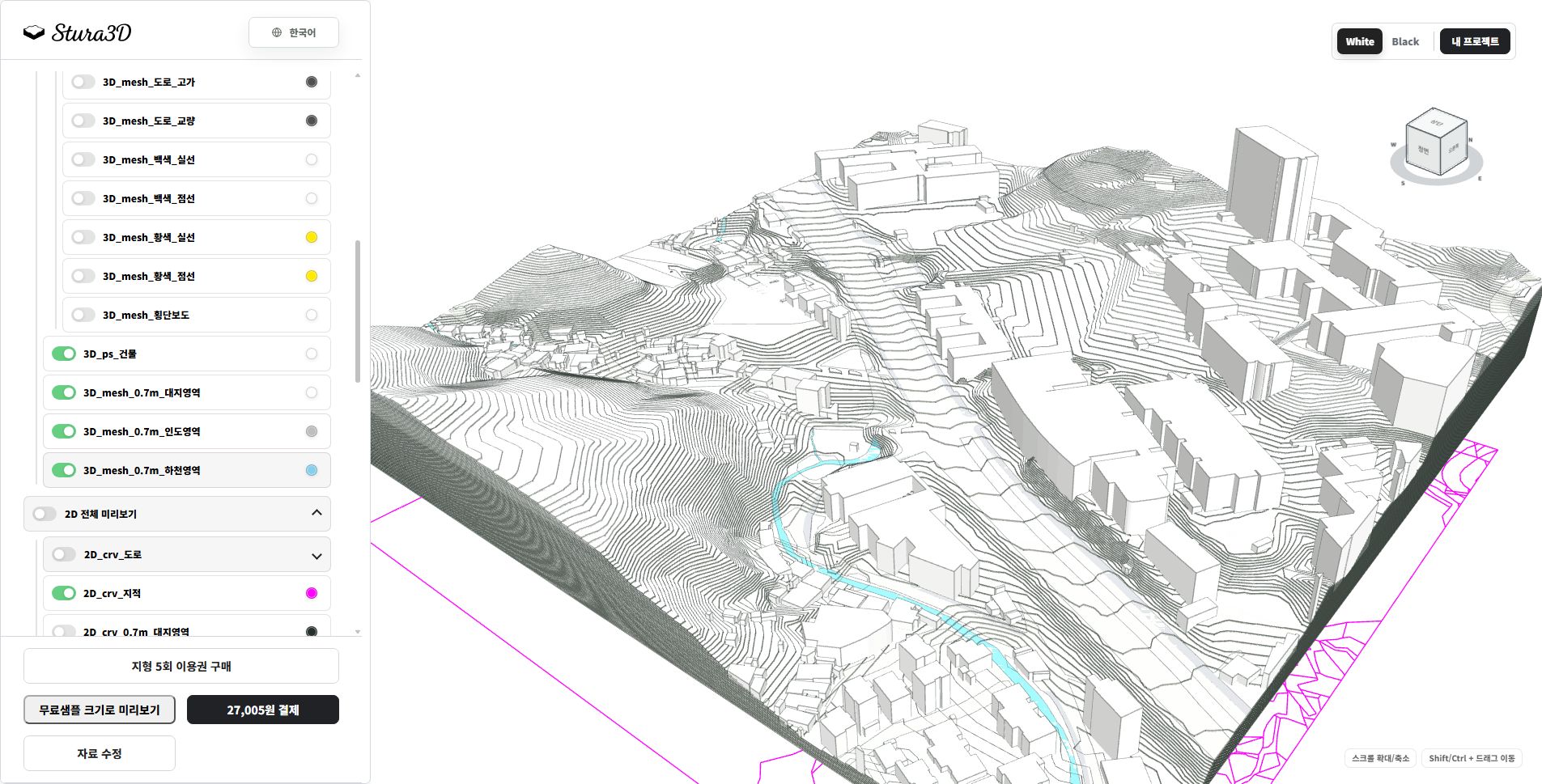
  1. Inspect the complete terrain model.

    6. Inspect the complete terrain model.

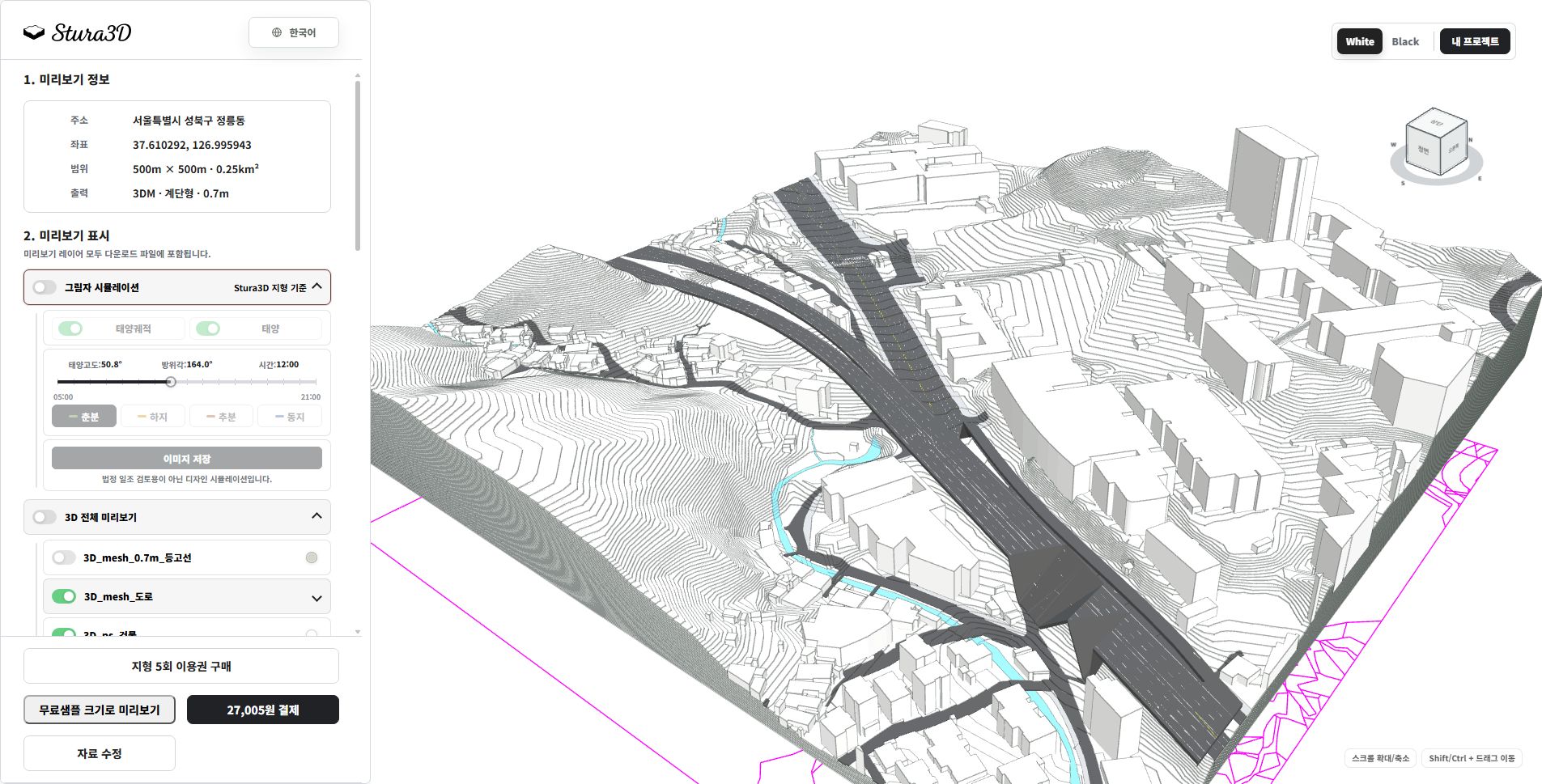
    Rotate and zoom to inspect terrain, buildings and roads. Hide shadows to read the surfaces. Available layers depend on the format and source region.

  2. Inspect terrain and context by layer.

    7. Inspect terrain and context by layer.

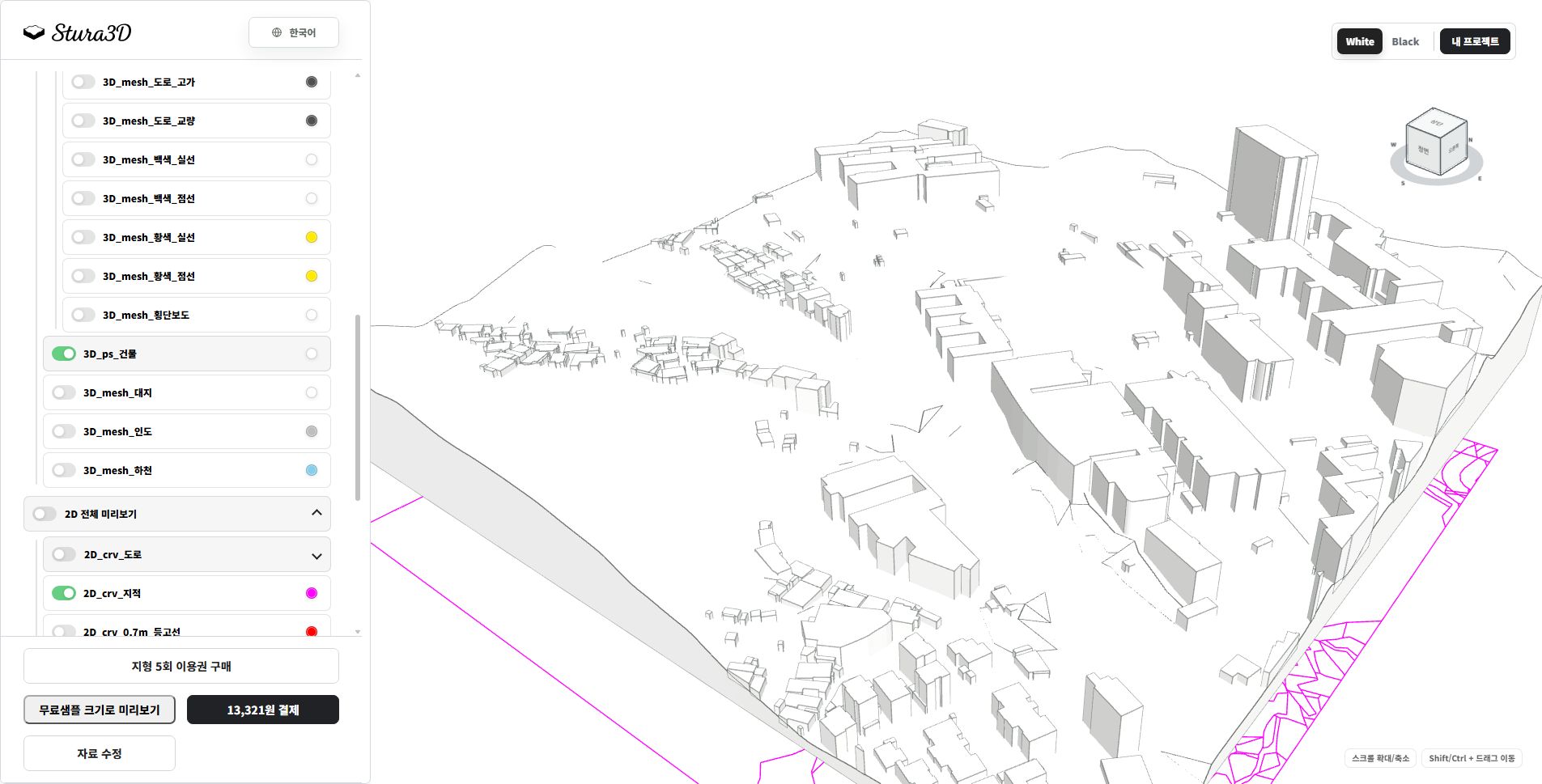
    Toggle buildings, site and road layers to inspect each element separately and distinguish terrain from its surroundings.

3D stepped terrain

Follow the steps from setup to reviewing the result.

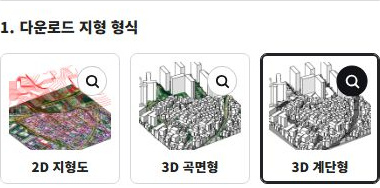
  1. Select 3D stepped terrain.

    1. Select 3D stepped terrain.

    Choose the terrain type for your project.

  2. Set the area you need.

    2. Set the area you need.

    Set each side from 100 to 2,000 m in 1 m increments (up to 4 km²). The example shows 1,000 × 1,000 m.

  3. Choose a file format.

    3. Choose a file format.

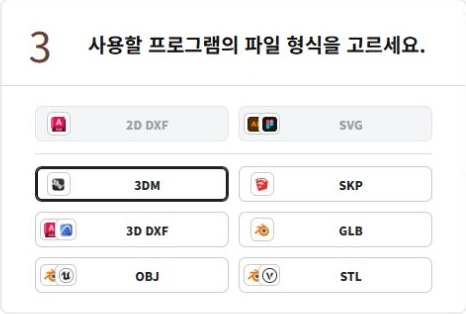
    Select 3DM for your software.

    3DM includes complete terrain together with terrain layers by area, buildings, and available context objects; available layers depend on local source data.

  4. Set the contour interval.

    4. Set the contour interval.

    Set the contour interval from 0.5 to 5 m in 0.1 m increments. The example shows 2 m.

  5. Check the preview.

    5. Check the preview.

    Create a preview to check the selected area and data before downloading.

  1. Inspect the complete terrain model.

    6. Inspect the complete terrain model.

    Rotate and zoom to inspect terrain, buildings and roads. Hide shadows to read the surfaces. Available layers depend on the format and source region.

  2. Inspect terrain and context by layer.

    7. Inspect terrain and context by layer.

    Toggle buildings, site and road layers to inspect each element separately and distinguish terrain from its surroundings.

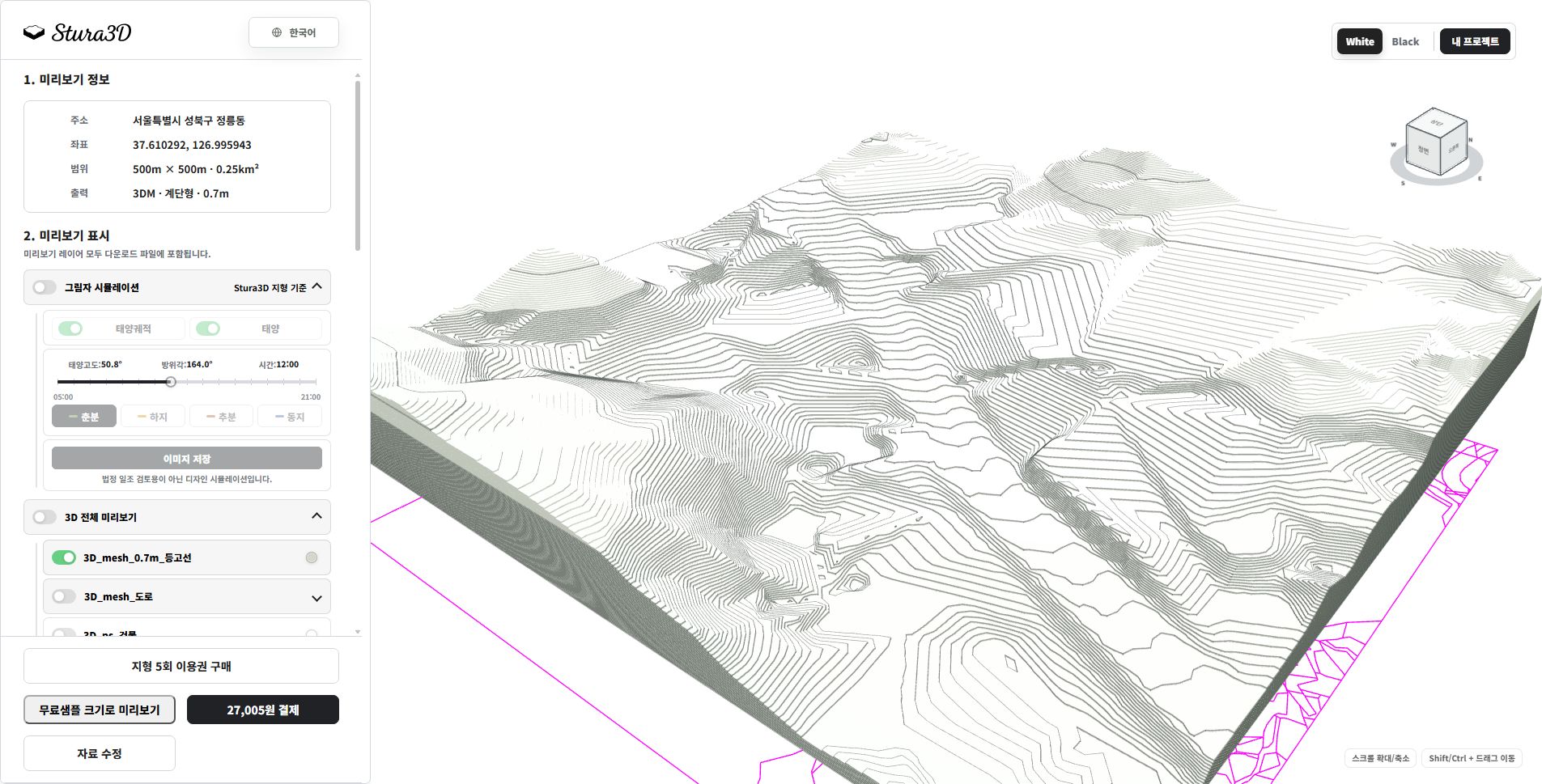
  3. Inspect the terrain steps.

    8. Inspect the terrain steps.

    This example shows 0.7 m terrain steps without buildings or context. Check the steps and slope; change the generation settings and create a new preview for another interval.

Site diagram

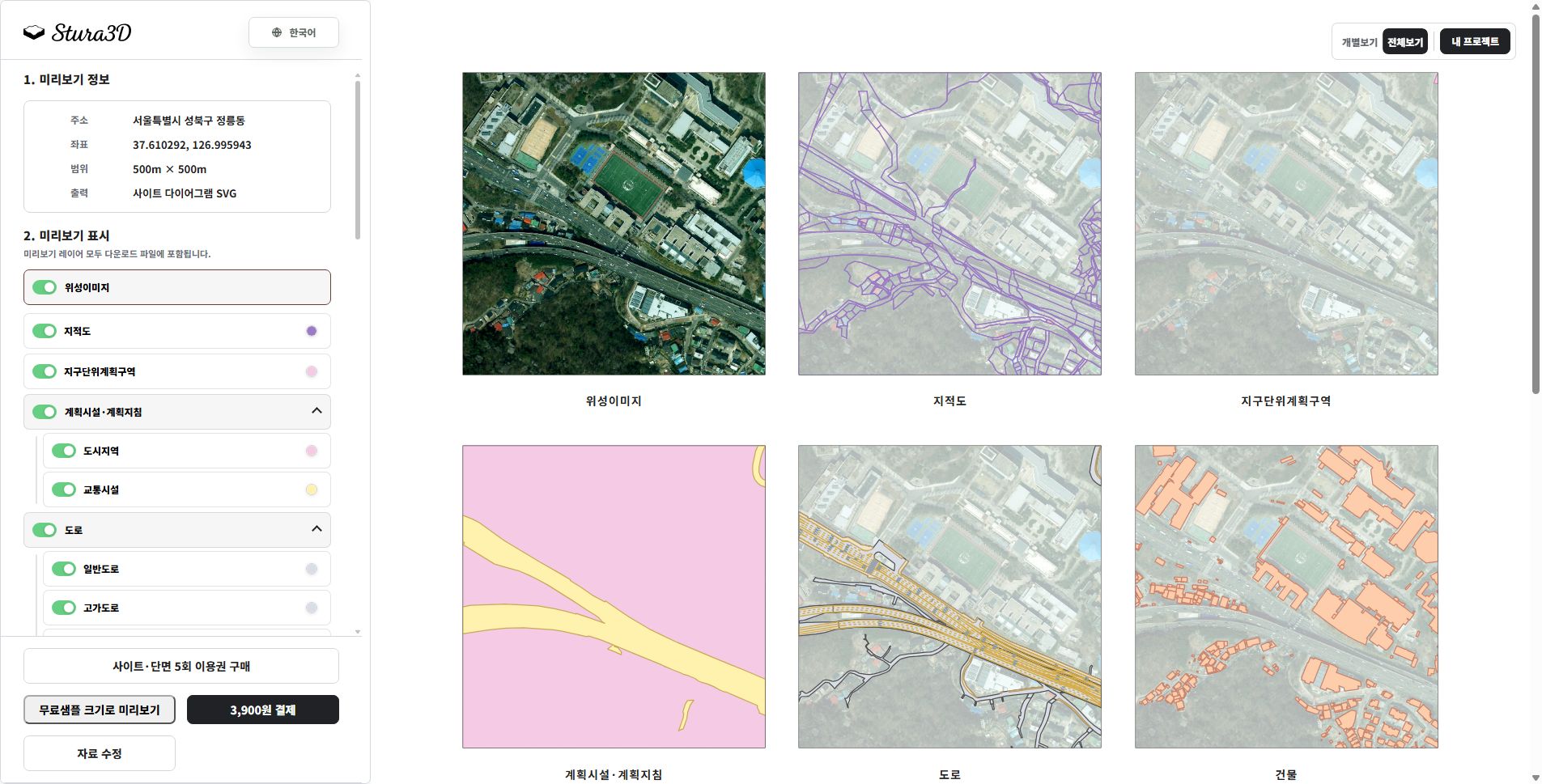
A top-view SVG diagram of the selected location and radius, with editable vector layers for buildings, terrain, roads, water, green areas, contours, and supported cadastral boundaries.

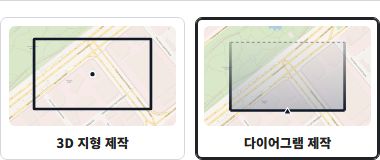
  1. Select diagram creation.

    1. Select diagram creation.

    Choose the diagram creation mode.

  2. Select Site diagram.

    2. Select Site diagram.

    Choose the diagram type you need.

  3. Set the diagram area.

    3. Set the diagram area.

    Set each side from 100 to 2,000 m in 1 m increments (up to 4 km²). The example shows 1,000 × 1,000 m.

  4. Preview and download.

    4. Preview and download.

    Check the layers in the site preview, then download the SVG data.

  1. Review topics in the overview.

    5. Review topics in the overview.

    The overview shows imagery, cadastral boundaries, roads and buildings side by side. Switch to an individual view to focus on one topic.

  2. Inspect the layers you need.

    6. Inspect the layers you need.

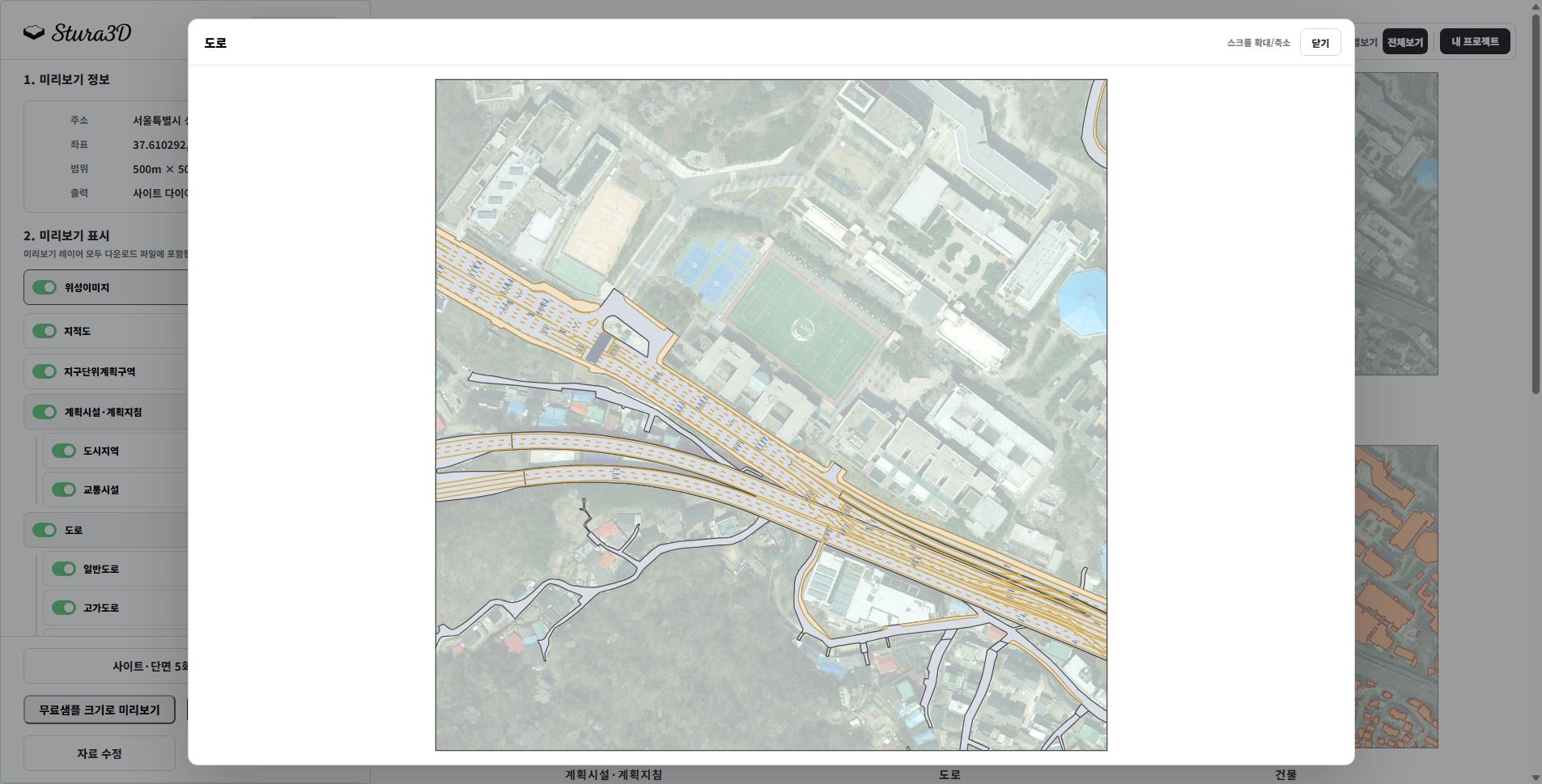
    Expand the road group to inspect ordinary and elevated roads. Adjust visibility and colors to understand connections across the site.

Section diagram

Follow the steps from setup to reviewing the result.

  1. Select diagram creation.

    1. Select diagram creation.

    Choose the diagram creation mode.

  2. Select Section diagram.

    2. Select Section diagram.

    Choose the diagram type you need.

  3. Set the diagram area.

    3. Set the diagram area.

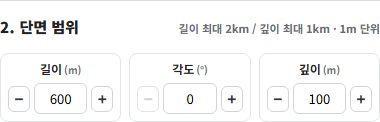
    Set length from 200 to 2,000 m and depth from 0 to 1,000 m in 1 m increments. Set the angle from 0 to 359° in 1° increments.

  4. Preview and download.

    4. Preview and download.

    Check the section preview, then download both SVG and DXF files.

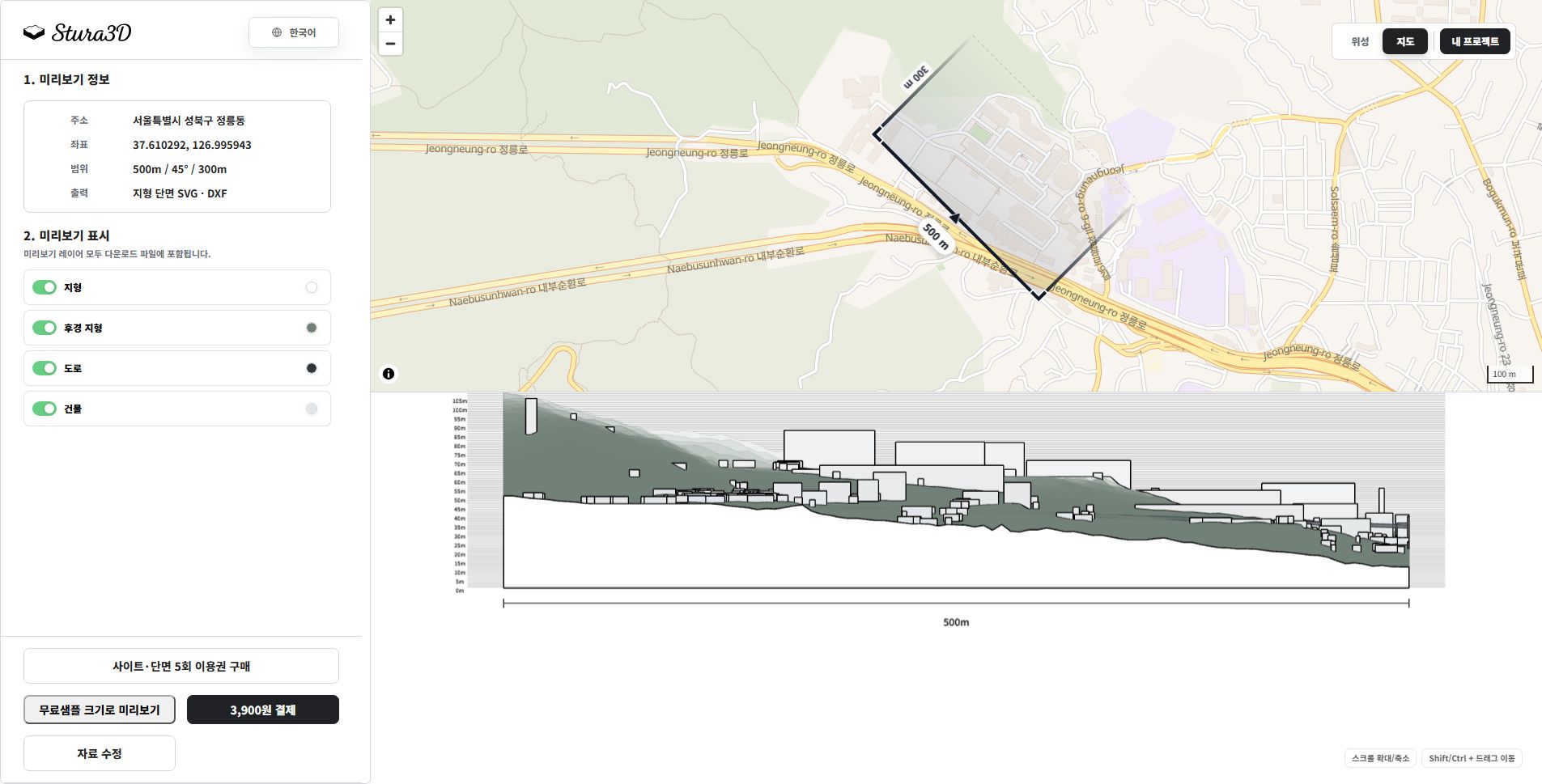
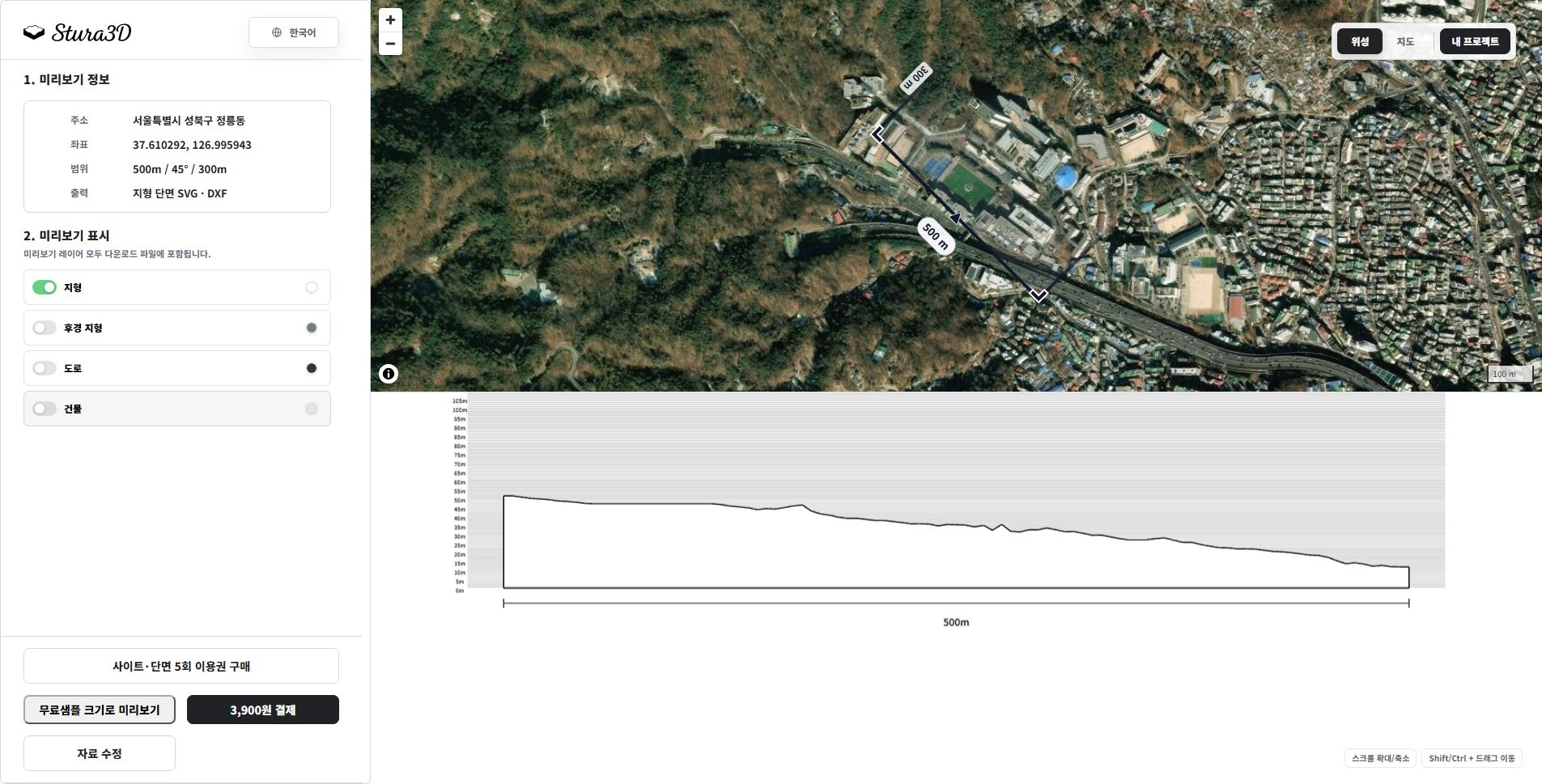
    A section SVG based on the selected length, angle, and depth, with editable layers for terrain, background terrain, buildings, water, bridges, elevated roads, and dimensions.

  1. Read the map and section together.

    5. Read the map and section together.

    Check the cut location and direction on the map, then read terrain and buildings below. This example uses a 500 m length, 45° angle and 300 m depth.

  2. Separate terrain and background.

    6. Separate terrain and background.

    Hide buildings and roads to focus on terrain. Toggle the background terrain and zoom or pan to inspect the section.

Shadow simulation

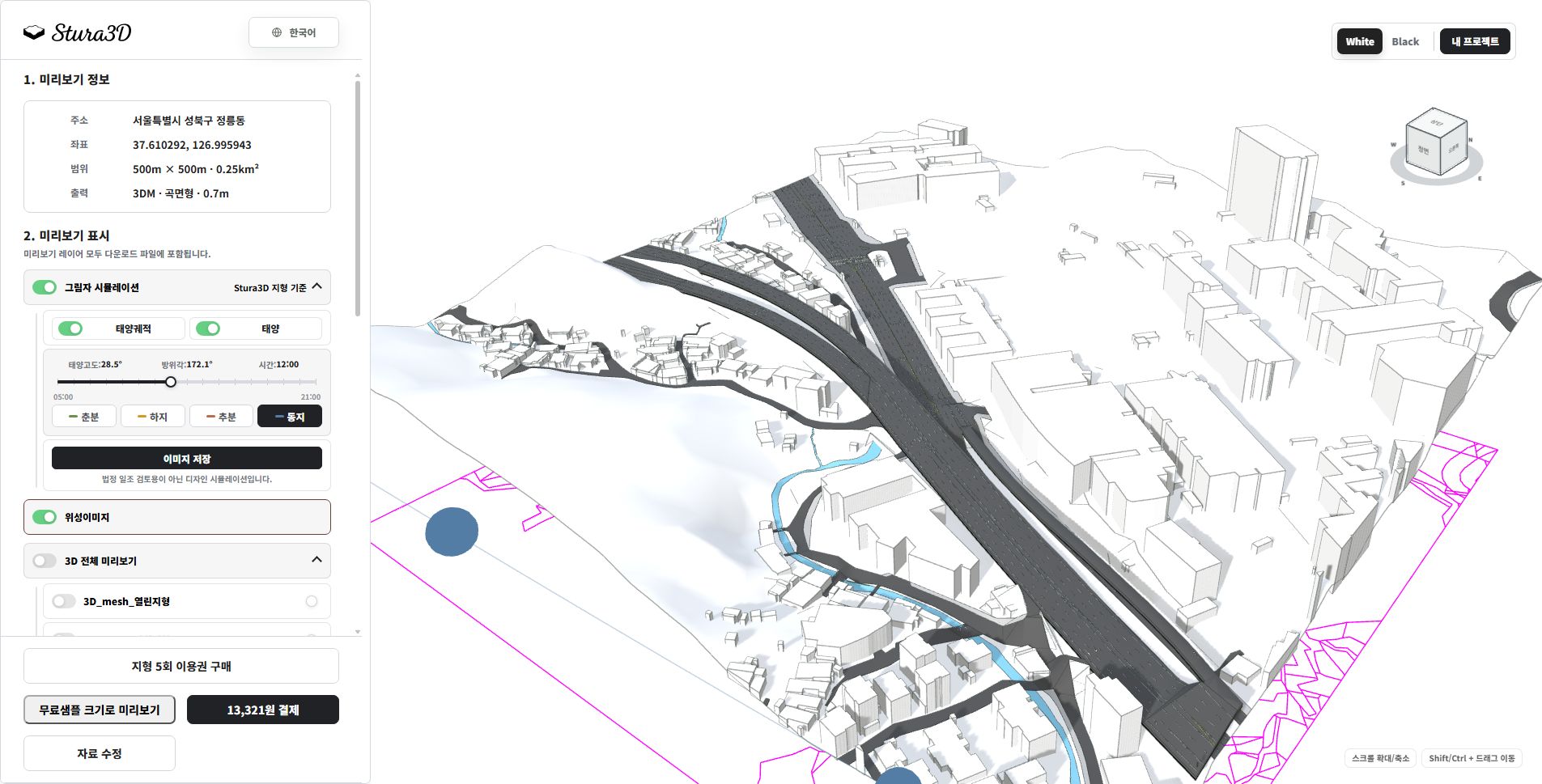
Explore seasonal and hourly shadows in the 3D terrain preview and save an image.

  1. Select 3D terrain.

    1. Select 3D terrain.

    Set the area and file format for smooth or stepped 3D terrain.

  2. Create a terrain preview.

    2. Create a terrain preview.

    Create a preview and open the completed 3D terrain.

  3. Explore and save the shadows.

    3. Explore and save the shadows.

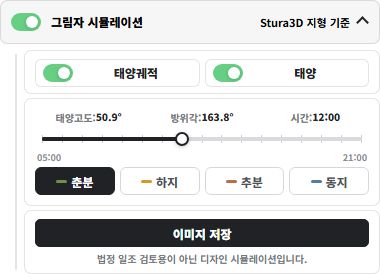
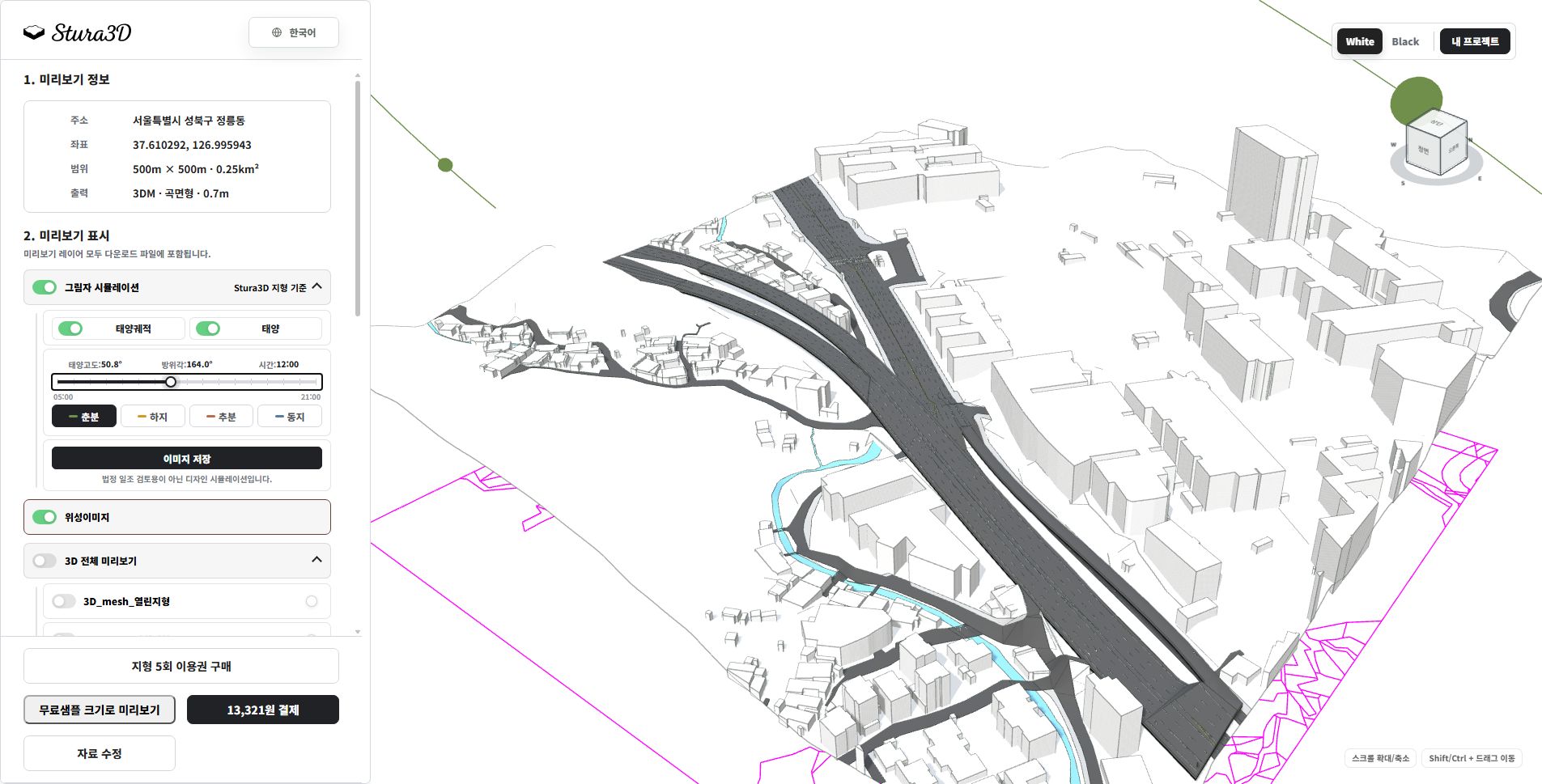
    Enable shadow simulation and choose a season and time. Toggle the sun path and sun, then save a PNG image. This is a design simulation, not a statutory sunlight assessment.

  1. Adjust season and time.

    4. Adjust season and time.

    Use the season buttons and time slider to change the sun position and shadows. Show the sun path and sun to understand their direction.

  2. Compare times within the same season.

    5. Compare times within the same season.

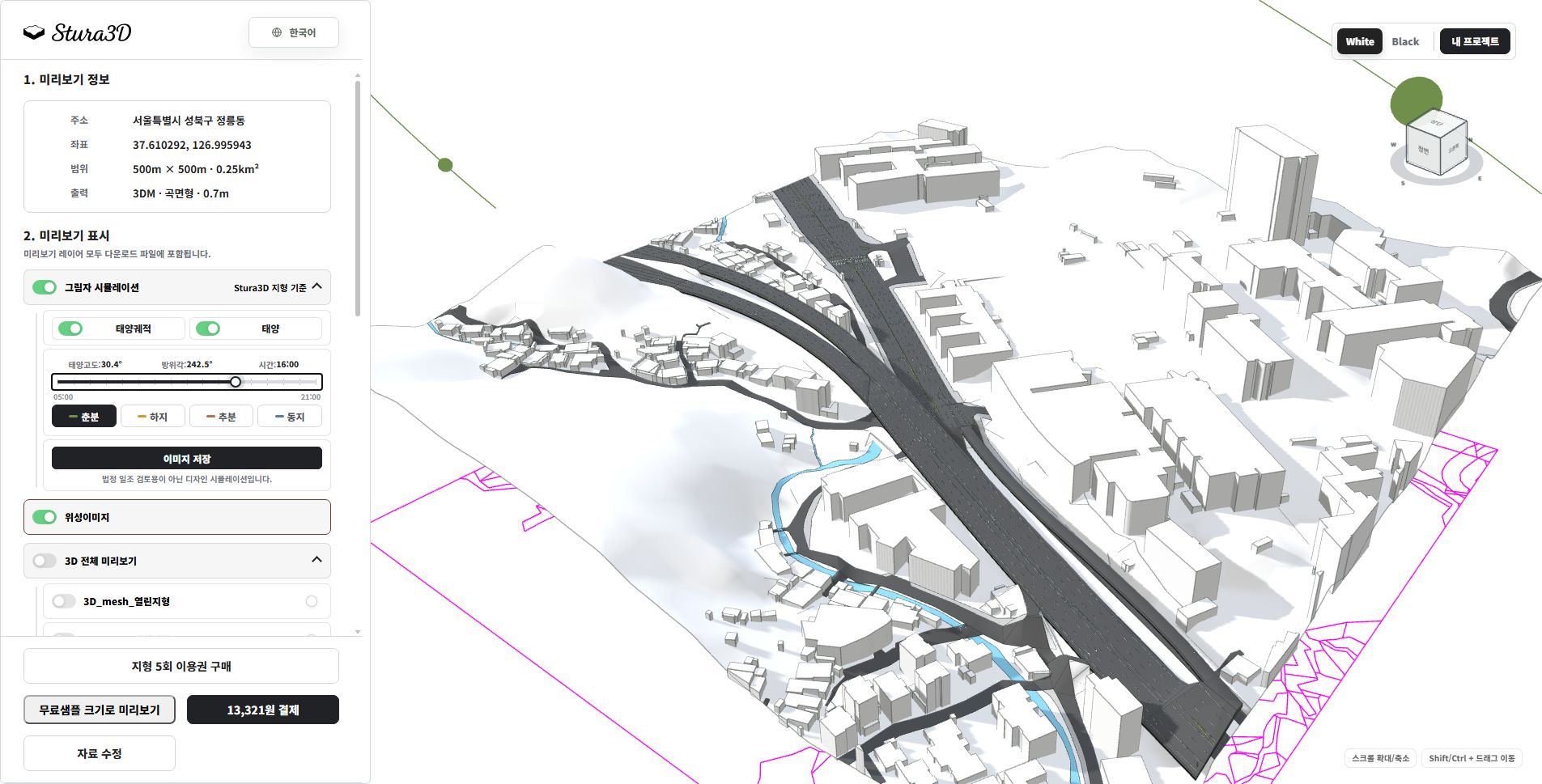
    Compare spring at noon above with 16:00 here to see changes in shadow direction and length. Choose a time and save a PNG.

  3. Compare seasons at the same time.

    6. Compare seasons at the same time.

    This is winter at noon. Compare it with spring at noon to inspect seasonal differences in shadow length and direction.

Data sources

Global common

Data source

  • Mapzen/AWS Terrain Tiles
  • Satlas
  • Copernicus DEM
  • NASADEM
  • OpenStreetMap
  • Overture Maps

License

  • Original provider terms and licenses apply

Original source

https://registry.opendata.aws/terrain-tiles/

https://satlas.allen.ai/

https://registry.opendata.aws/copernicus-dem/

https://lpdaac.usgs.gov/products/nasadem_hgtv001/

https://www.openstreetmap.org/copyright

https://overturemaps.org/download/

South Korea

Data source

  • 국토지리정보원
  • VWorld

License

  • Original provider terms and licenses apply

Original source

https://www.ngii.go.kr/

https://www.vworld.kr/

Time zone data

Data source

  • timezone-boundary-builder / geo-tz
  • © OpenStreetMap contributors

License

  • Open Database License (ODbL) 1.0

Original source

https://github.com/evansiroky/timezone-boundary-builder

https://www.openstreetmap.org/copyright

https://opendatacommons.org/licenses/odbl/1-0/

https://www.stura3d.com/legal/shadow-third-party-notices.txt

Help Center | Stura3D