Stura3D

Help Center

Pré-visualizações e downloads

Q1. Posso baixar dados de qualquer lugar do mundo?

Sim. Você pode selecionar e baixar locais do mundo todo pela busca de endereço ou pelo mapa. Os detalhes disponíveis podem variar conforme a cobertura e a qualidade dos dados de origem de cada região.

Q2. Qual é a diferença entre pré-visualização e download?

A pré-visualização permite conferir local, área e forma do terreno. Arquivos CAD, Rhino, SketchUp e GLB são gerados no download após pagamento ou uso de créditos.

Q3. Quantas pré-visualizações gratuitas posso criar por dia?

Cada conta tem três pré-visualizações gratuitas por dia, de acordo com o horário padrão da Coreia (KST), sem limite de idade da conta. A cota é renovada à meia-noite KST; depois de esgotá-la, aguarde o dia seguinte ou compre um passe.

Q4. Quanto tempo leva a geração da pré-visualização?

A geração leva cerca de 3 minutos em média. Dependendo da área selecionada e das condições de processamento, pode levar até cerca de 20 minutos.

Q5. Um uso é descontado se ocorrer um erro na pré-visualização?

Não. Se a geração da pré-visualização falhar, nem a cota gratuita nem o passe são descontados. Se um passe tiver sido descontado antes da confirmação do erro, ele será restaurado automaticamente.

Q6. Onde posso baixar novamente?

Arquivos prontos ficam em Meus projetos após login. Pré-visualizações ficam 10 dias e arquivos baixados podem ser baixados novamente por 10 dias desde o primeiro download.

Q7. Quantos downloads de amostra posso usar?

Cada conta tem 2 downloads de amostra por semana, segundo o horário padrão da Coreia (KST). A área é fixa e, em regiões muito planas, a amostra em degraus também pode parecer plana.
Pagamentos, passes e reembolsos

Q1. Como escolher entre pagamento avulso e créditos?

Pagamento avulso é indicado para um único trabalho. Para áreas grandes, entre em contato pelo support@stura3d.com.

Q2. Como compro e uso passes de pré-visualização?

Depois de usar as três pré-visualizações gratuitas do dia KST, você pode comprar um passe de pré-visualização com três usos no total. Cada passe é válido por 100 dias a partir do pagamento. O passe de três usos custa ₩1,900 ou $1.50.

Q3. Como funciona o passe de terreno de 5 usos?

Inclui 5 downloads de terreno durante 100 dias a partir da compra, sem renovação automática. O passe mais antigo é usado primeiro. Baixar novamente o mesmo arquivo não consome outro uso; os usos restantes expiram no vencimento.

Q4. Posso receber reembolso por um passe de pré-visualização?

Você pode receber reembolso se o passe não tiver sido usado. Um passe não pode ser reembolsado após um único uso.

Q5. Como pedir reembolso?

Se o arquivo baixado apresentar um problema de qualidade apesar da análise cuidadosa da pré-visualização, avaliaremos o pedido de reembolso conforme os Termos de Uso.

Dados e arquivos compatíveis

Q1. Qual a diferença entre terreno suave e em degraus?

O suave é uma superfície 3D contínua para estudo de terreno, arquitetura e paisagismo. O em degraus segue curvas de nível e serve para maquetes ou representação por contornos.

Q2. O que vem no download em degraus?

Inclui terreno completo e por áreas conforme o intervalo das curvas, além das curvas de nível. Os formatos compatíveis também incluem camadas por área para estradas e rios; escolha o terreno suave apenas quando precisar de uma superfície contínua.

Q3. Como escolher o intervalo de curvas?

Para terreno suave, em degraus e 2D, escolha de 0,5m a 5m em passos de 0,1m.

Q4. O que inclui o DXF (CAD)?

Inclui curvas de nível, edifícios, vias, endereços e cadastro por camadas.

Q5. O que inclui o 3DM (Rhino)?

Inclui terreno 3D, edifícios, vias e rios em camadas para abrir no Rhino. O tipo em degraus inclui também camadas de terreno e contorno.

Q6. O que inclui o SKP (SketchUp)?

Inclui terreno 3D, edifícios, vias e rios prontos para abrir no SketchUp. O arquivo usa milímetros e não precisa de conversão.

Q7. Para que servem OBJ/STL?

OBJ e STL servem para render, impressao 3D ou envio a ferramentas externas quando a forma e o foco. Materiais e camadas podem ser limitados.

Q8. Qual é a escala dos arquivos?

Todos os arquivos são gerados em escala real 1:1. SKP usa milímetros; DXF, 3DM e GLB usam metros. OBJ não armazena a unidade, mas suas coordenadas usam metros; importe-o em metros. STL também não armazena a unidade e mantém inalterados os valores numéricos em metros. Se um programa de impressão 3D interpretar esses valores como milímetros, o tamanho de 100% corresponderá à escala 1:1000; não é necessário reduzir novamente.

Q9. Como importar um 3D DXF no Archicad?

Não abra o DXF diretamente. Em um projeto do Archicad, escolha File > Interoperability > Merge..., selecione o 3D DXF e ative Import Model Space content as GDL object. Defina Scale X/Y como 1.00, faça a fusão e use 3D > Generic Perspective e View > Zoom > Fit in Window. O terreno está em metros, e o ZIP inclui um breve guia de uso.

Q10. Como usar o download GLB?

Escolha terreno suave ou escalonado, confira a pré-visualização e conclua o pagamento. Baixe GLB em Meus projetos e importe com glTF 2.0 no Blender. Não exige plugin Stura3D.

Q11. Posso usar os dados para levantamento topográfico?

Não. Os dados da Stura3D servem para design e análise de projeto, não para levantamento topográfico. Vias elevadas são incluídas quando os dados de origem permitem, mas a precisão de levantamento não é garantida e algumas pontes, túneis ou cavernas podem diferir da realidade.

Q12. As estradas não coincidem com o terreno ou a imagem de satélite.

Estradas e vias elevadas refletem altura e forma quando os dados de origem permitem. A imagem de satélite projeta uma vista 2D captada de cima sobre o terreno; por isso, a via elevada também pode aparecer no solo abaixo dela. Diferenças entre as datas de captura e atualização também podem causar desalinhamentos.

Gestão da conta

Q1. Como excluo minha conta?

Entre em Meus projetos > Conta > Excluir conta e informe novamente o e-mail cadastrado. Contas com senha também devem confirmar a senha atual. Baixe antes os arquivos necessários: a exclusão restringe o acesso aos projetos. Registros de pagamentos e disputas podem ser mantidos conforme a lei.

Q2. Como altero minha senha?

Abra Meus projetos > Conta > Alterar senha e informe a senha atual e uma nova com pelo menos oito caracteres. Se a esqueceu, solicite um link de redefinição por e-mail na página de login.

Q3. Como solicito uma parceria acadêmica?

Envie uma solicitação de parceria para sua entidade estudantil ou universidade pelo atendimento ao cliente. Ela deve ser apresentada pelo representante da organização ou por alguém autorizado. Nossa equipe analisará o pedido e informará o resultado.

Q4. Onde obtenho a chave de parceria?

Após a aprovação, a Stura3D envia a chave por e-mail ao representante solicitante. Os membros devem pedi-la a esse representante, como o presidente da entidade estudantil, e registrá-la em Conta.

Student and university partnership application

Stura3D provides a partnership program to support students and universities in architecture.

Partnership benefits

  • Discount benefits are applied within five business days after the agreement is completed.
  • Student councils and verified universities: 50% off and 2 free terrain exports per month
  • Terrain includes 2D terrain maps, 3D smooth terrain, and 3D stepped terrain. The allowance resets on the first day of each month at 00:00 KST. It is separate from free samples, and unused exports do not roll over.

Stura3D partnership conditions and period

  • Eligibility: The agreement and inquiry must generally be submitted directly by the student council president of the relevant department or faculty.
  • Period: Student council and verified university benefits reset every March 1 at 00:00 KST. A new verification key is required to continue.
  • How to apply: Select the application checklist button below, then complete and submit the online form.

2D terrain

Follow the steps from setup to reviewing the result.

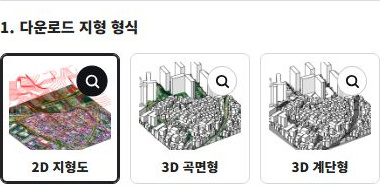
  1. Select 2D terrain.

    1. Select 2D terrain.

    Choose the terrain type for your project.

  2. Set the area you need.

    2. Set the area you need.

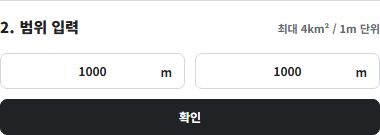
    Set each side from 100 to 2,000 m in 1 m increments (up to 4 km²). The example shows 1,000 × 1,000 m.

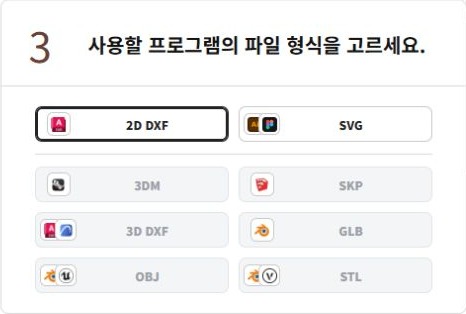
  3. Choose a file format.

    3. Choose a file format.

    Select 2D DXF for your software.

    Includes contours, building outlines, roads, addresses, and cadastral data in separate layers. Available source attributes and supported imagery are included.

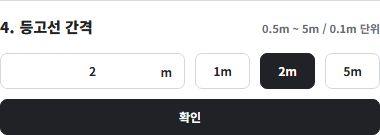
  4. Set the contour interval.

    4. Set the contour interval.

    Set the contour interval from 0.5 to 5 m in 0.1 m increments. The example shows 2 m.

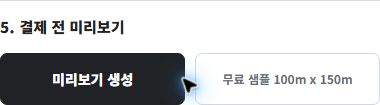
  5. Check the preview.

    5. Check the preview.

    Create a preview to check the selected area and data before downloading.

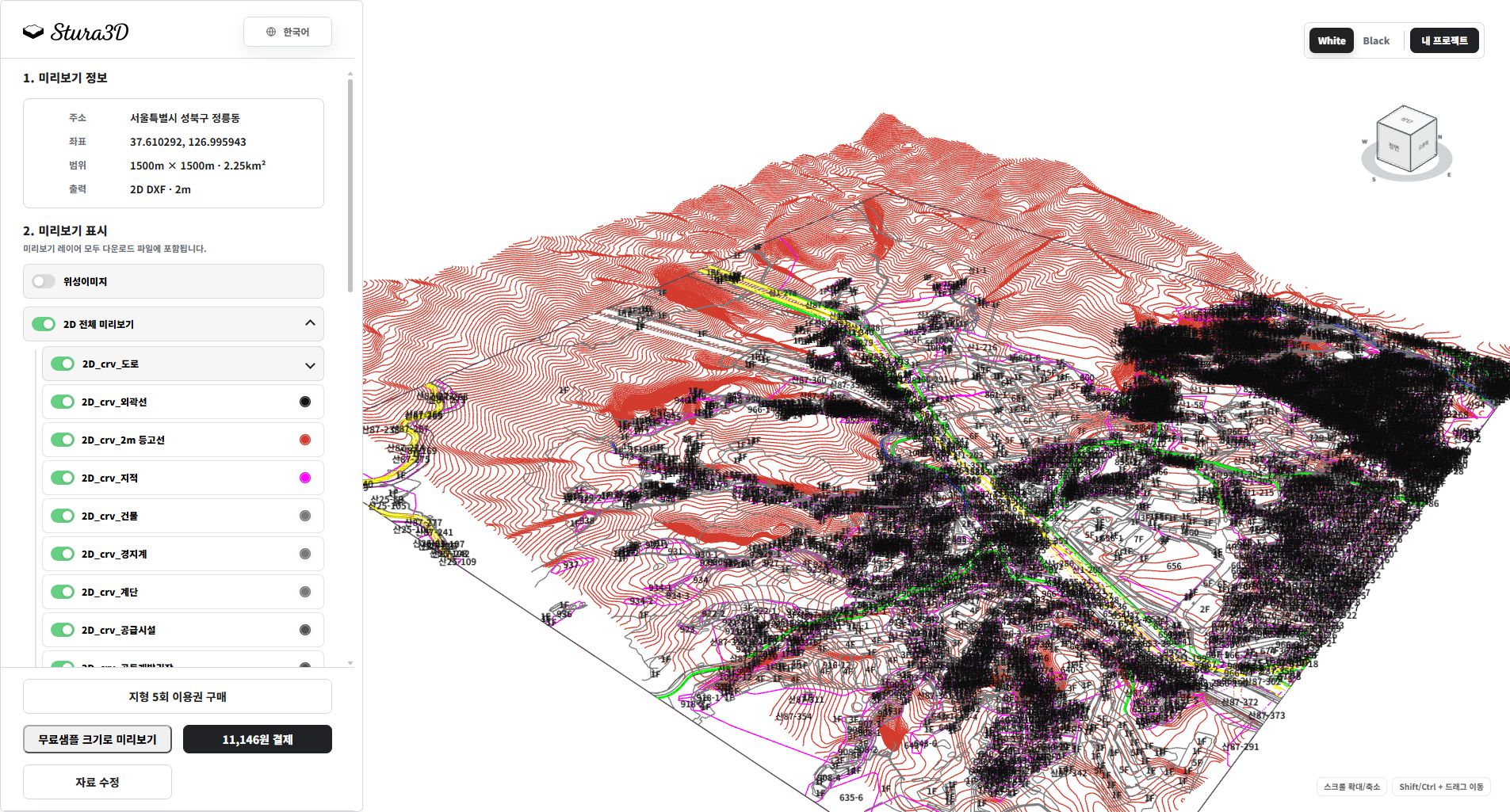
  1. Inspect the drawing and layers.

    6. Inspect the drawing and layers.

    Hide imagery to read contours, roads and building lines clearly. Toggle layers and zoom in to check boundaries. DXF and SVG differ in text and elevation data.

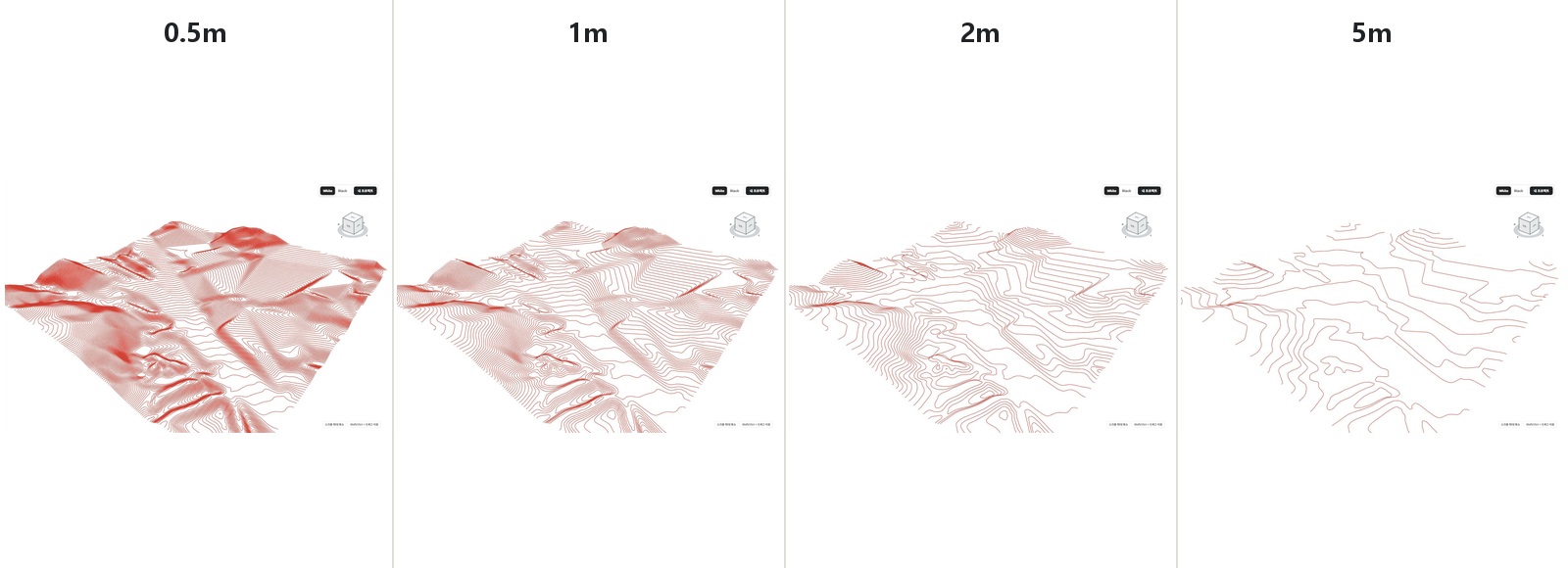
  2. Compare contour intervals.

    7. Compare contour intervals.

    Compare 0.5, 1, 2 and 5 m intervals. Smaller intervals produce denser lines; they do not increase the survey accuracy of the source data.

3D smooth terrain

Follow the steps from setup to reviewing the result.

  1. Select 3D smooth terrain.

    1. Select 3D smooth terrain.

    Choose the terrain type for your project.

  2. Set the area you need.

    2. Set the area you need.

    Set each side from 100 to 2,000 m in 1 m increments (up to 4 km²). The example shows 1,000 × 1,000 m.

  3. Choose a file format.

    3. Choose a file format.

    Select 3DM for your software.

    3DM includes complete terrain together with terrain layers by area, buildings, and available context objects; available layers depend on local source data.

  4. Set the contour interval.

    4. Set the contour interval.

    Set the contour interval from 0.5 to 5 m in 0.1 m increments. The example shows 2 m.

  5. Check the preview.

    5. Check the preview.

    Create a preview to check the selected area and data before downloading.

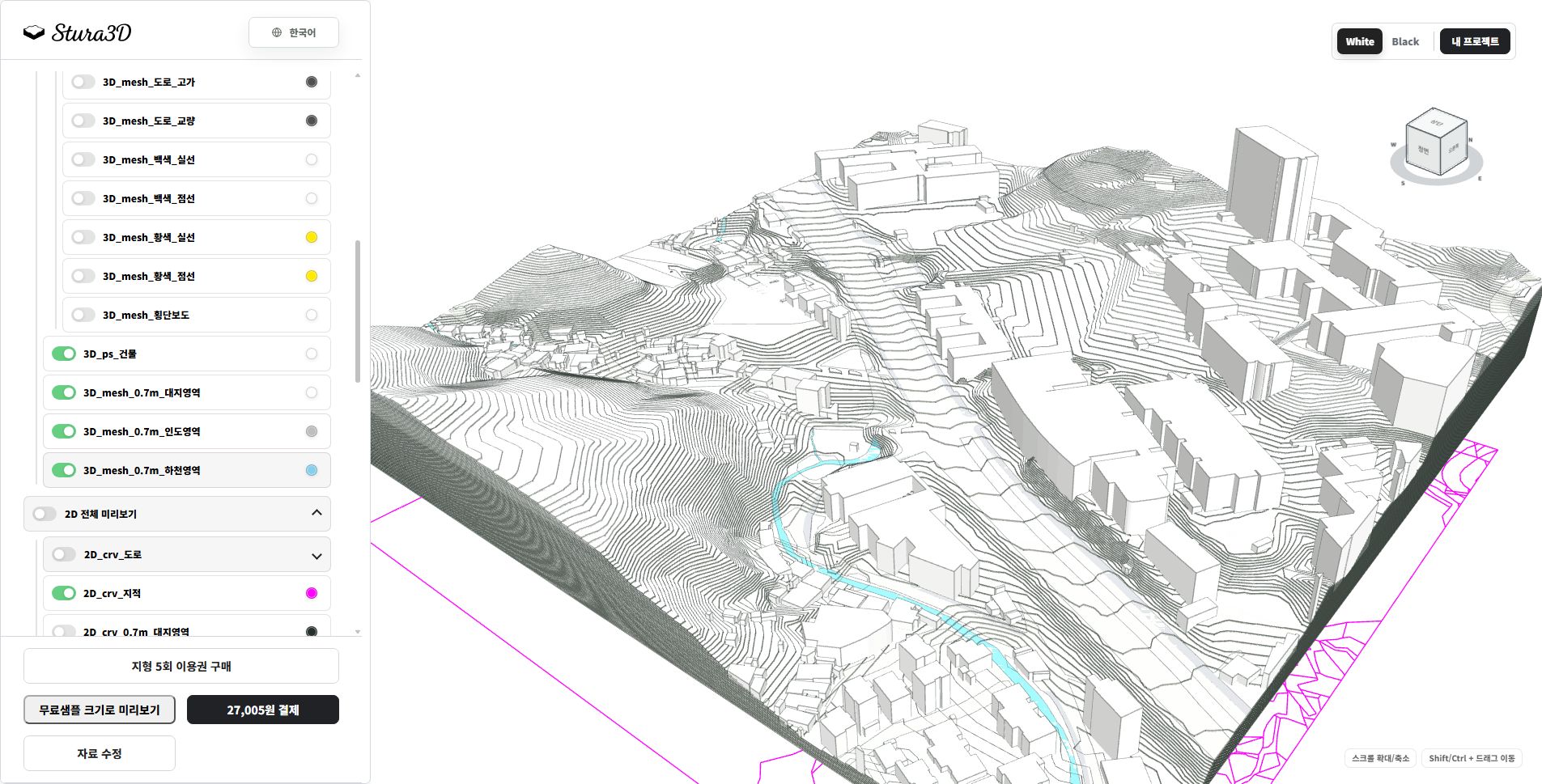
  1. Inspect the complete terrain model.

    6. Inspect the complete terrain model.

    Rotate and zoom to inspect terrain, buildings and roads. Hide shadows to read the surfaces. Available layers depend on the format and source region.

  2. Inspect terrain and context by layer.

    7. Inspect terrain and context by layer.

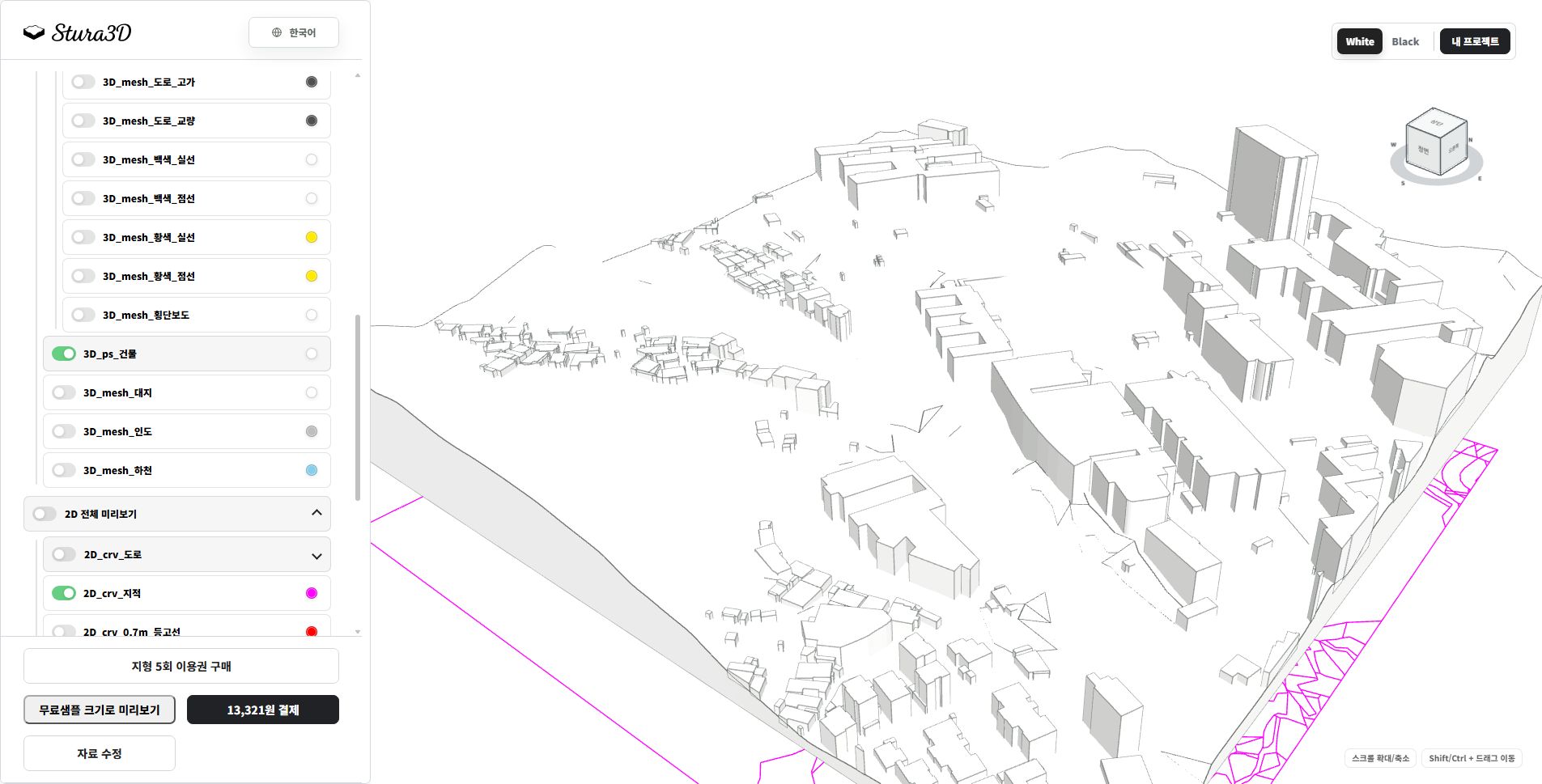
    Toggle buildings, site and road layers to inspect each element separately and distinguish terrain from its surroundings.

3D stepped terrain

Follow the steps from setup to reviewing the result.

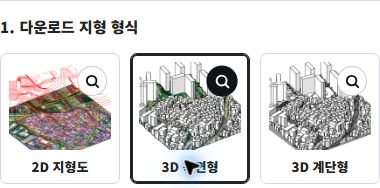
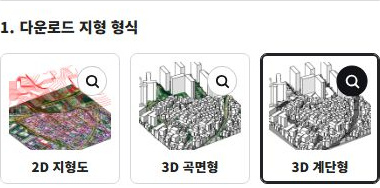
  1. Select 3D stepped terrain.

    1. Select 3D stepped terrain.

    Choose the terrain type for your project.

  2. Set the area you need.

    2. Set the area you need.

    Set each side from 100 to 2,000 m in 1 m increments (up to 4 km²). The example shows 1,000 × 1,000 m.

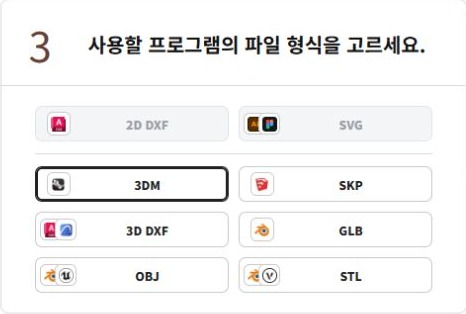
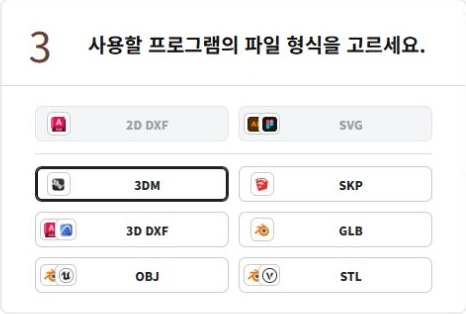
  3. Choose a file format.

    3. Choose a file format.

    Select 3DM for your software.

    3DM includes complete terrain together with terrain layers by area, buildings, and available context objects; available layers depend on local source data.

  4. Set the contour interval.

    4. Set the contour interval.

    Set the contour interval from 0.5 to 5 m in 0.1 m increments. The example shows 2 m.

  5. Check the preview.

    5. Check the preview.

    Create a preview to check the selected area and data before downloading.

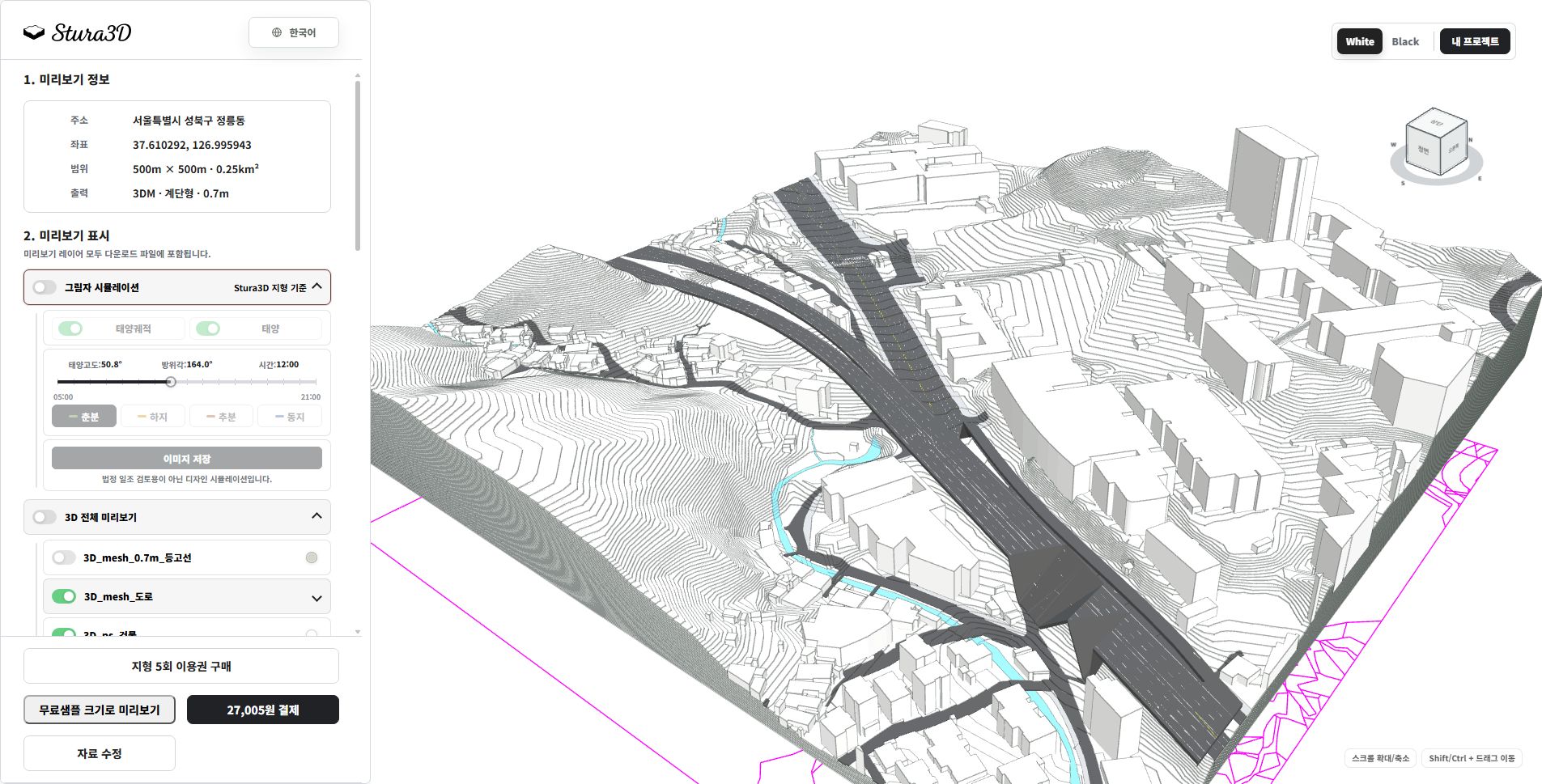
  1. Inspect the complete terrain model.

    6. Inspect the complete terrain model.

    Rotate and zoom to inspect terrain, buildings and roads. Hide shadows to read the surfaces. Available layers depend on the format and source region.

  2. Inspect terrain and context by layer.

    7. Inspect terrain and context by layer.

    Toggle buildings, site and road layers to inspect each element separately and distinguish terrain from its surroundings.

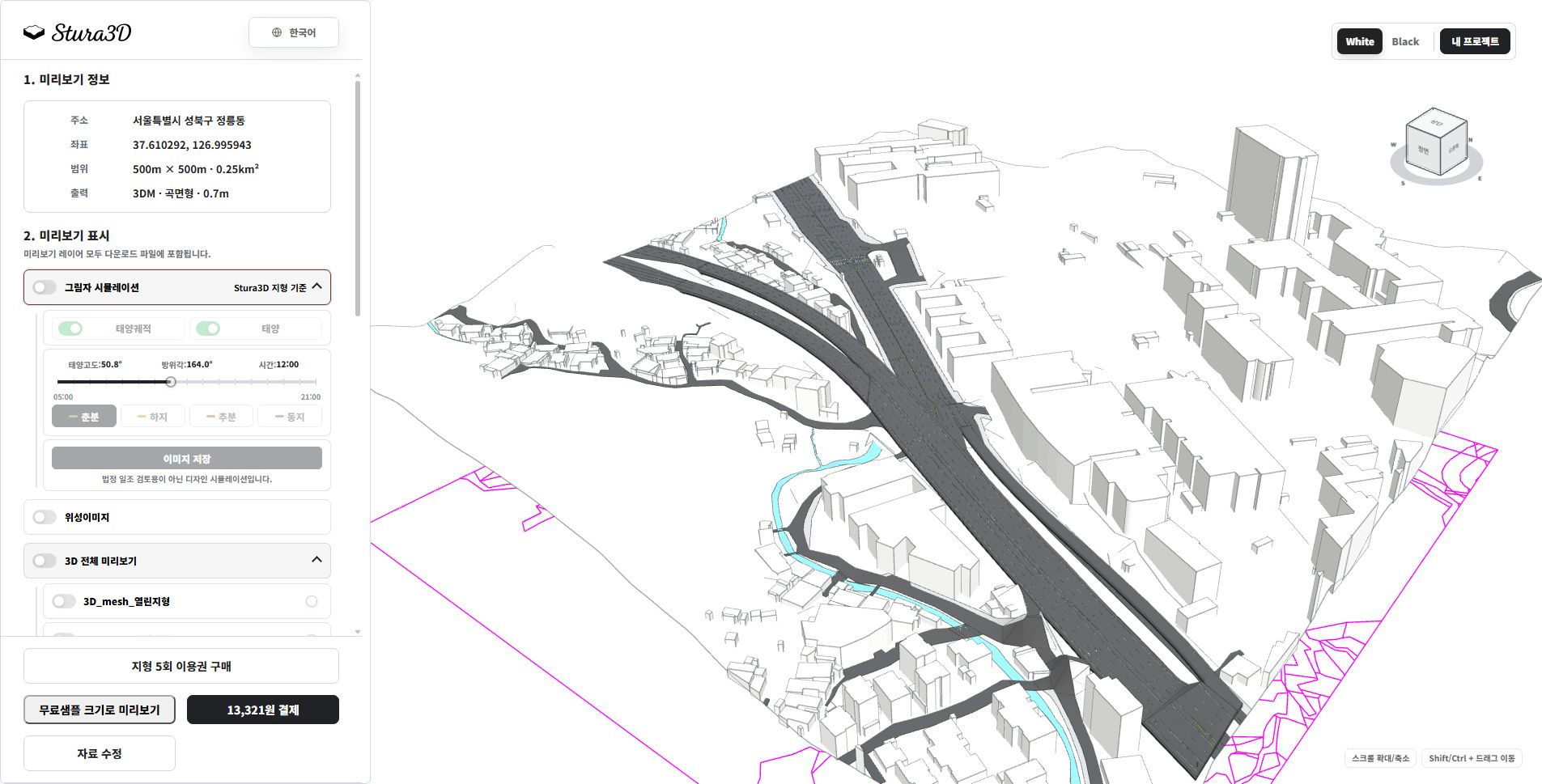
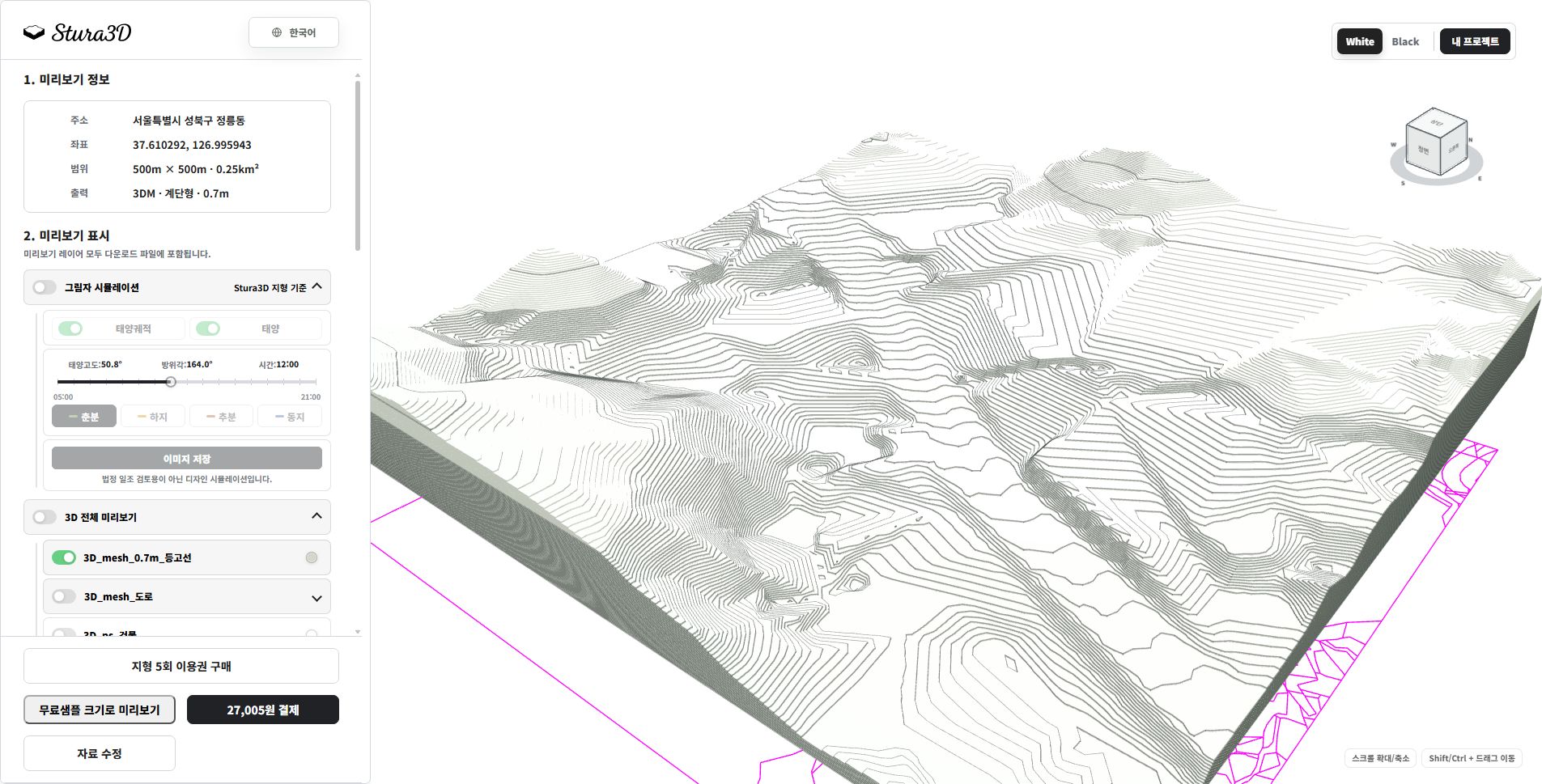
  3. Inspect the terrain steps.

    8. Inspect the terrain steps.

    This example shows 0.7 m terrain steps without buildings or context. Check the steps and slope; change the generation settings and create a new preview for another interval.

Site diagram

A top-view SVG diagram of the selected location and radius, with editable vector layers for buildings, terrain, roads, water, green areas, contours, and supported cadastral boundaries.

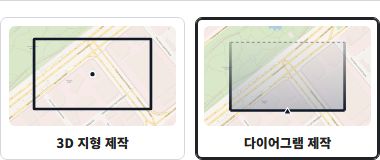
  1. Select diagram creation.

    1. Select diagram creation.

    Choose the diagram creation mode.

  2. Select Site diagram.

    2. Select Site diagram.

    Choose the diagram type you need.

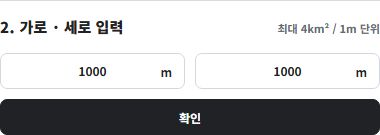
  3. Set the diagram area.

    3. Set the diagram area.

    Set each side from 100 to 2,000 m in 1 m increments (up to 4 km²). The example shows 1,000 × 1,000 m.

  4. Preview and download.

    4. Preview and download.

    Check the layers in the site preview, then download the SVG data.

  1. Review topics in the overview.

    5. Review topics in the overview.

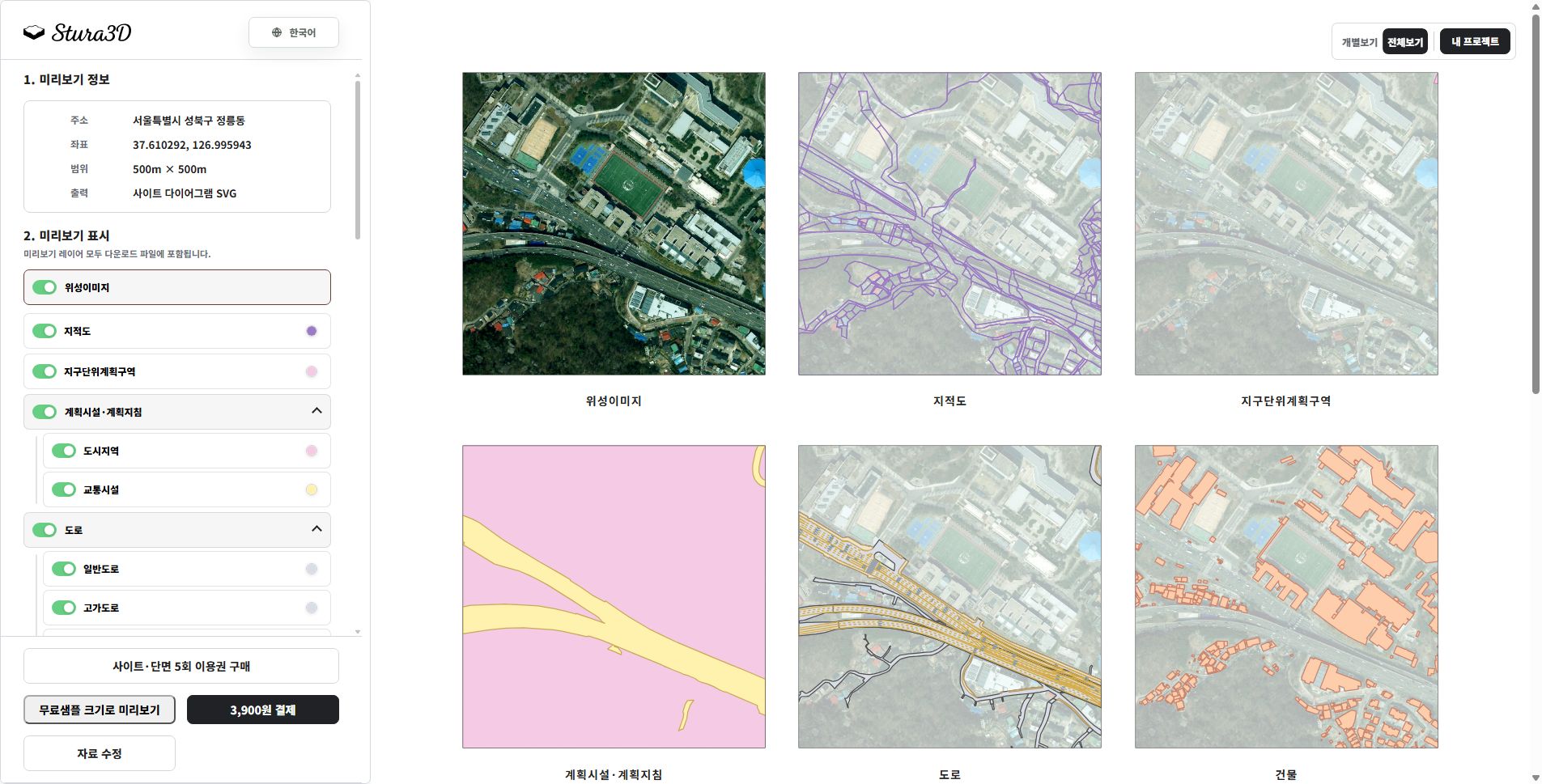
    The overview shows imagery, cadastral boundaries, roads and buildings side by side. Switch to an individual view to focus on one topic.

  2. Inspect the layers you need.

    6. Inspect the layers you need.

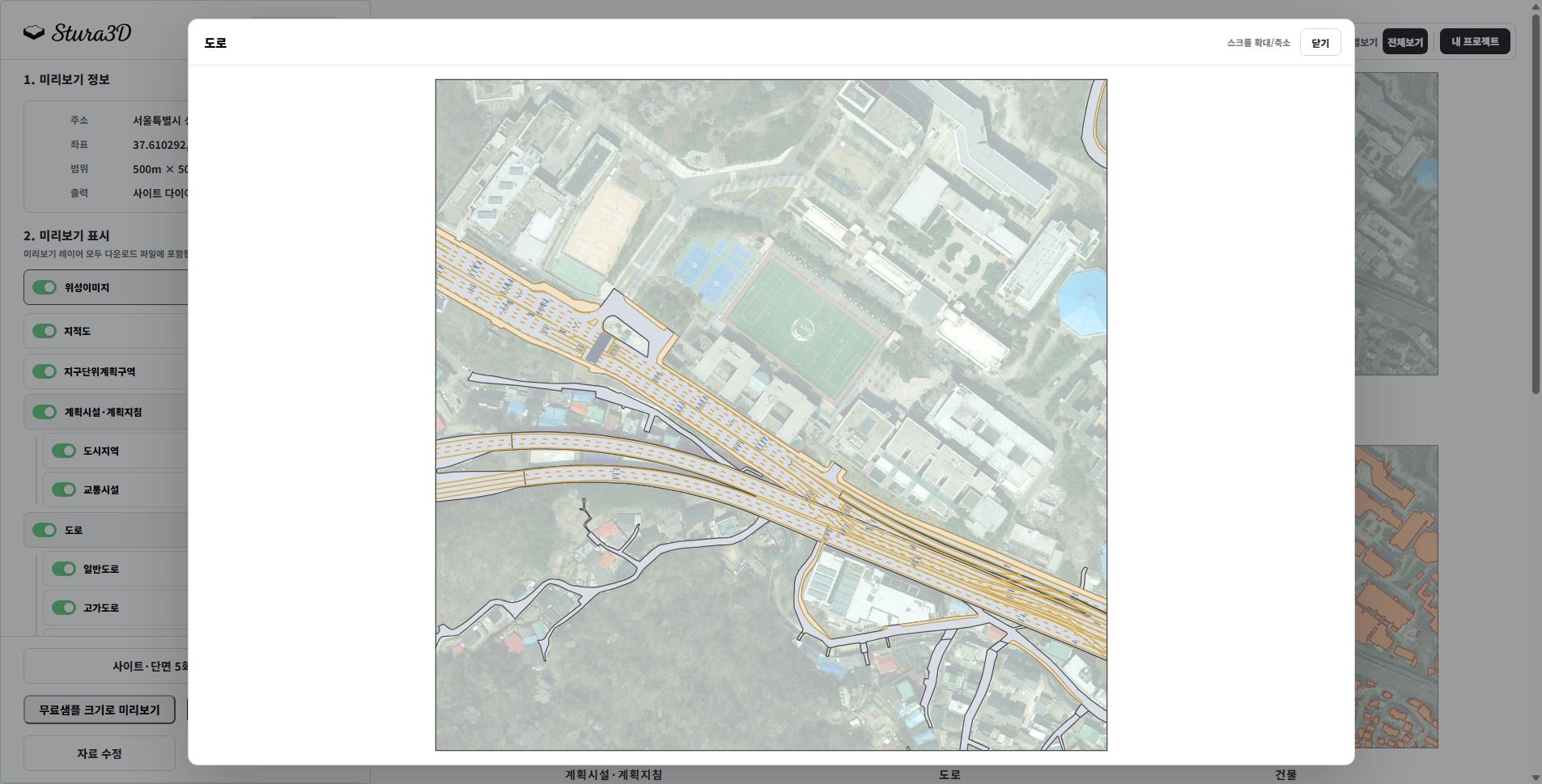
    Expand the road group to inspect ordinary and elevated roads. Adjust visibility and colors to understand connections across the site.

Section diagram

Follow the steps from setup to reviewing the result.

  1. Select diagram creation.

    1. Select diagram creation.

    Choose the diagram creation mode.

  2. Select Section diagram.

    2. Select Section diagram.

    Choose the diagram type you need.

  3. Set the diagram area.

    3. Set the diagram area.

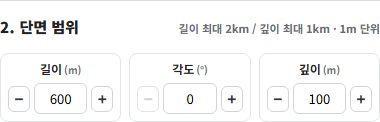
    Set length from 200 to 2,000 m and depth from 0 to 1,000 m in 1 m increments. Set the angle from 0 to 359° in 1° increments.

  4. Preview and download.

    4. Preview and download.

    Check the section preview, then download both SVG and DXF files.

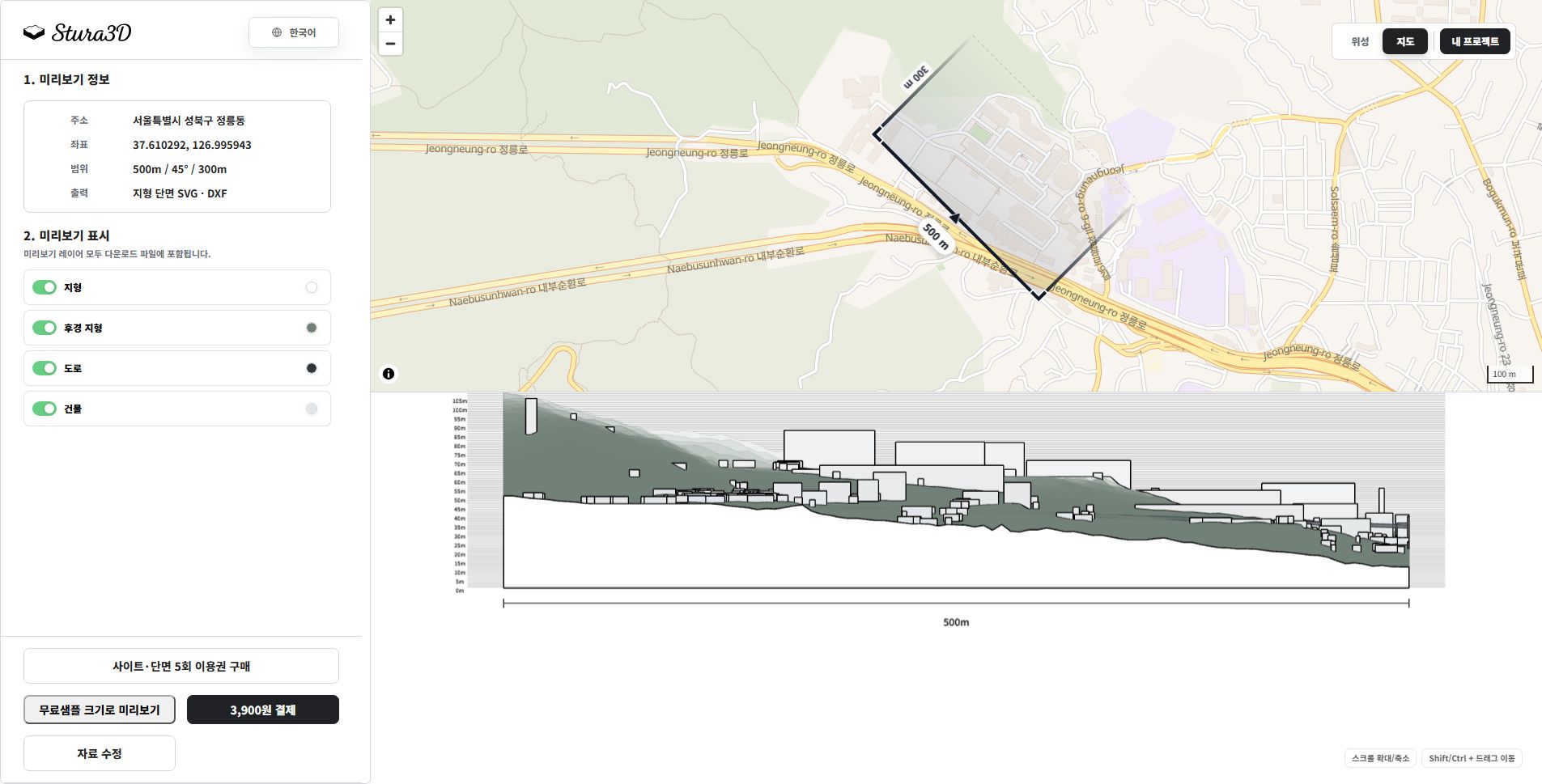
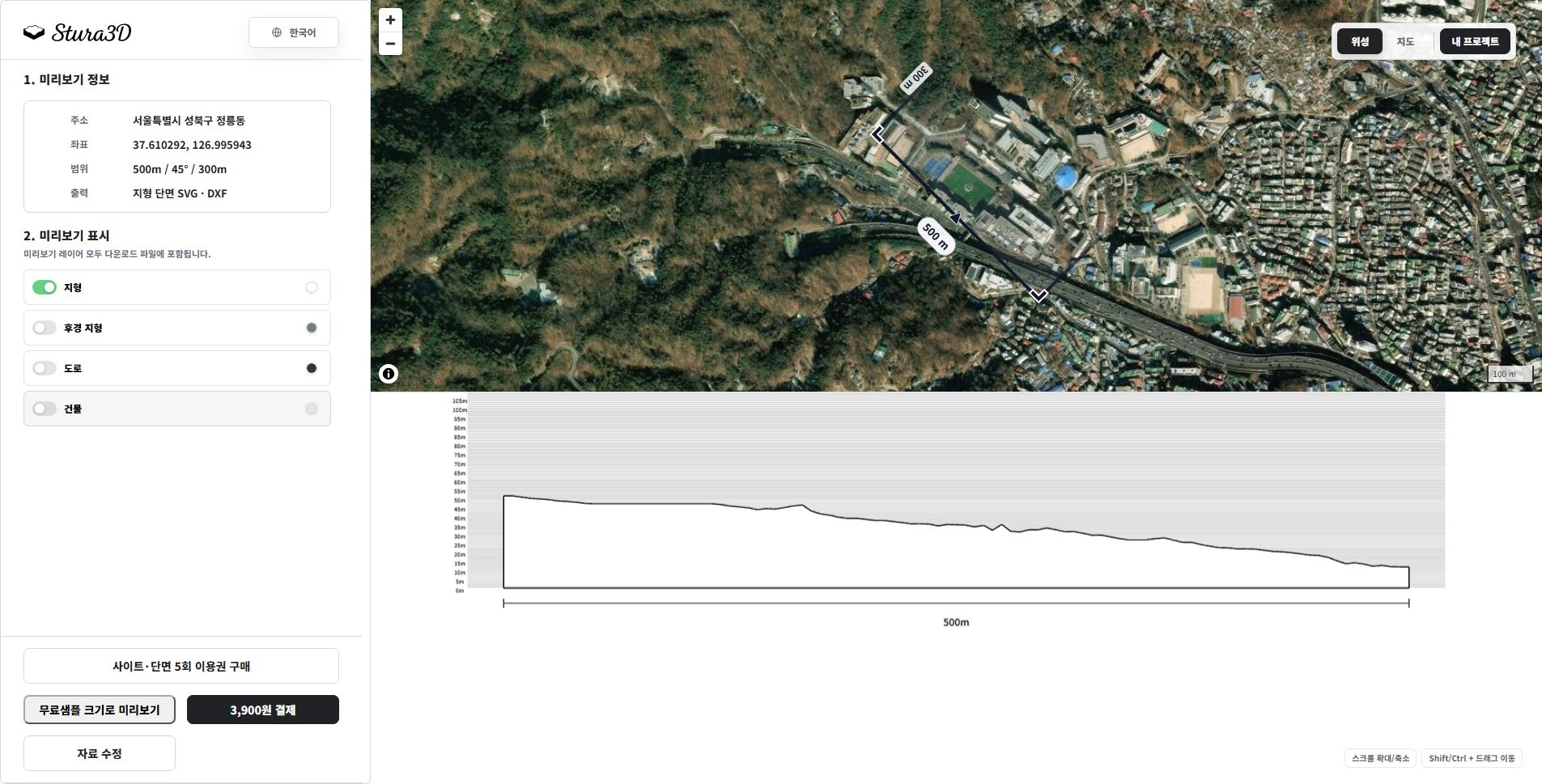
    A section SVG based on the selected length, angle, and depth, with editable layers for terrain, background terrain, buildings, water, bridges, elevated roads, and dimensions.

  1. Read the map and section together.

    5. Read the map and section together.

    Check the cut location and direction on the map, then read terrain and buildings below. This example uses a 500 m length, 45° angle and 300 m depth.

  2. Separate terrain and background.

    6. Separate terrain and background.

    Hide buildings and roads to focus on terrain. Toggle the background terrain and zoom or pan to inspect the section.

Shadow simulation

Explore seasonal and hourly shadows in the 3D terrain preview and save an image.

  1. Select 3D terrain.

    1. Select 3D terrain.

    Set the area and file format for smooth or stepped 3D terrain.

  2. Create a terrain preview.

    2. Create a terrain preview.

    Create a preview and open the completed 3D terrain.

  3. Explore and save the shadows.

    3. Explore and save the shadows.

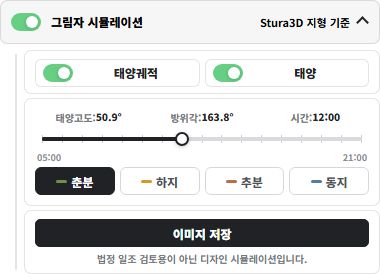
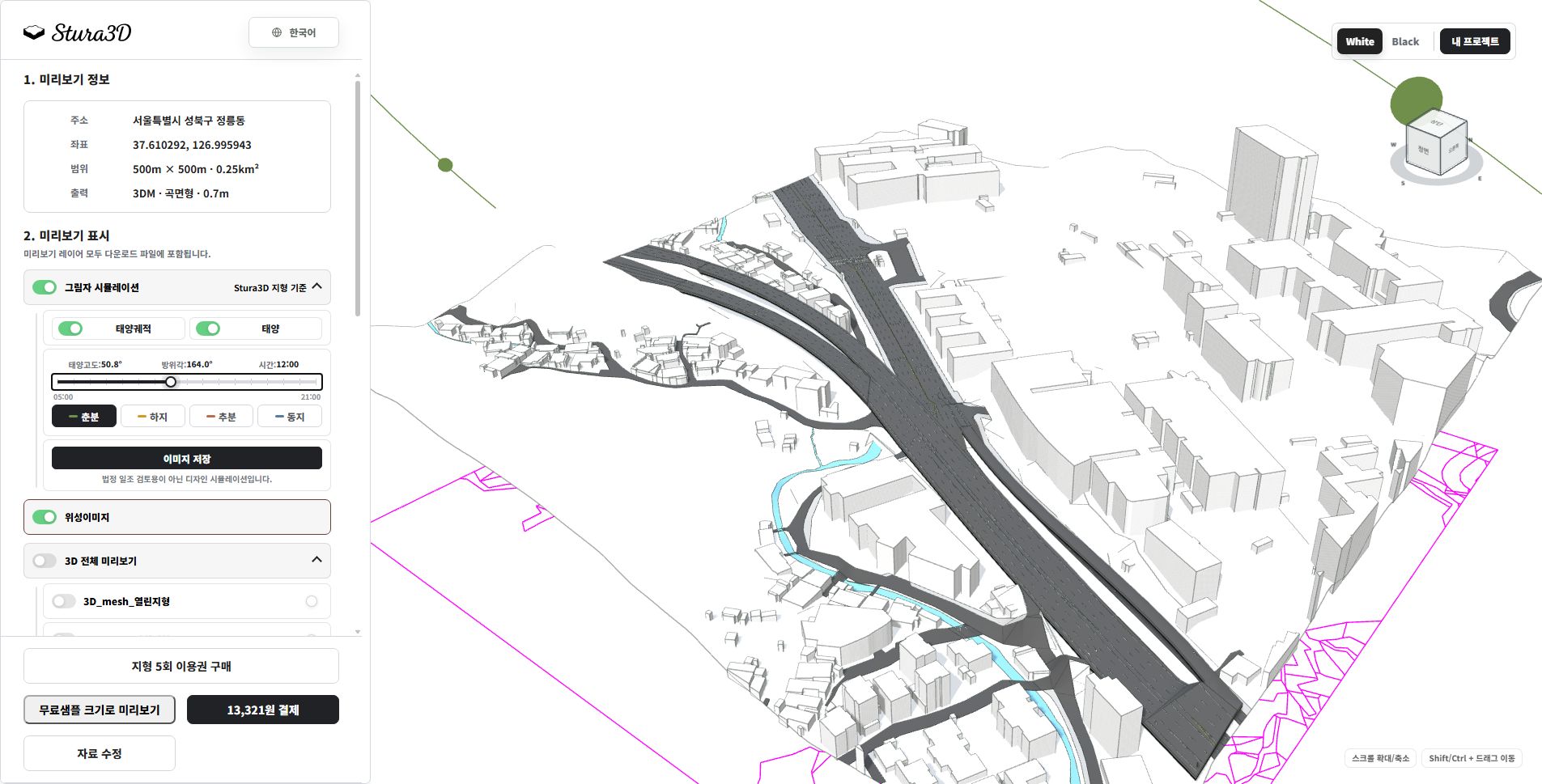
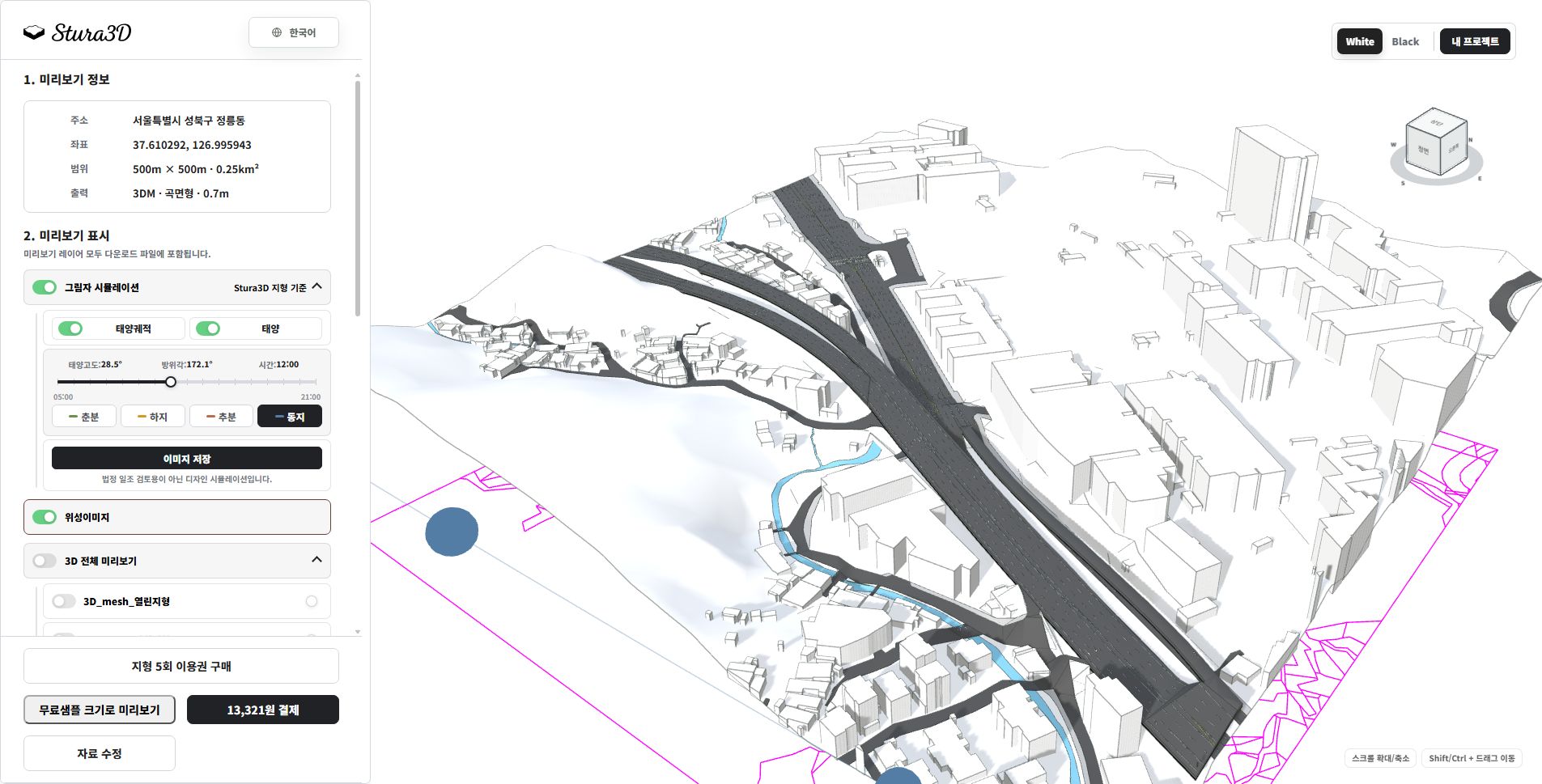
    Enable shadow simulation and choose a season and time. Toggle the sun path and sun, then save a PNG image. This is a design simulation, not a statutory sunlight assessment.

  1. Adjust season and time.

    4. Adjust season and time.

    Use the season buttons and time slider to change the sun position and shadows. Show the sun path and sun to understand their direction.

  2. Compare times within the same season.

    5. Compare times within the same season.

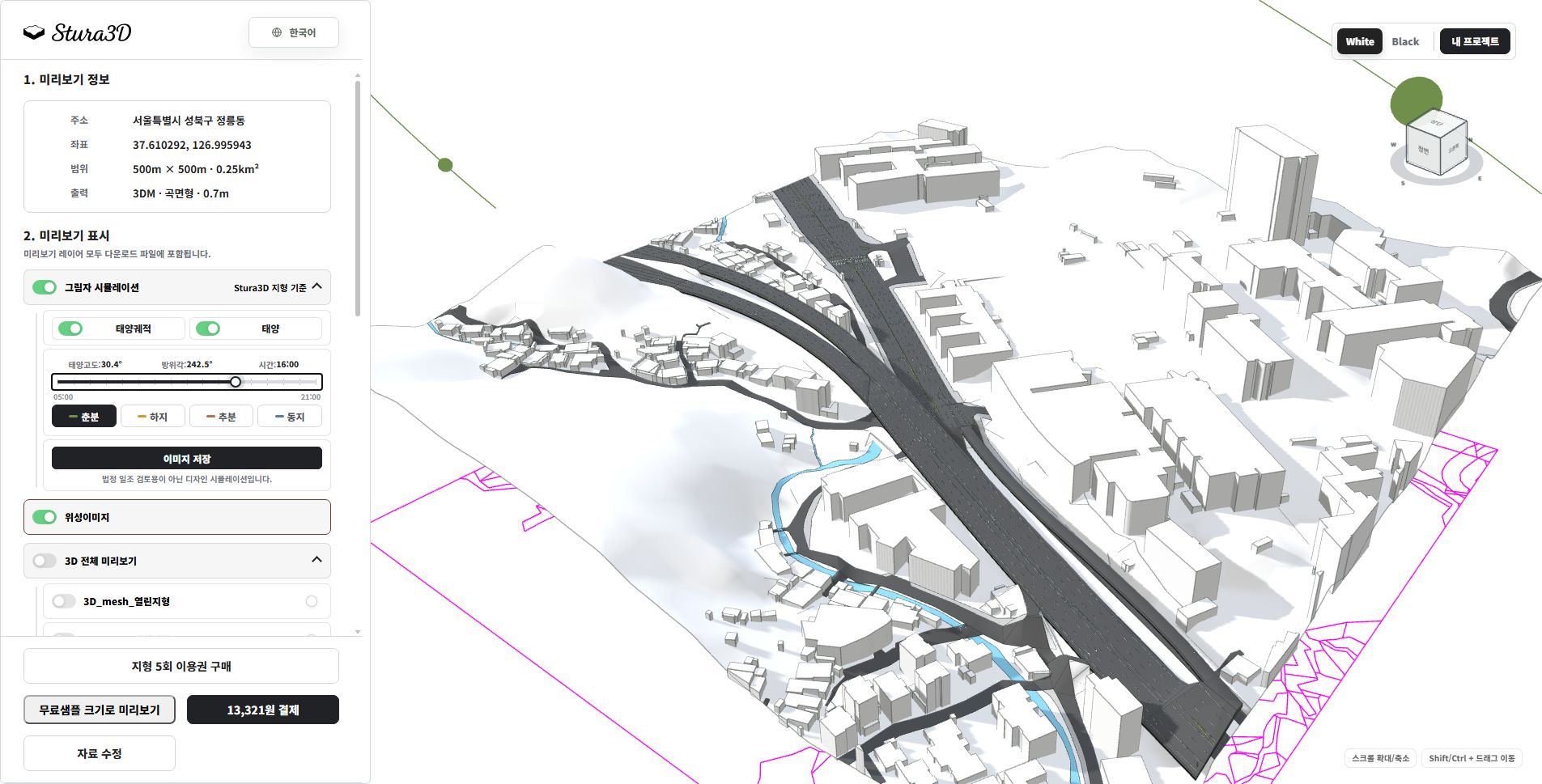
    Compare spring at noon above with 16:00 here to see changes in shadow direction and length. Choose a time and save a PNG.

  3. Compare seasons at the same time.

    6. Compare seasons at the same time.

    This is winter at noon. Compare it with spring at noon to inspect seasonal differences in shadow length and direction.

Fontes

Global comum

Fonte de dados

  • Mapzen/AWS Terrain Tiles
  • Satlas
  • Copernicus DEM
  • NASADEM
  • OpenStreetMap
  • Overture Maps

Licença

  • Aplicam-se os termos e licenças dos fornecedores originais

Fonte original

https://registry.opendata.aws/terrain-tiles/

https://satlas.allen.ai/

https://registry.opendata.aws/copernicus-dem/

https://lpdaac.usgs.gov/products/nasadem_hgtv001/

https://www.openstreetmap.org/copyright

https://overturemaps.org/download/

Coreia do Sul

Fonte de dados

  • 국토지리정보원
  • VWorld

Licença

  • Aplicam-se os termos e licenças dos fornecedores originais

Fonte original

https://www.ngii.go.kr/

https://www.vworld.kr/

Dados de fusos horários

Fonte de dados

  • timezone-boundary-builder / geo-tz
  • © OpenStreetMap contributors

Licença

  • Open Database License (ODbL) 1.0

Fonte original

https://github.com/evansiroky/timezone-boundary-builder

https://www.openstreetmap.org/copyright

https://opendatacommons.org/licenses/odbl/1-0/

https://www.stura3d.com/legal/shadow-third-party-notices.txt

Help Center | Stura3D